Showing posts with label .NET Framework. Show all posts

"Fixed" .NET Framework Updates Still Cause High CPU on AAD Connect Servers

Friday, July 20, 2018
AKA - "What's that burning smell?" or "Why does my server sound like a Boeing 747?"

Continuing my rant about buggy Windows Updates -- especially .NET Framework -- I've found that even the latest "fixed" .NET Framework updates still cause high CPU on AAD Connect servers.


On Windows Server 2012 R2 the offending update is 2018-07 Security and Quality Rollup for .NET Framework 3.5, 4.5.2, 4.6, 4.6.1, 4.6.2, 4.7, 4.7.1, 4.7.2 for Windows 8.1 and Server 2012 R2 for x64 (KB4340558). This "quality" rollup is actually a package that contains three different .NET Framework updates:
  • KB4338415 - Security and Quality Rollup updates for .NET Framework
  • KB4338419 - Security and Quality Rollup updates for .NET Framework
  • KB4338424 - A rollup update that is not available as a stand-alone package
It turns out that KB4338419 is the real offender that causes a race condition on the Microsoft.Identity.Health.AadSync.MonitoringAgent.Startup.exe process. If your AAD Connect server is experiencing high CPU for this process, uninstall KB4338419 or the entire KB4340558 package.

Be advised:
  • There are different KB packages for different OS's. Find the update that matches your OS in "installed updates"
  • Uninstalling these updates requires a restart (again)
  • .NET will recompile its assemblies when the computer restarts (again)
  • Windows Update will recommend installing these updates again. Do not install them. Better yet, hide them so Windows Update no longer offers them.

Read more ...

.WHY?

Tuesday, July 17, 2018
I'm growing increasingly frustrated with .NET Framework updates. Microsoft released .NET Framework 4.7.2 as an "important" update on July 10, 2018 and problem reports immediately started pouring in.

I reported earlier that .NET Framework 4.7.2 is not supported on any Exchange Servers and many users, including myself, were seeing high CPU usage on AAD Connect servers.


Doesn't anyone test this stuff, or is that our job as customers? What's the point of pushing out an update as "important" that core functionality doesn't support and actually harms the infrastructure that enterprises rely on? It takes a server restart to install this update and another one to remove it. And every time we get a .NET Framework update and reboot, server performance is affected while all the .NET Framework assemblies are recompiled. NO MORE.

From now on, I don't plan to install any .NET Framework updates unless,
  1. It's required for server functionality.
  2. It fixes a security vulnerability that actually affects me.
  3. It's been deployed worldwide for at least two weeks.
Not everyone is a developer who has to have the latest API updates. 

Microsoft, stop pushing buggy updates as "important". It's embarrassing. Get your quality issues sorted out, test, and coordinate with other product teams.

Read more ...

Do Not Install .NET Framework 4.7.2 on Exchange Servers

Tuesday, July 10, 2018

You may notice that Windows Update is offering Microsoft .NET Framework 4.7.2 (KB4054566) listed as an optional important update to Windows Server 2012 and Windows Server 2016 servers. This version of .NET Framework is not supported for any version of Exchange Server, so it should not be installed on those servers.

You can run the following command from an elevated CMD prompt to block installation of .NET Framework 4.7.2 from Windows Update:
reg add "HKLM\SOFTWARE\Microsoft\NET Framework Setup\NDP\WU" /v BlockNetFramework472 /t REG_DWORD /d 1 /f
To unblock the installation of .NET Framework 4.7.2 from Windows Update run the following from an elevated CMD prompt:
reg delete "HKLM\SOFTWARE\Microsoft\NET Framework Setup\NDP\WU" /v BlockNetFramework472 /f
Always refer to the Exchange Server Supportability Matrix for the latest information about the level of support available for any configuration or required component for supported versions of Microsoft Exchange.
Read more ...

DO NOT Install .NET Framework 4.7 on Exchange Servers

Thursday, May 18, 2017
Update 06/15/2017 - The Exchange Team updated their article to say that they are in the process of validating Exchange Server on the .NET Framework 4.7, but the work is not yet complete. They will update the Exchange supportability matrix when .NET Framework 4.7 is supported with certain versions of Exchange Server.
Update 06/13/2017 - The .NET Team published the article, How to temporarily block installation of the .NET Framework 4.7 using a registry key, similar to the one used to block previous versions of .NET. Exchange admins should implement this ASAP.

The Exchange Team also released the article, .NET Framework 4.7 and Exchange Server. It explains that .NET Framework 4.7 is not supported by any version of Exchange Server at this time, and how to remove it if you've already installed it.

Earlier this month the .NET Blog announced that the .NET Framework 4.7 has reached general availability. Do not install this update on your Exchange servers.

Refer to the Exchange Server Supportability Matrix which provides a central source for Microsoft Exchange administrators to easily locate information about the level of support available for any configuration or required component for supported versions of Microsoft Exchange. At this time no versions of Exchange Server support .NET 4.7, although this is subject to change with future cumulative updates. Exchange Server runs on .NET assemblies and changing to an unsupported version may have dire consequences.


According to the Q&A on the blog, .NET 4.7 is expected to be published to Windows Update in less than 3 months. That means without manual intervention you may wake up to find that Exchange is broken. When I asked, the .NET team said that they will provide a way to block .NET 4.7 installation via Windows Update using a registry key.


At this time, the registry key has not been made available. Check back on this blog post for any updates.

If you manually installed .NET 4.7, please refer to my earlier article, "How to Uninstall .NET Framework 4.6.1" for removal instructions. Those same instructions should work.

Read more ...

Fix for Performance Counter Updating Error (Event 106) on Exchange Servers

Tuesday, November 29, 2016
You may see multiple warnings or errors in the Application event log on Exchange servers for event 106, indicating that performance counters could not be updated.

Multiple Event ID 106 - Perf Counter Events
An example event 106 reads,
Log Name:      Application
Source:        MSExchange Common
Date:          11/29/2016 12:24:28 PM
Event ID:      106
Task Category: General
Level:         Warning
Keywords:      Classic
User:          N/A
Computer:      EX16B.contoso.com
Description:
Performance counter updating error. Counter name is Percentage of Failed Offline GLS Requests in Last Minute, category name is MSExchange Global Locator OfflineGLS Processes. Optional code: 3. Exception: System.InvalidOperationException: The requested Performance Counter is not a custom counter, it has to be initialized as ReadOnly.
   at System.Diagnostics.PerformanceCounter.InitializeImpl()
   at System.Diagnostics.PerformanceCounter.get_RawValue()
   at Microsoft.Exchange.Diagnostics.ExPerformanceCounter.set_RawValue(Int64 value)
The TechNet article, "'Performance counter updating error' after you install an Exchange Server 2013 cumulative update", indicates this is a problem on Exchange 2013 after applying a CU, but I've seen this happen after applying an update rollup, cumulative update, or .NET Framework update on Exchange 2010, Exchange 2013, or Exchange 2016 servers.

I wrote the following PowerShell script to reload the Exchange performance counters. You run it directly on the affected Exchange server from an elevated PowerShell or EMS prompt. The script will reload all the performance counters in the %ExchangeInstallPath%\setup\perf directory.
Add-PSSnapin Microsoft.Exchange.Management.PowerShell.Setup
$perfcounters = Get-ChildItem "$env:ExchangeInstallPath\Setup\Perf\" *.xml | Where-Object {!($_.psiscontainer)}
$perfcount = $perfcounters.Count

foreach ($perfcounter in $perfcounters) {
New-PerfCounters -DefinitionFileName $perfcounter.FullName -ErrorAction SilentlyContinue
Write-Progress -Activity "Reloading $perfcount Exchange Performance Counters" -PercentComplete (($i++ / $perfcount) * 100)}
The script may take a few minutes to run and will reload all the Exchange performance counters. Once complete, the event 106 warnings or errors should stop.


Read more ...

Exchange 2016 CU2 and Exchange 2013 CU13 now supports .NET Framework 4.6.1

Tuesday, June 21, 2016
Prior to Exchange 2016 CU2 and Exchange 2013 CU13, .NET Framework 4.6.1 was not supported with Exchange server. It still isn't supported for Exchange 2010 and most likely will never be, so you'll still need to block it as per the steps in my previous article.

The EHLO Blog post explaining support for .NET Framework 4.6.1 and all the other new Cumulative Update goodness can be read in the article, Released: June 2016 Quarterly Exchange Updates.

If you previously blocked .NET Framework 4.6.1 installation via the registry you'll need to remove that block by removing the "BlockNetFramework461" DWORD value from the registry in HKEY_LOCAL_MACHINE\SOFTWARE\Microsoft\NET Framework Setup\NDP\WU.

The recommended order of operations for installation is:

  • Install Exchange Server 2016 CU2 or Exchange Server 2013 CU13 on your Exchange server. Restart.
  • Remove the block for .NET Framework 4.6.1 from Windows Update (see key above).
  • Download and install .NET Framework 4.6.1 from Windows Update. Restart.
    • Note: The Exchange assemblies will recompile when the server starts back up. This will take several minutes and Exchange performance will suck during this time. I recommend downloading and running the NET Framework optimization speed up script from the .NET Blog. to make this process run faster.
  • Download and install the appropriate post-release fixes for the .NET Framework:
  • Restart and run the NET Framework optimization speed up script again. 
  • Personally, I would restart again just to make sure everything starts up correctly.
Read more ...

How to Uninstall .NET Framework 4.6.1

Thursday, February 11, 2016

UPDATE: Exchange Server 2013 CU13 and Exchange Server 2016 CU2 now support .NET Framework 4.6.1. Exchange 2007 and 2010 still do not. Please see my article, Exchange 2016 CU2 and Exchange 2013 CU13 now supports .NET Framework 4.6.1, for the steps required to install and support this.

You've probably heard by now NOT to install the Microsoft .NET Framework 4.6.1 on any of your Exchange servers because it's not supported. Later, the Skype for Business Team followed suit in their own article. The Exchange team even posted a handy article about it with a link to a TechNet page that explains how to temporarily block .NET Framework 4.6.1 from installing via Windows Update. That article was posted February 10, 2016 - the day after Microsoft pushed .NET Framework 4.6.1 as an important update to all computers.


My lab computers are all configured to install updates automatically, so two of my four Exchange servers had already installed the update before I realized what was happening. Good times.

So now I was faced with uninstalling the NET Framework 4.6.1 which, as it turns out, is not exactly a trivial thing. I'm documenting the process here for others who find themselves in the same predicament.

Begin by following the article, How to temporarily block the installation of the .NET Framework 4.6.1. Or if you've got several computers that you need to uninstall it from, use the REG file I created that does it for you. Simply download the BlockNetFramework461.reg file on the computer you need to fix and double-click it to configure the Registry. This will prevent the .NET Framework 4.6.1 from reinstalling once we have it removed.

Before we uninstall .NET 4.6.1, download the .NET Framework Setup Verification Utility from Microsoft employee Aaron Stebner's WebLog. We'll use this tool to confirm that .NET 4.6.1 is installed and again to confirm it's removed when we're done. Run the tool and use the drop down box to confirm that .NET Framework 4.6.1 is listed. The tool shows all the versions of .NET that are installed. Close the verification utility.


Now a word of warning: When you uninstall .NET Framework (which also removes .NET Framework 4.6, by the way), Exchange will need to recompile all of its .NET assemblies. This can take a LONG time and overload your computer's CPU. To overcome this, download the .NET Framework optimization speed up script from the .NET Blog. This script improves the performance of the mscorswv.exe process by allowing it to use multiple threads and up to 6 cores. Save the 7318.DrainNGenQueue.wsf script to the computer's desktop. We'll run it after .NET 4.6.1 is uninstalled.

Finally, you can uninstall .NET Framework 4.6.1 by going to Control Panel > Programs > Programs and Features > View Installed Updates. Search for or scroll down the list of Microsoft Windows updates to find Update for Microsoft Windows (KB3102467) and click Uninstall.


Click Yes to uninstall .NET Framework 4.6.1. After a minute or so you will be prompted to restart the computer. Click Restart Now.


Once you can log back into the computer (it will take longer than normal to get to the login screen), run the 7318.DrainNGenQueue.wsf script you saved to the desktop. The output isn't very pretty, but who cares? It will probably save you about 20 minutes while the .NET assemblies recompile.


Once the script finishes, run the .NET Framework Setup Verification Utility again to confirm that .NET Framework 4.6.1 has been removed successfully. The drop down list should now only show versions up to .NET Framework 4.5.2. This is the latest version supported by Exchange Server 2013 and 2016.


Click Verify Now to confirm that .NET Framework 4.5.2 is still configured correctly.


Congratulations! You've finally uninstalled the .NET Framework 4.6.1. You may want restart the computer again after you've uninstalled it to ensure that all services start correctly.


UPDATE #1:

A question was raised whether uninstalling .NET Framework 4.6.1 is supported by Microsoft.

Well, we know that it's not supported to install .NET Framework 4.6.1 on an Exchange or Skype for Business server, and it definitely breaks stuff. We know that uninstalling it returns it to its previous "supported" unbroken state and I don't have any errors.

Is this supported? I doubt it, but heck of a lot easier than rebuilding. Remember that "supported" = "tested" in the Microsoft world.

If you need to ensure that your Exchange and Skype for Business servers are in a "supported" state, you will have to rebuild them. Chalk it up to a lesson in never trusting automation.


UPDATE #2:

I spoke with the Exchange product team today and they recommend reinstalling the .NET Framework 4.5.2 again (run Repair) after uninstalling .NET 4.6.1 and restarting the computer.


This may cause Exchange to recompile the .NET assemblies again. Remember to run the 7318.DrainNGenQueue.wsf script to reduce the time it takes to recompile. If the script shows that everything is up-to-date, then you're done.


If Exchange does need to recompile you should reboot again after the script completes.

Read more ...

Be Careful Installing .NET Updates on Exchange Servers

Monday, January 19, 2015
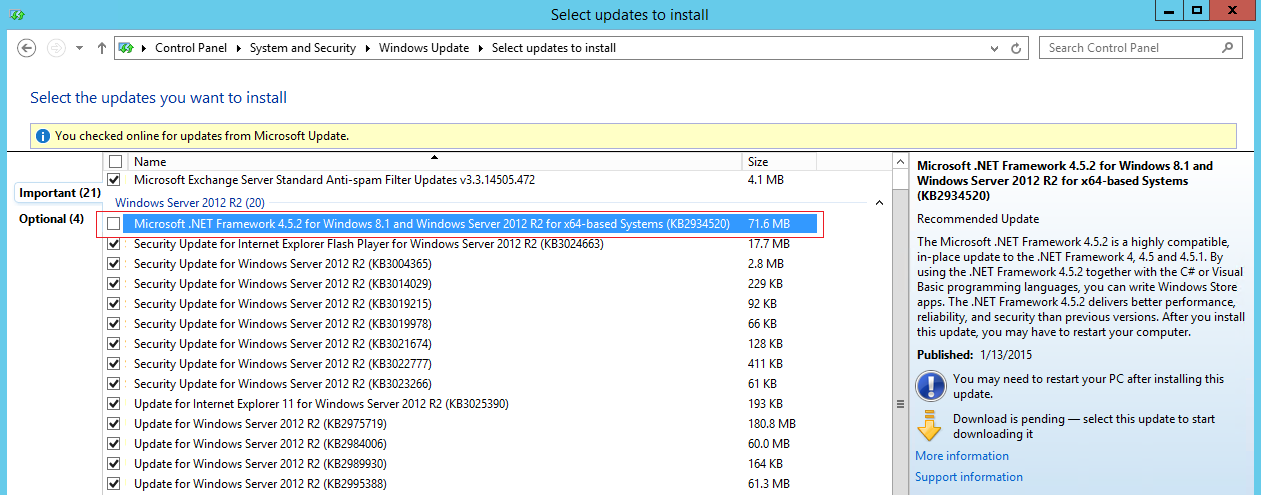
Windows Update is now offering the the .NET Framework 4.5.2 update as an "Important" update to Windows computers.
  • Microsoft .NET Framework 4.5.2 for Windows 8.1 and Windows Server 2012 R2 for x64-based Systems (KB2934520)
  • Microsoft .NET Framework 4.5.2 for Windows Server 2008 R2 for x64-based Systems (KB2901983)
Both of these updates require a restart. Note that .NET Framework 4.5.2 is only supported and recommended for Exchange 2013 CU7+, but it is being offered as an Important update to all Windows servers. If your servers or patching processes use Windows Update you will still see these updates are being pushed to them. Personally, I have not experienced any issues with .NET Framework 4.5.2 installed on pre-CU7 Exchange servers.

Windows Update on Windows Server 2012 R2
Windows Update on Windows Server 2008 R2

When the .NET Framework update is installed on your Windows servers it will re-optimize all .NET assemblies on the server when it restarts. Perfmon shows ~99% of CPU resources are in use for about 15-20 minutes while this occurs.

98% CPU Utilization After Restart

.NET Runtime Optimization Service Racing
To be fair, this behavior happens with any .NET Framework update, not just this version. It also usually happens with Exchange CUs and security updates.

The main culprits are the mscorsvw.exe process (The .NET Runtime Optimization Service), TiWorker.exe process (Windows Modules Installer Worker), and Ngen.exe (Microsoft Common Language Runtime native compiler), as shown above. Exchange uses .NET assemblies extensively in its own code, so this optimization will affect the server's ability to function properly until this process completes. It will take significantly longer for the server to restart and system performance will be very very poor.

Once the the re-optimization process completes the Exchange server performance will eventually return to normal. This may take some time because other processes such as the IIS Worker processes and Exchange services were starved for resources and need to "warm up". In some cases I have seen Exchange services, such as the Microsoft Exchange Transport service, fail to start. Make sure all your services are running and performance returns to normal before moving on to patch the next server. I even suggest restarting the patched server one more time just to make sure it restarts normally and all services start properly first.

You should also be aware that if the Exchange server is load balanced using "least connections" the load balancer will probably drive all future connections to the server that is recompiling and those users will have a less than stellar experience. I recommend putting servers into maintenance mode on the load balancer prior to updating them and re-enabling them once optimization completes.

Tip: If you need to update .NET Framework on several servers it can take quite a bit of time for all this optimization. The mscorswv.exe process only uses one process thread by default. You can use the DrainNGenQueue.wsf script from the Microsoft .NET Framework Team to improve the performance of this process by allowing it to use multiple threads and up to 6 cores. For more information, see Wondering why mscorsvw.exe has high CPU usage? You can speed it up.


Read more ...