Exchange 2010 archive support in Outlook 2007

Tuesday, December 21, 2010
It's about time...

The Office 2007 Cumulative Update for December 2010 finally includes Exchange 2010 archive support, as well as a bunch of bug fixes.  Strangely, the website for the update doesn't list anything about this support.

Take a look at the article, "Yes Virginia, there is Exchange 2010 archive support in Outlook 2007" on the Exchange Team's blog for details about Exchange 2010 archive support.  The site also explains what Exchange archiving is and how it works with Outlook 2007.

With the release of this update, organizations with Office 2007/Outlook 2007 deployed can benefit from Exchange 2010's archiving and retention features.
Read more ...

Testing Speech Grammars

Sunday, December 19, 2010
In an earlier post I wrote about speech grammars in Lync Server and Exchange Unified Messaging.

Here's a simple VBScript that uses the same speech method to hear how speech-enabled programs pronounce words.  This is useful to determine how these programs will pronounce proper names.
sText = InputBox("Enter the text you want the computer to say.", "Text to Speech")
sText = Trim(sText)

If sText <> "" Then
     set sapi = CreateObject("sapi.spvoice")
     sapi.Speak sText
End If
To accomplish the same thing in PowerShell, use the following:
$Voice = New-Object -com SAPI.SpVoice
$Voice.Speak( "Keith Johnson" )
For example, if you enter my name as it's spelled (Jeff Guillet) you will hear how speech enabled applications mispronounce my name.  In the case of Exchange UM directory lookups, this is also how Exchange expects callers to pronounce my name to find a match.  If you enter the phonetic spelling of my name (Jeff GheeA) you will hear it pronounced correctly. 

By testing different phonetic spellings using these scripts, you can determine what to use for the msDS-PhoneticDisplayName attribute in Active Directory.
Read more ...

Changing Name Pronunciation in Lync Server 2010

Saturday, December 18, 2010
Lync Server 2010 uses speech grammars to make meeting entry and exit announcements.  For example, "Jeff Guillet is now joining" is played to all meeting participants when I join a Lync meeting if the meeting is configured to play announcements.

Lync mispronounces my last name as "Ghill-ett" instead of "Ghee-AY", so I have a vested interest in finding out how to correct this.  :)

Unfortunately, it's not doable in Lync 2010 RTM since Lync reads the user's displayName attribute in Active Directory for announcements.  If I change the displayName attribute to a phonetic spelling of my name, "Jeff GheeA", it affects how my name is displayed to other users in Exchange 2010 and the Global Address List (GAL).  Bummer.  :(

Exchange 2010 Unified Messaging has a more mature way of handling speech grammars.  It uses the msDS-PhoneticDisplayName attribute, if it is set, to pronounce a name.  If msDS-PhoneticDisplayName is not set (it's not by default), Exchange uses the displayName attribute.  You can use ADSIEdit to set the msDS-PhoneticDisplayName value.

This not only affects how Exchange UM pronounces a name, it also affects voice-enabled directory lookups.  For example, if someone using a Outlook Voice Access auto attendant tries to look up my name using the correct pronunciation, "Ghee-ay", Exchange will find a match.  Without setting the msDS-PhoneticDisplayName attribute, users may need to mispronounce my name to find a match.

For a more detailed explanation of Exchange speech grammars, see Speech Recognition of Names by Exchange 2007 Unified Messaging on the Exchange Team blog.

I'm hopeful that Lync will be updated to use the msDS-PhoneticDisplayName attribute in a future release.
Read more ...

How to Configure Default Settings for Lync 2010 Meetings

Tuesday, December 7, 2010


Out of the box, all Lync meetings have the following default properties:
  • All meetings are public meetings
  • Users are allowed to create public meetings
  • The conference ID and the meeting link remain consistent each time the meeting is held
  • Anonymous (unauthenticated) users can attend meetings automatically
  • Users dialing in over a public switched telephone network (PSTN) phone line are automatically admitted to a meeting
  • All members of the company hosting the Lync meeting are designated as presenters when they join a meeting
  • Attendees are not announced as the enter or leave a meeting
While most of these settings can be configured individually using the Lync client (see above), you may find it better to configure these default settings on the Lync server.

With a public meeting (the default) the conference ID and the meeting link remain consistent each time the meeting is held.  That means if you schedule back-to-back meetings, folks in your second meeting might call in early and end up on the first meeting.  If you don’t enable entry announcements, then you're really in for some surprises!

With a private meeting, the conference ID and meeting link change from meeting to meeting.  To change your default meeting type to private, execute the following command in the Lync Management Shell (LMS):
Set-CsMeetingConfiguration -AssignedConferenceTypeByDefault $false
To configure anonymous (unauthenticated) users to be placed in the lobby, rather than automatically join a meeting, execute the following command.  These users remain on hold in the lobby until a presenter admits them to the meeting.
Set-CsMeetingConfiguration -AdmitAnonymousUsersByDefault $false
To place PSTN users in the lobby, rather than automatically join the meeting, run this command:
Set-CsMeetingConfiguration -PstnCallersBypassLobby $false
Presenter settings can be configured using the following command and appropriate switch:
Set-CsMeetingConfiguration -DesignateAsPresenter <None|Company|Everyone>
If you want to configure all meetings to automatically announce when attendees enter or exit meetings by default, execute the following command:
Set-CSDialinConferencingConfiguration -EntryExitAnnouncementsEnabledByDefault $true
Using these commands you should be able to configure the default settings for your company meetings just the way you want.

Read more ...

PortQry - Simple Command Line Port Scanner

Monday, November 22, 2010
There are many reasons why you may need to use a port scanner to check if a TCP or UDP port is open.  Microsoft has a little known utility called PortQry that allows you to perform basic port scanning from the command line.

You can download PortQry from http://www.microsoft.com/downloads/en/details.aspx?familyid=89811747-c74b-4638-a2d5-ac828bdc6983&displaylang=en

Download the PortQryV2.exe package and run it to extract the PortQry.exe program, EULA and readme file.  I typically copy PortQry.exe to my %SystemRoot% folder so I can run it from any directory.

Here are some examples of how to use PortQry from the command line:
  • portqry -n servername -e 80  -  Queries remote computer servername to check if it's listening on TCP port 80 (HTTP).
  • portqry -n servername -p UDP -o 37,88,135  -  Queries the remote computer to check if it's listening on UDP ports 37, 88 and 135.
  • portqry -n 10.0.0.21  -r 1-1024  -  Queries the IP address to determine if it's listening on any of the well-known TCP ports.  The output will display each port and whether it's listening or not listening.
  • portqry -n 10.0.0.21 -r 1:1024 | find ": LISTENING"  -  Same as above, but only lists open ports.
PortQry can also be run in silent mode using the -q switch.  The program exit with a returncode of 0 if listening, 1 if not listening, or 2 if listening or filtered.  This is useful for batch file processing.
Read more ...

At the Lync Server 2010 Launch

Monday, November 15, 2010
I'm attending the launch event for Lync Server 2010 at the Microsoft offices in San Francisco this morning.

Microsoft is presenting a virtual launch event November 17 on the Lync Server website.

Don Brooks is here giving a great hands-on demo of the Lync 2010 client with mutliple ad-hoc remote users.  Really good demo and is very much like the one that we do for clients at ExtraTeam.  The integration of Lync with all things Microsoft has to be seen to be believed.  It's just so organic and easy to use.

Several vendors are here showing off their new product, including Jabra, Plantronics, and Audiocodes.  There are some really cool phones coming out for Lync - a few of them are already available.  The rest will be avaiable very soon.  Here are some examples:

Plantronics phones

Jabra phones

Audiocodes gateways

Plantronics Calisto speakerphone
I really like the new Plantronics Calisto (above).  It's a slick looking touchscreen speakerphone with a remote microphone on the sidecar shown, which can be used to clip to a presenter.

Jabra has a new omni-directional speakerphone with touchpad control in the ring around the speaker.  Very easy to use.

Our company is doing several POCs and full deployments even before the product officially launches.  Very exciting!  I'm looking forward to attending Lync Ignite here in San Francisco in January.
Read more ...

Transferring Auto-Completion Information to Outlook 2010

Thursday, November 11, 2010
All versions of Outlook since Outlook 2003 have had a feature called Auto-Complete.  Auto-Completion "remembers" recipient names and email addresses that you have used before and offers to complete the email address as you type characters.  This works within Outlook and OWA 2010.


In Outlook 2003-2007, the Auto-Completion (aka NickName) data is stored in a hidden N2K file.  This file is located in the following path:
C:\Users\%username%\AppData\Roaming\Microsoft\Outlook
This can usually be shortened to:
%AppData%\Microsoft\Outlook
Microsoft changed the way Outlook 2010 handles Auto-Completion data so that it supports roaming users.  Recipient AutoComplete lists are now stored on the Exchange Server.  A user’s recipient AutoCompletion list is now available to any computer on which Outlook 2010 runs that is connected to the same Exchange account.

This article discusses how to migrate the older format N2K file to the new format on a new computer.  This is helpful for when a user gets new hardware and wants to maintain their current Auto-Complete data.  A good example is when an executive using Outlook 2007 gets a new laptop with Outlook 2010 pre-installed.
  1. Copy the Outlook.nk2 file from the old computer to the following path: C:\Users\%username%\AppData\Roaming\Microsoft\Outlook.  This is a hidden folder so it’s easier to unhide the folder. Replace the user name variable with the actual user name.
  2. Go to the Control Panel –Mail -Click Show Profiles and note the name of the user profile. This is usually Outlook
  3. Make sure the User profile name (Outlook) is the same name as the NK2 file e.g. Outlook.nk2 again this is usually the case.
  4. In the start menu search box(Run in XP) type Outlook.exe /importnk2
  5. This should then populate the Outlook 2010 auto completion file with the data contained in the old NK2 file.
  6. Open Outlook and compose a new email, type the first few characters and you should see your old email address auto populate.

Read more ...

Unable to logon to Lync Server Control Panel

Sunday, November 7, 2010
You may recieve an error when logging in to the Lync Server Control Panel for the first time from a computer or even the Lync server itself.

When you launch the Lync Server Control Panel Silverlight application from the Start menu or open https://lyncserver.domain.com/cscp in Internet Explorer, you must enter a username and password for an account that is a member of the CSAdministrator group in Active Directory.  You may then receive the following IIS error:
Unauthorized: Authorization failed.
The application cannot verify your credentials.
Verify your logon credentials and contact your support team.
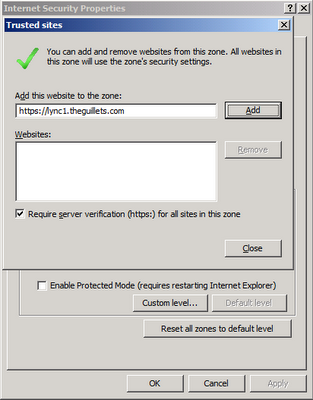
This happens when the https://lyncserver.domain.com/cscp website is not in the computer's Trusted Sites zone.  Here's how to fix it:
  • Launch Internet Explorer
  • Double-click the Security Options zone information at the bottom of the IE window:
  • This will open the Internet Security Properties window.  Click Trusted Sites and then the Sites button.
  • Click Add and Close to add the https://lyncserver.domain.com site to the Trusted Sites zone.

Now you will be able to access the Lync Server Control Panel from both Internet Explorer and the Silverlight application on that computer.

Read more ...

Cannot move Lync 2010 user to new pool

Sunday, November 7, 2010
You may find that you are unable to move certain users to a new Lync Server 2010 registrar pool.  When you select the user and then choose Move selected users to pool from the Action menu, you enter the Destination Registrar Pool and then receive the error, "Failed while updating the destination pool".


If you select the "Force" check box, you receive a slightly different error, Active Directory operation failed on "dc.domain.com". You cannot retry this operation: "Insufficient access rights to perform the operation


This happens when the user you are trying to move is a member of a Windows Builtin group, such as Domain Admins.  When a user is a member of one of the special Windows built-in groups, Windows will automatically remove security inheritance on that user.  To complete the move, you must reapply inheritance.
  • Open Active Directory Users and Computers and locate the user object
  • Right-click the user and select Properties
  • Click the Security tab and then the Advanced button
  • Check the Include inheritable permissions from this object's parent check box
  • Click OK twice and try moving the user to the new Lync pool again
Be aware that Windows will automatically remove the inheritance setting again within a few minutes as long as the user remains a member of the Windows built-in group.
Read more ...

Microsoft Exchange 2010 Visio Stencils

Sunday, November 7, 2010
Finally, Microsoft released the Microsoft Exchange 2010 Visio Stencil.

Use this stencil to create Visio drawings that contain Exchange 2010 objects. These shapes include icons for the following:
  • Exchange 2010 server roles
  • Features new to Exchange 2010 SP1
  • Networking, telephony, and Unified Messaging objects
  • Active Directory and directory service objects
  • Client computers and devices
  • Other Exchange organization elements

This download works with the Microsoft Office Visio 2003 or later.

Thanks to my friend @JohnACook for the heads up!
Read more ...

View Configuration Information from the Lync 2010 Client

Saturday, October 30, 2010
You can easily view the configuration information of the Lync 2010 client by following these simple steps.
  • Hold the Control key down while right-clicking the green Lync client icon in the notification area.
  • This will enable the Configuration Information menu option.  Click it and you will see a pop-up window that displays all the Lync 2010 configuration information for the client.
Read more ...

How to Configure Fast Cached Exchange Mode Settings for Outlook 2010 and Outlook 2013 Using Group Policy

Saturday, October 30, 2010
Note: This article and included ADM and REG files have been updated to work with Outlook 2013, as well as Outlook 2010.

Microsoft introduced Cached Exchange Mode in Outlook 2003 and it's been the default configuration ever since.  Cached Exchange Mode saves a copy of your mailbox on your computer which provides quick access to your data and is frequently updated with the Exchange server.


Cached Exchange Mode works like this: When the Exchange Server notifies Outlook of a change, the Download timer starts and Outlook delays receiving the change information.  All notifications that occur in the 30 second window of the Download timer are grouped and processed as a batch at the end of the timer, then the timer is reset.  Uploads to Exchange use a similar Upload timer, which lasts 15 seconds.  For more information, see Description of Outlook 2003 with Cached Exchange Mode in an Exchange Server 2003 environment.  This behavior is the same in Outlook 2007, Outlook 2010, and Outlook 2013.

While this configuration reduces network utilization and load on the target Exchange servers, it reduces the "perceived" performance of Outlook/Exchange.  Users who change from Online Mode to Cached Exchange Mode frequently complain about slow performance, since they're used to the almost "instant messaging" behavior of Online Mode.

This behavior can be changed using a simple registry change, or, as I recommend, using Group Policy.  By changing the Download, Upload, and Maximum timers to one second, your users will enjoy much improved email performance and you will still see improved network performance over traditional MAPI "Online Mode".

 Install the Fast Exchange Cached Mode GPO Administrative Template:
  • Download the CachedMode.adm Group Policy administrative template and save it to a temporary folder.
  • Open the Group Policy Management Console.
  • Navigate to the Default Domain Policy, right-click it, and choose Edit.
  • Navigate to User Configuration > Policies > Administrative Templates.
  • Right-click Administrative Templates and select Add/Remove Templates.
  • Click Add and browse to the location where you downloaded the CachedMode.adm template.  Click OK.
  • The Outlook 2010 Cached Mode Settings administrative template will be added under the heading "Classic Administrative Templates (ADM)".
  • Edit the Outlook 2010 Cached Mode Settings and/or the Outlook 2013 Cached Mode Settings policy and Enable each of the three policies.  I recommend doing both settings - it won't hurt anything.
  • Close the Group Policy Management Console.
The Outlook users will need to download the new group policy and either restart their computer or restart Outlook to get the new settings.

If you are a VPN user or a mobile user who cannot receive Group Policy settings, you can download the FastCachedMode.reg file, and install it manually.  Then close and re-open Outlook to get the new configuration.
Read more ...

Microsoft Lync 2010 Frequently Used Keyboard Shortcuts

Friday, October 29, 2010
Below are the shortcut keys that can be used irrespective of which window has focus.
Table 1: Global Hotkeys

Shortcut key

Description

Windows Key + Q

Brings Lync main window to foreground

Windows Key + A

Accept an incoming toast invitation

Windows Key + X

Declines toast invitation and change your status to ‘Do not disturb’

Windows Key + Esc

Decline toast invitation

Ctrl + Shift + Space

Sets focus on the application sharing toolbar

Ctrl + Alt + Space

Take back control when sharing your screen

Ctrl + Shift + S

Stop sharing your screen
Below are the shortcut keys that can be used on the main window when it is in foreground.

Table 2: Main Window Shortcuts

Shortcut key

Description

Ctrl + 1

Go to the contact list tab

Ctrl + 2

Go to the activity feeds tab

Ctrl + 3

Go to the conversation list tab

Ctrl + 4

Go to the phone tab

Alt + A

View all conversations when in conversation list tab

Alt + D

View missed conversations when in conversation list tab

Alt + C

View missed calls when in conversation list tab
Below are the shortcut keys that can be used on a conversation window when it is in foreground.
Table 3: Conversation Window Shortcuts

Shortcut key

Description

Ctrl + W

Show/Hide IM area

Ctrl + R

Show/Hide participant list

Ctrl + Shift + Y

Show/Hide left region when sharing stage is visible

Alt + I

Invite a contact to an existing conversation

Ctrl + F

Send a file

Alt + P

Open a file received

Alt + C, Alt + D

Accept or decline an invitation to share, audio or video modalities

Ctrl + Shift + Enter

Start or end phone call

Ctrl + Shift + H

Hold/Resume an ongoing audio conversation

Ctrl + M

Pause/Resume video (only if already in progress)

Alt + R

Rejoin audio in a conference

Escape

Exits fullscreen view if present. Else, will close the conversation window only if it has no audio, video or sharing.

Ctrl + Shift + <, Ctrl + Shift + >

Increase/Decrease selected text font size in IM input

Ctrl + ], Ctrl + [

Zoom in/Zoom out the text in IM input and history
Many thanks to Pooja Malpani, Software Design Engineer, and Sunil Kasturi, Lync Program Manager for this information.

Read more ...

Lync Server 2010 Reaches RTM

Thursday, October 28, 2010
A major milestone was reached by the Lync Engineering team today with Lync making release to manufacturing (RTM).  Next stop is general availability for customers and the official worldwide launch on November 17th, 2010.

Read more about it from the Unified Communications Group Team Blog.
Read more ...

Step-by-Step: How to create a collection of Windows Server 2008 Systems in SCCM 2007

Wednesday, October 27, 2010

Microsoft System Center Configuration Manager 2007 includes 17 built-in collections of computer and user objects. 


Because SCCM 2007 was written before Windows Server 2008 or 2008 R2 we're available, the latest server collection is for All Windows Server 2003 Systems.  This article explains how to create new collections for All Windows Server 2008 Systems and All Windows Server 2008 R2 Systems

Let's get started by creating the All Windows Server 2008 Systems collection.
  • Launch the SCCM 2007 Configuration Manager Console
  • Navigate to Site Database > Computer Management > Collections
  • Click New Collection in the Actions pane
  • Enter Windows Server 2008 Systems for the name and the comment, then click Next:
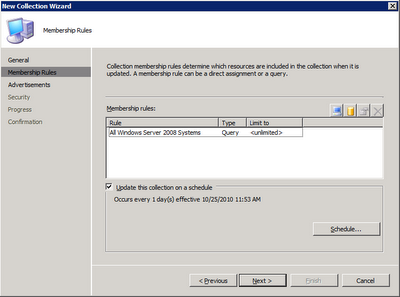
  • On the New Collection Wizard screen, for Membership Rules click the Query Rule button, which looks like an orange cylinder.  The Query Rule Properties window will appear:
  • For the Name, enter All Windows Server 2008 Systems as shown above and then click the Edit Query Statement button.
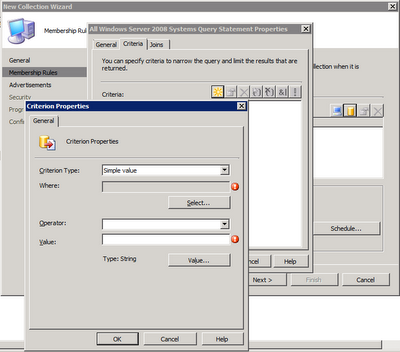
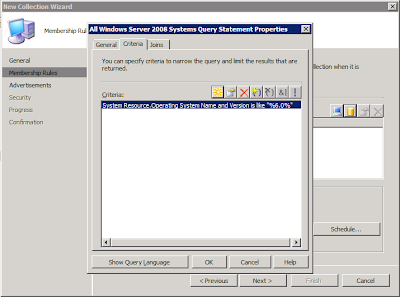
  • On the All Windows Server 2008 Systems Query Statement Properties window, click the Criteria tab and click the New button, which looks like a sunburst.  The Criterion Properties window will appear:
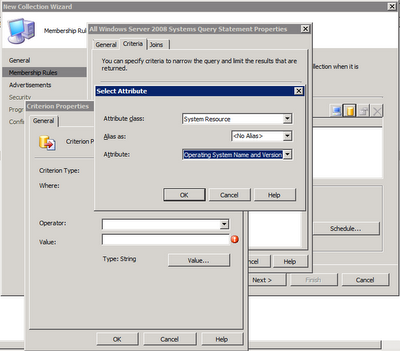
  • Click the Select button and select System Resource for the Attribute Class and Operating System Name and Version for the Attribute, as shown below, then click OK.
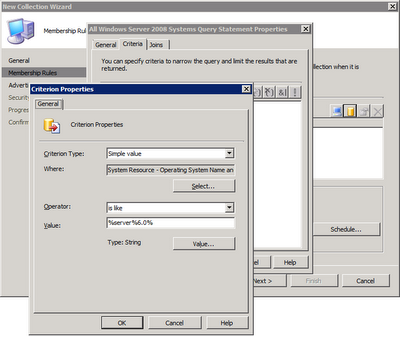
  • Select is like for the Operator and enter %server%6.0% for the Value.  Click OK.
Note:
The value for Windows Server 2008 R2 servers is %server%6.1%.
The value for Windows 7 workstations is %workstation%6.1%.
The value for Windows Vista workstations is %workstation%6.0%.
  • Click OK to close the Criterion Properties window:
  • Click OK to close the All Windows Server 2008 Systems Statement Properties window, then click Next.
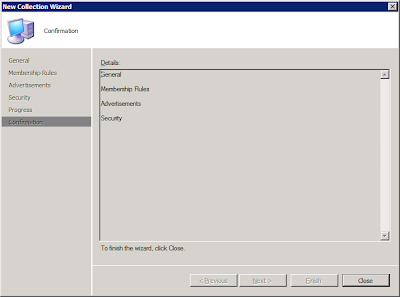
  • Click Close to create the new collection: 
  • Finally, click Update the Collection Membership in the Actions pane in the Configuration Manager Console, and then click Refresh.


Read more ...

Replacing a Federation Trust Certificate When the Original Certificate is Missing

Friday, October 22, 2010
Exchange 2010 federation allows organizations to share calendar free/busy information (also known as calendar availability) and contact information with external recipients, vendors, partners, and customers.  This is accomplished by creating a trust with Microsoft's Federation Gateway.  This cloud-based service offered by Microsoft acts as the trust broker between your on-premises Exchange 2010 organization and other federated Exchange 2010 organizations.  For more information about Exchange federation, see Understanding Federation.

To configure federation you install an Exchange certificate, enable the certificate for Federation, and create a federation trust with Microsoft Federation Gateway.  Eventually you will need to replace this certificate, either for business reasons or when the certificate expires.  The usual way of doing this is to install a new Exchange certificate and configure it as the "Next Certificate" in the Manage Federation Certificate wizard, as shown below.


When you're ready to replace the current federation certificate you simply run the Manage Federation wizard, select the "Roll certificate to make the next certificate as the current certificate" check box, and complete the wizard.  What was the Next Certificate becomes the Current Certificate, and the Current Certificate becomes the Previous Certificate.

I ran into an interesting issue where the process above did not work.  The customer deleted the Current Certificate from the computer's local certificate store, rather than roll the Next Certificate into the current certificate's place.  This causes the Manage Federation wizard t break because it can't locate the Current Certificate.  I was also unable to use the Set-FederationTrust cmdlet in EMS - it would give the same error:
[PS] C:\>Set-FederationTrust -Identity "Microsoft Federation Gateway" -PublishFederationCertificate
Federation certificate with the thumbprint "29FD8FFF241A4317ABAAF326226BC209F682C2F3" cannot be found.
    + CategoryInfo          : InvalidResult: (:) [Set-FederationTrust], FederationCertificateInvalidException
    + FullyQualifiedErrorId : 906B427C,Microsoft.Exchange.Management.SystemConfigurationTasks.SetFederationTrust
To fix this, you'll need to do it using ADSIEdit.
  • Log into a computer with administrator rights and run ADSIEdit.msc
  • Connect to the Configuration naming context
  • Navigate to CN=Federation Trusts,CN=OrgName,CN=Microsoft Exchange,CN=Services,CN=Configuration,DC=domain,DC=com
  • Right-click CN=Microsoft Federation Gateway in the work pane and select Properties
  • Edit the msExchFedOrgNextCertificate property (which contains the thumbprint of the Next Certificate) and copy the entire value.  Close the msExchFedOrgNextCertificate property.
  • Edit the msExchFedOrgPrivCertificate property (which contains the thumbprint of the Current Certificate, which was removed) and paste the value.  Click OK to set the value.
  • Wait for the change to replicate throughout your AD infrastructure.
  • From the Exchange Management Console, run the Manage Federation Wizard.  You will now notice that the Current Certificate and the Next Certificate are the same.
  • Check Roll certificate to make the next certificate as the current certificate and complete the wizard.
Don't forget to test your configuration with the Test-Federation cmdlet.
Read more ...