Showing posts with label SP1. Show all posts

Windows Server 2008 R2 and Windows 7 SP1 Releases to Manufacturing Today

Wednesday, February 9, 2011

The Microsoft Windows Server Team announced today that Service Pack 1 for Windows Server 2008 R2 and Windows 7 was released to manufacturing (RTM) today.  Along with numerous bug fixes and security improvements, SP1 offers two significant new features: Dynamic Memory and RemoteFX.

Dynamic Memory pools all the memory available on a physical host and then dynamically distributes available memory, as it is needed, to virtual machines running on that host.  With Dynamic Memory Balancing, virtual machines will be able to receive new memory allocations, based on changes in workload, without a service interruption.  This is particularly useful in VDI implementations.

Fellow MVP Mark Wilson describes Dynamic Memory very well:

"Microsoft’s dynamic memory is not the same as VMware’s – it’s all about over-subscription vs. over commitment. Whereas VMware will overcommit memory and then de-duplicate to reclaim what it needs, Microsoft takes the approach of only providing each VM with enough memory to start up, monitoring performance and adding memory as required, and taking it back when applications are closed."
RemoteFX lets you virtualize the Graphical Processing Unit (GPU) on the server side and deliver rich media and 3D user experiences for VDI clients.

Service Pack 1 for Windows Server 2008 R2 and Windows 7 will be available to current customers of the Windows Volume Licensing program, as well as MSDN and TechNet subscribers on February 16, 2011.  On February 22, both will be available to all customers through Windows Update and will also come preinstalled on new servers ordered.
Read more ...

Replacing a Federation Trust Certificate When the Original Certificate is Missing

Friday, October 22, 2010
Exchange 2010 federation allows organizations to share calendar free/busy information (also known as calendar availability) and contact information with external recipients, vendors, partners, and customers.  This is accomplished by creating a trust with Microsoft's Federation Gateway.  This cloud-based service offered by Microsoft acts as the trust broker between your on-premises Exchange 2010 organization and other federated Exchange 2010 organizations.  For more information about Exchange federation, see Understanding Federation.

To configure federation you install an Exchange certificate, enable the certificate for Federation, and create a federation trust with Microsoft Federation Gateway.  Eventually you will need to replace this certificate, either for business reasons or when the certificate expires.  The usual way of doing this is to install a new Exchange certificate and configure it as the "Next Certificate" in the Manage Federation Certificate wizard, as shown below.


When you're ready to replace the current federation certificate you simply run the Manage Federation wizard, select the "Roll certificate to make the next certificate as the current certificate" check box, and complete the wizard.  What was the Next Certificate becomes the Current Certificate, and the Current Certificate becomes the Previous Certificate.

I ran into an interesting issue where the process above did not work.  The customer deleted the Current Certificate from the computer's local certificate store, rather than roll the Next Certificate into the current certificate's place.  This causes the Manage Federation wizard t break because it can't locate the Current Certificate.  I was also unable to use the Set-FederationTrust cmdlet in EMS - it would give the same error:
[PS] C:\>Set-FederationTrust -Identity "Microsoft Federation Gateway" -PublishFederationCertificate
Federation certificate with the thumbprint "29FD8FFF241A4317ABAAF326226BC209F682C2F3" cannot be found.
    + CategoryInfo          : InvalidResult: (:) [Set-FederationTrust], FederationCertificateInvalidException
    + FullyQualifiedErrorId : 906B427C,Microsoft.Exchange.Management.SystemConfigurationTasks.SetFederationTrust
To fix this, you'll need to do it using ADSIEdit.
  • Log into a computer with administrator rights and run ADSIEdit.msc
  • Connect to the Configuration naming context
  • Navigate to CN=Federation Trusts,CN=OrgName,CN=Microsoft Exchange,CN=Services,CN=Configuration,DC=domain,DC=com
  • Right-click CN=Microsoft Federation Gateway in the work pane and select Properties
  • Edit the msExchFedOrgNextCertificate property (which contains the thumbprint of the Next Certificate) and copy the entire value.  Close the msExchFedOrgNextCertificate property.
  • Edit the msExchFedOrgPrivCertificate property (which contains the thumbprint of the Current Certificate, which was removed) and paste the value.  Click OK to set the value.
  • Wait for the change to replicate throughout your AD infrastructure.
  • From the Exchange Management Console, run the Manage Federation Wizard.  You will now notice that the Current Certificate and the Next Certificate are the same.
  • Check Roll certificate to make the next certificate as the current certificate and complete the wizard.
Don't forget to test your configuration with the Test-Federation cmdlet.
Read more ...

How to Integrate Lync Server 2010 with Exchange 2010 SP1+ OWA

Thursday, September 30, 2010
Lync Server 2010 can be integrated with Exchange 2010 SP1 or better, so that Exchange Outlook Web App can also act as a Lync web client.  Once integrated, users will automatically log into Lync when they log into OWA.  The OWA interface changes to include the following new features:
  • Sign In and Sign Out - Users can sign in or sign out of instant messaging from OWA.  Once signed in, the user will automatically sign into IM every time they sign into OWA.
  • Presence - User presence information is available for Lync users, showing a colored chiclet indicating their availability.
  • Contact List - The user's Lync IM contact list is made available in the OWA folder pane.  Users can be added and removed, and contact groups can be managed directly from OWA.
  • Instant Messaging - Lync users can chat with other Lync users using instant messaging directly from OWA.
  • Right-Click Functionality - Right-click menus and actions are updated to include new Lync features.  For example, right-click an email address to chat with the user or add them to an IM contact list.
All of these new OWA features can be seen in the screenshot below:


An instant messaging chat session can be started from OWA by double-clicking a contact in the Contact List or right-clicking an email address and choosing Chat.


This article explains how to configure Lync Server 2010 integration with Exchange 2010 SP1 or better.  I will assume that you have functional Lync Server 2010 and Exchange Server 2010 SP1 or SP2 servers already set up.  Let's get started.

Download and install the Microsoft Office Communications Server 2007 R2 Web Service Provider from http://www.microsoft.com/downloads/en/details.aspx?familyid=CA107AB1-63C8-4C6A-816D-17961393D2B8&displaylang=en on your Client Access Server.  This MSI package contains the installation programs to the local hard drive.  Normally it will put them in C:\Web Service Provider Installer Package, but I've also seen it install to a different drive.  Make note of the location it uses during installation.

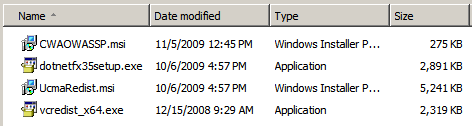
The package will extract the following files:


Next, download and save the OCS 2007 R2 Web Service Provider Hotfix KB 981256 from http://www.microsoft.com/downloads/en/details.aspx?FamilyID=45C94403-39FA-44D3-BE23-07F25A2D25C7 to the same C:\Web Service Provider Installer Package folder.

Download and save the Unified Communications Managed API 2.0 Redist (64 Bit) Hotfix KB 2400399 from http://www.microsoft.com/downloads/en/details.aspx?FamilyID=1F565A42-71D2-4FBD-8AE0-4B179E8F02AB to the same C:\Web Service Provider Installer Package folder.

If your CAS server is running Exchange 2010 SP1 on Windows Server 2008 R2, you need to download and save the UcmaRedist.msp patch in Microsoft Office Communications Server 2007 R2 Hotfix KB 968802 from http://www.microsoft.com/download/en/details.aspx?displaylang=en&id=19178.  The tricky part here is that the file name (UcmaRedist.msp) is the same as the Communications Managed API 2.0 Redist (64 Bit) Hotfix KB 2400399 you just downloaded.  Just rename this file name to something like UcmaRedist-R2.msp.

Now install the following files as Adminstrator in this order:
  1. vcredist_x64.exe
  2. UcmaRedist.msi
  3. UcmaRedist.msp
  4. UcmaRedist-R2.msp, if your CAS is running on Windows Server 2008 R2
  5. CWAOWASSP.msi
  6. CWAOWASSP.msp
  7. dotnetfx35setup.exe, if the .NET Framework 3.5 is not installed on Windows Server 2008.  For Windows Server 2008 R2, install the .NET Framework 3.5.1 feature from Server Manager.
Note that the MSI and MSP packages have a limited GUI during setup and don't indicate that they've installed successfully.

Next we need to configure the Exchange 2010 SP1 Client Access Server for Lync Server integration.  Run the following two commands from the Exchange Management Shell on the CAS:

$cert = (Get-ExchangeCertificate | Where {$_.Services -ilike "*IIS*"}).Thumbprint
Get-ExchangeServer (hostname)| Get-OWAVirtualDirectory | Set-OWAVirtualDirectory -InstantMessagingType OCS -InstantMessagingEnabled:$true -InstantMessagingCertificateThumbprint $cert -InstantMessagingServerName pool.domain.com
Be sure to change pool.domain.com to the FQDN of your Lync Server FE pool.  (hostname) automatically resolves to the hostname of the server you're running the cmdlet from.

Now we need to configure the Lync 2010 server.  Use the Lync Server Topology Builder to add a new Trusted Application Pool, as follows:
  • Open the existing topology.
  • Expand your Lync Server 2010 > your sitename.
  • Right-click Trusted application servers and select New Trusted Application Pool.
  • Enter your CAS server or CAS array's FQDN in the Pool FQDN field, select Single Computer Pool and click Next.  If you're using a hardware load balancer with separate VIPs for OWA and MAPI connections, use the FQDN for the OWA (HTTPS) connections.
  • Select the Front End Pool for the Trusted Application Pool.
  • Click Finish.
  • Right-click the new Trusted Application Server and select Edit Properties.
  • Clear the check box for Enable replication of configuration data to this pool and click OK.
  • Publish the new topology.  If you used the CAS Array or HTTPS VIP FQDN above, you will get a warning about the computer name not existing in Active Directory.  This is safe to ignore.
The final step is to create a new CsTrustedApplication using the Lync Server Management Shell on the Lync 2010 server.  Run the following command from the management shell:

New-CsTrustedApplication -ApplicationID ExchangeOutlookWebApp -TrustedApplicationPoolFqdn cas.domain.com -Port 9999
Enable-CsTopology
Be sure to change the TrustedApplicationPoolFqdn value in the command above to the FQDN of your CAS server or CAS array.  The Port value can be any unused TCP port.

Now login to Outlook Web App and enjoy the new Lync Server goodness!


Read more ...

Fix for Event ID 2937 MSExchange ADAccess in Exchange 2010 SP1

Sunday, September 26, 2010
I have noticed the following event on Exchange 2010 servers after upgrading Exchange 2010 RTM to Exchange 2010 Service Pack 1:


Log Name:      Application
Source:        MSExchange ADAccess
Date:          9/26/2010 9:12:29 AM
Event ID:      2937
Task Category: Validation
Level:         Warning
Keywords:      Classic
User:          N/A
Computer:      EX1.companyabc.com
Description:
Process w3wp.exe () (PID=1960). Object [CN=Jeff Guillet,CN=Users,DC=companyabc,DC=com]. Property [HomeMTA] is set to value [companyabc.com/Configuration/Deleted Objects/Microsoft MTA
DEL:0a05fe00-f8ce-4016-bba8-dce98cfe6b93], it is pointing to the Deleted Objects container in Active Directory. This property should be fixed as soon as possible.

The process in the event varies, but I've seen:
  • EdgeTransport.exe
  • ExSetupUI.exe (when installing Exchange)
  • Microsoft.Exchange.RpcClientAccess.Service.exe
  • Microsoft.Exchange.ServiceHost.exe
  • MSExchangeMailboxAssistants.exe (when moving a mailbox)
  • powershell.exe (when a user launches the Exchange 2010 management tools)
  • w3wp.exe (when the user accesses OWA)
The event in the example above is most commonly seen, and is caused when the user's homeMTA attribute is pointing to a deleted object in AD.  To fix this for a specific user, run the following command from the Exchange Management Shell (EMS) on the server:
Get-Mailbox jeff | Update-Recipient
Or for all user mailboxes use:
Get-Mailbox | Update-Recipient
To correct the arbitration mailboxes use:
Get-Mailbox -Arbitration | Update-Recipient
These commands will update the user's homeMTA value to the correct value.

I've also seen this warning for the Edge Transport routing group property, as shown below.

Log Name:      Application
Source:        MSExchange ADAccess
Date:          7/12/2010 8:52:23 AM
Event ID:      2937
Task Category: Validation
Level:         Warning
Keywords:      Classic
User:          N/A
Computer:      EX1.companyabc.com
Description:
Process edgetransport.exe () (PID=3500). Object [Exchange Routing Group (DWBGZMFD01QNBJR)]. Property [RoutingMasterDN] is set to value [mailgate
DEL:b2bbdba9-71e4-46ff-a50b-fbea9a6c4534], it is pointing to the Deleted Objects container in Active Directory. This property should be fixed as soon as possible
.
To correct this error:
  • Open ADSIEdit and navigate to CN=Servers,CN=Exchange Administrative Group (FYDIBOHF23SPDLT),CN=Administrative Groups,CN=companyabc,CN=Microsoft Exchange,CN=Services,CN=Configuration,DC=companyabc,DC=com.
  • Right-click the Edge Transport server and copy the distinguishedName value.
  • Navigate to CN=Exchange Routing Group (DWBGZMFD01QNBJR),CN=Routing Groups,CN=Exchange Administrative Group (FYDIBOHF23SPDLT),CN=Administrative Groups,CN=companyabc,CN=Microsoft Exchange,CN=Services,CN=Configuration,DC=companyabc,DC=com and open its properties
  • Paste the copied DN value to the msExchangeRoutingMasterDN attribute
Read more ...

Dynamic Memory and RemoteFX in Windows Server 2008 R2 SP1

Thursday, June 17, 2010
When I was at TechEd in New Orleans I got a chance to talk with Vijay Tewari, Principal Program Manager for the Microsoft Virtualization Team, about Dynamic Memory in the upcoming Service Pack 1 for Windows Server 2008 R2. 

In case you're not familiar with Dynamic Memory, this allows you to specify a minimum and maximum amount of RAM that a Hyper-V guest can use.  The VM will start with the minimum amount of RAM you sepcify and the host server will automatically reallocate additional RAM to the VM as needed, up to the maximum amount you have specified.  Dynamic Memory will also automatically reduce the RAM allocated when it is no longer needed.  Pretty sweet!  This provides higher density of VMs on a Hyper-V host since memory can be oversubscribed.  Keep in mind that if the VM's are using more memory than can be provided to them even after movng the memory amongst them, the OS inside the VM will start to page. This will obviously have an adverse performance impact in that VM.  Still, oversubscribing memory has big advantages especially for VDI deployments.  The good news is that now there are other ways to pool and allocate memory and Hyper-V Dynamic Memory is a good solution for desktop and server operating systems.

The other "big thing" in Windows Server 2008 R2 SP1 is RemoteFX.  This technology came into being when Microsoft purchased Calista Technologies in 2008.  RemoteFX allows the VMs on a Hyper-V host to access the host's Graphics Processor Unit (GPU) for superior video output in the guest. This allows remote workers to enjoy the same rich user experience over a network as with a locally executing desktop.  Remote clients only need to support the color depth required to view the output, so you can provide advanced GPU capabilities to all your remote clients using a GPU on the Hyper-V host.  RemoteFX can also use multiple GPUs in the host server to provide scale out.

RemoteFX is a feature that you enable on the Hyper-V host, not the VMs.  Once the RemoteFX feature has been installed a new option to enable the 3D graphics adapter is available within the settings of the guest VM.  This means that even though you've enabled RemoteFX on the host, resources are only allocated for the guests you choose. 

RemoteFX will require new Integration Components in the VM and will also require a new RDP client that supports the new capabilities, which should be available in the same release timeframe.  RemoteFX will also work with Remote Desktop Gateway deployments.  Microsoft recommends 200MB of graphics RAM per VM that uses RemoteFX.

The public beta for Windows Server 2008 R2 SP1 is expected to be released by the end of July 2010.  The same service pack is used for both Windows Server 2008 R2 and Windows 7, simplifying deployment.
Read more ...

Windows Server 2008 R2 Service Pack Level at RTM

Monday, June 15, 2009

You may have known that Windows Server 2008 RTM shipped as Service Pack 1. This is because the Windows Server 2008 code base is shared by Windows Vista, and Windows Vista was at SP1 when 2008 shipped. Windows Server 2008 SP2 was released on May 26, 2009 and was the first service pack you can actually apply to Windows Server 2008.

Unlike Windows Server 2003 R2, which was based on the same code base as Windows Server 2003 SP1, Windows Server 2008 R2 is based on an entirely different code base (Windows 7). The Windows 7 code base is derived from Vista, but is actually a seperate kernel. This change in strategy was required to address challenges that 2008 R2 faced, such as hardware platforms with many processor cores and new power saving features that couldn't be addressed by keeping the same kernel as Server 2008.

For this reason, Windows Server 2008 R2 RTM will ship as service pack level SP0, not SP1.

Read more ...

Temporary fix for "Performance Module could not find a performance counter"

Monday, March 3, 2008

The SCOM Team has posted a temporary fix for the "Performance Module could not find a performance counter" we've all been seeing after applying SCOM SP1.

Check out this post on the Operations Manager Product Team blog.

Read more ...

SCOM 2007 SP1 Upgrade Notes

Wednesday, February 27, 2008

I upgraded a client's SCOM 2007 infrastructure today from SCOM SP1 RC (build 6246) to SP1 RTM (build 6278).

No real problems encountered, except I should have followed my own #1 rule: Always restart your server before installing a major update. The only issue I ran up against was that the upgrade hung when installing the Management Packs on the Root Management Server (RMS). I reviewed the event logs during the install and found three of these events:
The OpsMgr Config Service service terminated unexpectedly. It has done this 1 time(s). The following corrective action will be taken in 60000 milliseconds: Restart the service.
Followed one minute later with:
The Service Control Manager tried to take a corrective action (Restart the service) after the unexpected termination of the OpsMgr Config Service service, but this action failed with the following error:
An instance of the service is already running.
I'm not sure that these caused the hang, but after I canceled the installation, restarted the RMS server and reinstalled SP1 again, it worked fine with no errors.


My biggest recommendation is to thoroughly read the online version of the SCOM SP1 Upgrade Guide before beginning your upgrade. The online version includes notes that didn't make it into the release notes included in the SP1 package itself. Particularly important are the notes about having to repair all agent installations if you are upgrading from SP1 RC, like I was.

The upgrade path for SP1 is very strict and must be performed in this order:
  1. Prerequisite work (expanding the database and logs), disabling notification subscriptions (why, oh why, can't we do this against multiple subscriptions at once!), and removing pending agent installations.


  2. Upgrade the RMS


  3. Upgrade the Reporting Server


  4. Upgrade stand-alone Management Consoles


  5. Upgrade Management Servers


  6. Upgrade Gateway Servers


  7. Upgrade (or in my case, repair) Agents on managed computers


  8. Upgrade the Audit Collection Service (ACS) server


  9. Reboot the SCOM servers (my suggestion, not required) and re-enable the subscriptions
The entire upgrade took about 3 hours to upgrade nine SCOM servers and 289 managed computers.


Read more ...

SCOM SP1 Released

Tuesday, February 26, 2008
In case you didn't know (I didn't until today), Microsoft quietly released System Center Operations Manager 2007 SP1 on February 22nd.

If you're upgrading from SP1 RC1, like I am, be sure to read important information about upgrading from the Operations Manager Product Team Blog:
If users are upgrading from SP1 RC (6246) to SP1 RTM (6278) then will need to run repair to upgrade the agents rather than approve them from pending management view. This was not called out in the upgrade document we shipped in SP1. We have updated the web version of the upgrade guide as well as the release notes.
I'm hopeful that this release will fix a bunch of issues I've been having.
Read more ...

Top Ten Reasons to Move to Exchange 2007

Tuesday, February 26, 2008
Here are some key features and technologies Exchange Server 2007 provides that make a good business case for its use:
  • Fault Tolerance -- Exchange 2007 offers several forms of fault tolerance, right out of the box:

    • Local Continuous Cluster (LCR) maintains a continuously updated copy of the active mailbox database on a different LUN to provide immediate failover capability if the active database becomes corrupt. The second copy is activated manually by the administrator.

    • Cluster Continuous Replication (CCR) is a local cluster model where each node maintains its own database and replication is performed using log shipping. In the event of failure of a service, the cluster services immediately failover to the passive node and continue servicing client requests, minimizing client downtime. CCR clusters can be stretched over distance, providing a geographically dispersed clusters.

    • Standby Continuous Replication (SCR) is similar to CCR, but the failover node resides in a different geographic location. It utilizes log shipping for replication and the Hub Transport servers "fill in the blanks" for messages that may not have replicated since the time the active node went offline.


  • Disaster Recovery -- Outlook 2003 and Outlook 2007, along with the fault tolerance technologies listed above, provide a quick and easy disaster recovery strategy for nearly any outage. Outlook Exchange cached mode is another key technology to making disaster recovery as seemless as possible.


  • Mailbox Server Consolidation -- As a 64-bit messaging platform, Exchange 2007 is able to accommodate much larger mailboxes and mailstore databases than ever before. This allows you to greatly consolidate the number of mailbox servers needed to support the same number of users.


  • Exchange Edge Server -- Edge Server for Exchange is a non-domain server that acts as the SMTP gateway between the Internet and SCIF's internal network. It replaces both the current SMTP gateway and Interscan servers, saving both hardware and software costs. It provides anti-spam and anti-virus services for the organization. EdgeSync is a process that synchronizes the email addresses in AD and the user Junk Mail safe lists/block lists with the Edge server to reduce spam at the network edge.


  • Better Integration with Outlook -- Suspected spam that is not blocked by the Edge server is delivered to Outlook's built-in Junk E-mail folder. Users can choose to block or allow emails from users or domains directly from Outlook without the need for third-party software.


  • Forefront Security for Exchange -- Forefront antivirus is included with the Exchange 2007 Enterprise CAL. Forefront allows you to choose up to five different antivirus engines (from a collection of nine) that all emails are scanned against. This provides more defense in depth than previously possible.


  • Corporate Manage Folders -- Managed folders allow administrators to configure common corporate folders that will display in users' Outlook and OWA that have specific retention periods. For example, a folder named Legal may have a seven year retention policy. Any items in this folder older that 7 years will automatically be purged to maintain the company's corporate retention policy.


  • Improved Outlook Web Access -- Outlook Web Access (OWA) has been improved to provide much better performance and usability. The Private computer security setting now allows you to stay logged in for up to 24 hours. Calendaring and scheduling has been greatly improved. OWA now provides the ability to open another user's mailbox (assuming you have the appropriate rights to do so). Public Folders now open in the same OWA window. Searching for an email items takes only seconds, no matter how large the mailbox is.


  • Remote Access to Network Shares -- OWA provides the ability to "translate" UNCs to internal network shares. For example, if you click a link for //hofs01/share/CIOMeeting.ppt, OWA will fetch the document from the internal network (assuming you have rights to the document) and deliver it to you in OWA. You can also open a Windows SharePoint Services or file share by typing the address of the share to open directly in OWA.


  • WebReady Document Viewing -- WebReady Document Viewing renders common document types for you to view within OWA, even if the application is not installed on that computer. For example, if you want to view an Excel attachment from a machine that does not have Excel installed, click the "View as web page" link next to the attachment. Exchange 2007 will convert the spreadsheet to a web page for you to review.


Read more ...

Troubleshooting Exchange 2007 9646 Errors

Friday, February 22, 2008
I client has users who have been migrated from Exchange 2003 to Exchange 2007 SP1, running on Windows Server 2003 SP2.

After a while, users are no longer able to connect via Outlook to Exchange - OWA continues to function, but Outlook (2K3 and 2K7) stops working.

This is because of a new feature in Windows 2003 SP2 that enables "Scalable Networking" - In short, it shuts down closed connections to the server, but it doesn't play well with Exchange. When Outlook connects over several MAPI sessions, the unused ones are shut down by Windows, but they aren't closed cleanly and Exchange still sees them as open sessions.

Once the user has 32 open sessions (a combination of valid and invalid ones) - Exchange cuts them off and event ID 9646 errors are seen on the mailbox server event log:
Mapi session "/O=BLATHER/OU=PACIFICA/cn=Recipients/cn=CooperH" exceeded the maximum of 32 objects of type "session".

A hotfix will be released in late March that addresses the issue, but the short term fix is to run the following command from the command line on all Exchange 2007 mailbox servers:

Netsh int ip set chimney DISABLED

The following articles discuss the technology and the issue:

Read more ...

Vista SP1 is available!

Thursday, February 14, 2008

Happy Valentine's Day!

Microsoft has released Windows Vista SP1 for your download pleasure. Technet subscribers can go to the Technet website and view the "Top Subscriber Downloads" section.


MSDN subscribers can download it from MSDN from here.


If you're not a TechNet or MSDN subscriber, expect to see it show up in Windows Update in March. It will first be an optional update and later a critical update.


Read more ...

Fix for Forefront Update Timeout Errors

Saturday, February 9, 2008

I use Microsoft Forefront Security for Exchange Server on my Exchange 2007 Edge server.

Recently I noticed the following error in the Application Event log:

Event Type: Error
Event Source: GetEngineFiles
Event Category: Engine Error
Event ID: 6014
Date: 2/9/2008
Time: 10:08:43 AM
User: N/A
Computer: GATEWAY
Description:
Microsoft Forefront Server Security encountered an error while performing a scan engine update.
Scan Engine: Kaspersky5
Update Path: http://forefrontdl.microsoft.com/server/scanengineupdate/x86/Kaspersky5
Proxy Settings: Disabled
Error Code: 0xC0001F58
Description: The operation timed out.
Followed immediately by:

Event Type: Information
Event Source: GetEngineFiles
Event Category: General
Event ID: 2017
Date: 2/9/2008
Time: 10:08:43 AM
User: N/A
Computer: GATEWAY
Description:
Forefront Server Security has rolled back a scan engine.
Scan Engine: Kaspersky5
This was happening every 5 minutes after Event ID 2034, which reports that Microsoft Forefront Server Security is attempting a scan engine update of the Kaspersky5 scan engine.

To solve this error make the following change to the registry on the server running Forefront:
  • Open Regedit

  • Navigate to the following key:
HKLM\SOFTWARE\Wow6432Node\Microsoft\Forefront Server Security\Exchange Server
  • Click New DWORD Value

  • Type EngineDownloadTimeout, and then press ENTER

  • Right-click the new value and select Modify

  • Select Decimal as the base, enter 600 in the Value data box, and then click OK. This setting causes the scan engine download process to time out after 600 seconds (10 minutes, instead of 5 minutes)

  • Exit Regedit

Note: You do not have to restart Forefront Server services or Exchange Server services after you change this registry entry.

Now perform a manual scanner update in Forefront:

  • Open Forefront Server Security Administrator

  • Click Scanner Updates under Settings

  • Select the appropriate scan engine that was previously timing out. In my case, Kaspersky Antivirus Technology

  • Click the Update Now button on the right side of the screen

Check the Application event log to ensure that the scan engine has updated properly (Event ID 2012).


Read more ...

Windows Server 2008 SP1

Monday, January 21, 2008
You know all those IT guys who won't deploy a new technology until the first service pack is released? Well, it looks like the Microsoft marketing team has figured out a way to boost early deployments by skipping the RTM release entirely and going straight to Windows Server 2008 SP1.

I filed a bug report on this when RC1 was released. That was when Microsoft merged the Windows Server 2008 codebase with Windows Vista SP1. It's been that way in every build since then, including the latest pre-RTM build.

Bug or clever marketing scheme? You decide.

Read more ...

Exchange ActiveSync Policies

Friday, January 18, 2008
Exchange Server 2007 provides ActiveSync mailbox policies to allow administrators to manage the Windows Mobile devices that attach to the network. This allows you to apply a common set of policy or security settings to a group of users or even an individual user.

Exchange 2007 RTM included 16 policy settings. That number climbs to 27 in Exchange 2007 SP1 for the Exchange 2007 Standard CAL. The SP1 Enterprise CAL offers an additional 16 settings. Settings that only exist in the Enterprise CAL, such as controlling POP and IMAP, Bluetooth, WiFi, the camera and text messaging, make that CAL a compelling choice for some customers.

The Exchange Team blog has an in-depth explanation of ActiveSync policies, as well as a great chart that shows the different policies for each version and CAL. Read What's New for Exchange ActiveSync Mailbox Policies in Exchange Server 2007 SP1? Microsoft also has a policy reference on MSDN, Understanding Exchange ActiveSync Mailbox Policies. Keep in mind that these settings only apply to devices that support them. Some only work on Windows Mobile 6 and some mobile device vendors may strip support for them from their mobile devices.

Another important change in SP1 is that it now publishes a default EAS policy, where RTM requires you to manually apply the default policy.
Read more ...

Installation Notes for Exchange 2007 SP1 RTM

Thursday, November 29, 2007
In an earlier post I documented my installation notes for installing Exchange 2007 Service Pack 1 RC1. Now that Exchange 2007 SP1 has been released, I'm including my notes from installing the RTM version.

A recommended prerequisite is to ensure that .NET Framework 2.0 SP1 is installed. Check my previous article to determine which SP version is installed.


Upgrade the Edge Server First

  • First, you must disable Forefront for Exchange according to KB929080. When I followed this, the Microsoft Exchange Transport and FSCController services could not be stopped. I used Task Manager to end task the MSExchangeTransport and FSCController *32 processes.

  • Run the following command to disable Forefront:
C:\Program Files (x86)\Microsoft Forefront Security\Exchange Server\fscutility /disableInstall SP1
  • Proceed with the installation of SP1. Here were my times:
  • UpgradePreparing Setup - 00:12
  • Removing Exchange Files - 01:33
  • Preparing Files - 00:01
  • Copy Exchange Files - 01:27
  • Edge Transport Server Role - 09:31
  • Management Tools - 00:30
  • Finalizing Setup - 00:15
  • Elapsed time: 13:32
  • Download and install Microsoft Forefront Security for Exchange Server with Service Pack 1. Be aware that this requires a restart at end of setup.

  • Restart the Edge Server

  • Stop all Microsoft Exchange services

  • Run the following command to enable Forefront again:

  • C:\Program Files (x86)\Microsoft Forefront Security\Exchange Server\fscutility /enable

    • Ensure that the Forefront services are set to Manual startup (FSCController, FSCMonitor, FSCStatisticsService, FDEMailPickup, and FSEIMC)

    • Start the FSCController service (all other Forefront services will start)

    • Start all Microsoft Exchange services and test mailflow

    Upgrade Mailbox/HT/CAS Server (in my case, these roles are all on the same server)

    • Proceed with the SP1 upgrade. Times were as follows:
  • Organization Preparation - 01:05
  • Preparing Setup - 01:37
  • Remove Exchange Files - 05:18
  • Preparing Files - 00:02
  • Copy Exchange Files - 05:32
  • Hub Transport Role - 11:53
  • Client Access Role - 03:27
  • Mailbox Role - 06:21
  • Management Tools - 00:46
  • Finalizing Setup - 02:05
  • Elapsed time: 38:12
    • Check that all services are started and test mailflow again
    • Restart all servers because I'm anal and test again.

    Hope your SP1 upgrade goes as smooth as mine!


    Read more ...

    How to tell which .NET Framework SP is installed

    Thursday, November 29, 2007
    Here's an easy way to tell which .NET Framework 2.0 service pack is installed. Open a command line and enter the following command as a single line:

    reg query "HKLM\software\Microsoft\NET Framework Setup\NDP\v2.0.50727" /v SP

    For .NET Framework 3.0, enter:

    reg query "HKLM\software\Microsoft\NET Framework Setup\NDP\v3.0" /v SP
    The commands will return the REG_DWORD value for the SP version (0x0 for RTM or 0x1 for SP1).

    Various .NET Framework updates and releases are available for download:


    Read more ...

    Exchange 2007 SP1 is coming!

    Wednesday, November 28, 2007
    Get ready! Microsoft Exchange Server 2007 Service Pack 1 is due to be released on November 30.

    Check out the list of new features in SP1, including new deployment options, new features and improvements for each server role, improved integration with other applications, and the new Standby Continuous Replication (SCR). There are also general updates to almost all of the high availability topics for SP1, as well as significant updates in other content areas, such as those related to the Mailbox, Client Access, Hub Transport and Edge Transport, and the Unified Messaging server roles.
    You can find documentation on the new features by browsing or searching the Exchange Server TechCenter Library.
    Read more ...

    Installing Exchange 2007 SP1: Notes from the field

    Wednesday, October 3, 2007

    NOTE: These upgrade notes are for Exchange SP1 Beta 2. Many readers have found this useful in their RTM upgrades. Also please see my latest post that discusses the installation of SP1 RTM. - Jeff

    The following are my notes for installing Exchange Server 2007 Service Pack 1 Beta 2. As with most beta software, upgrades may not go as smoothly as they will in the final product. I came across some problems and solutions, which I'll share with you and will hopefully make your upgrade smoother.

    I'm not going into a lot of detail on each of these steps, so if you want more info please post your question and I'll do my best to answer.

    My setup is a single x64 dual-core host with 4GB RAM. It functions as my Microsoft Exchange 2007 Edge server and runs VMware Workstation 6.01. It runs two VMs, one Windows Server 2003 SP2 x64 Domain Controller and one Exchange 2007 x64 Hub Transport, CAS, Mailbox server running E2K7 Update 4. The Edge server is running Microsoft Forefront Security for Exchange RTM.

    The Exchange 2007 SP1 release notes say to update your Edge, Hub Transport and CAS servers before your mailbox servers. It also says that Forefront Security for Exchange RTM is incompatible with Exchange 2007 SP1. You have to use Microsoft Forefront Security
    for Exchange Server with Service Pack 1 Beta 2 (FSES SP1 Beta 2). You can download it here.

    Note: I was told by Microsoft, "Exchange SP1 Beta 2 requires FSES SP1 Beta 2 (installed before you install the Exchange Service Pack 1 Beta 2)."

    So, without further ado, here are my upgrade notes:


    BEFORE BEGINNING
    • Took snapshots of DC and EX01 VMs

    • Make a backup of host/Edge server


    EDGE SERVER

    • Install ForeFront SP1 Beta 2

    • Follow http://support.microsoft.com/?kbid=929080 to disable ForeFront before installing Exchange 2007 SP1

    • Restart and stop all Exchange services, except ADAM

    • Install. Be patient. Configuring common transport polices took 10 minutes by itself.

    • Install completed successfully

    • Re-enabled Forefront as per KB929080, above

    • Restarted the server, checked event logs, tested email inbound/outbound successfully


    HUB TRANSPORT/CAS/MAILBOX SERVER

    • Begin installation

    • Installation failed about halfway through

    • Tried to run again, but got the error, "This installation is forbidden by system policy." Solved using the Local Security Settings tip from Tim Chad at the bottom of this page

    • Restarted installation, but got the error, "The Exchange files are not installed, but the backup settings registry key is present. Only build to build upgrade mode is available."

    • Ran Setup.com /mode:upgrade from the command line to perform an unattended upgrade setup

    • Got the following output:

    Welcome to Microsoft Exchange Server 2007 Unattended Setup

    Preparing Exchange Setup

    The following server roles will be upgraded
    Hub Transport Role
    Client Access Role
    Mailbox Role

    Performing Microsoft Exchange Server Prerequisite Check

    Hub Transport Role Checks ......................... FAILED
    Setup cannot continue with upgrade because 'C:\Program Files\Microsoft\Exchange Server\bin\ExchHelp.chm' is open. Close the file and restart setup.

    Client Access Role Checks ......................... FAILED
    Unable to read data from the Metabase. Ensure that Microsoft Internet Information Services is installed.

    The World Wide Web (W3SVC) service is either disabled or not installed on this computer. You must exit Setup, install the required component, then restart the Setup process.

    Setup cannot continue with upgrade because 'C:\Program Files\Microsoft\Exchange Server\bin\ExchHelp.chm' is open. Close the file and restart setup.

    Mailbox Role Checks ......................... FAILED
    Unable to read data from the Metabase. Ensure that Microsoft Internet Information Services is installed.

    The World Wide Web (W3SVC) service is either disabled or not installed on this computer. You must exit Setup, install the required component, then restart the Setup process.

    Setup cannot continue with upgrade because 'C:\Program
    Files\Microsoft\Exchange Server\bin\ExchHelp.chm' is open. Close the file and restart setup.

    The Exchange Server setup operation did not complete.
    Visit http://support.microsoft.com and enter the Error ID to find more
    information.

    Exchange Server setup encountered an error.

    • Set the World Wide Web Publishing Service, IIS Admin Service, and HTTP SSL service to automatic and started (they were disabled)

    • Copy file ExchHelp.chm from \setup\serverroles\common of the setup media into the \Program Files\Microsoft\Exchange Server\Bin directory

    • Re-run Setup.com /mode:upgrade

    • Success! Restart all servers. Test OWA and Outlook inbound/outbound successfully


    Good luck with your own upgrade. Now to test the new SP1 features!

    Read more ...