Showing posts with label Windows Server 2008 R2. Show all posts

New Remote Desktop Connection Manager 2.7 Released

Wednesday, November 19, 2014


Note: Microsoft has discontinued Remote Desktop Manager (RDCMan 2.7) in March 2020 due to a security vulnerability. Customers are encouraged to use the MSTSC client built-in to Windows instead.
Microsoft released a new version of Remote Desktop Connection Manager (RDCMan) 2.7 to the public today.

RDCMan is a central place where you can organize, group, and manage your various Remote Desktop connections. This is particularly useful for system administrators, developers, testers, and lab managers who maintain groups of computers and connect to them frequently. I probably spend more time in RDC Manager than any other application during the day.

The previous version 2.2 was last released in May 2010, so this is a very welcome update. Previous versions lacked some functions and caused excessive CPU utilization on some computers, especially those with Nvidia GPUs. RDCMan was written by Julian Burger, one of the principal developers on the Windows Live Experiences team.

RDCMan 2.7 version is a major feature release. New features include:

  • Virtual machine connect-to-console support.
  • Smart groups.
  • Support for credential encryption with certificates.
  • Windows 8 remote action support (charms, app commands, switch tasks, etc).
  • Support for Windows 8, Windows 8.1 / Windows Server 2012, Windows Server 2012 R2.
  • Log Off Server now works properly on all versions.
Important Upgrade Notes: You should know that when you upgrade, RDCMan will be unable to read any saved encrypted passwords. You will need to re-enter your saved encrypted passwords after installation.
The workaround is to set the "Store password as clear text" checkbox in RDCMan 2.2 for preexisting groups and/or servers. When you upgrade to version 2.7, RDCMan will read the existing passwords and will encrypt them. "Store passwords as plain text" is no longer an option in version 2.7.


Read more ...

Western Digital Green vs Black Drive Comparison

Saturday, February 18, 2012
In a recent post I described my new blistering fast Windows 8 Server, which includes a parts list.  This server features a 120GB SDD SATA III 6.0Gb/s drive for the operating system and uses a single 2TB Western Digital Green SATA III 6.0Gb/s drive (WD20EARX-00PASB0) for VM and data storage.

It has been suggested by some of my readers that the WDC Green drive will not provide suitable performance compared to a WDC Black SATA III drive.  They also wondered what the true power savings is between the Green and the Black drive.  The Green drive uses less power by spinning at slower RPMs (variable ~5400 RPM vs 7200 RPM for the Black).

I decided to purchase a Western Digital Caviar Black SATA III 6.0Gb/s drive (WD2002FAEX-007BA) to run benchmarks against and compare the two drives side-by-side using HD Tune Pro 5.00 and Microsoft Exchange Server Jetstress 2010 (64 bit).

I ran each set of tests for the Green drive, then replaced it with the Black drive and ran the same set of tests on my new server.  I also ran the the tests while the server was plugged into a P3 Kill A Watt Electricity Load Meter and Monitor to accurately measure power consumption by the kilowatt-hour for comparison.

HD Tune Pro Benchmarks
The following are the benchmark test results for both drives.  The Green drive is on the left and the Black is on the right.

Benchmark Results
The Black drive delivers 17.9% better average transfer speed.  The access time was 17.6ms for the Green vs. 12.0ms for the Black.  I was surprised to see that CPU usage was much higher on the Green (6.0%) vs the Black (2.4%).


File Benchmark Results
The File Benchmark test measures read/write transfer speed using a 500MB file in 4KB blocks.  The Black drive achieved 11.5% better performance using 4KB sequential access and 28.2% better using 4KB random access.


Random Access Results
The Random Access test measures the performance of random read or write operations with varying data sizes (512 bytes - 1MB).  Again, the Black drive performed better across the board with an average 31.2% improved performance.  It also offers much better access times.

It's notable that the Green drive performed this test nearly silently, while the Black drive sounded like a Geiger Counter at Fukushima.  Neither of these drives feature AAM (Automatic Acoustic Management) so this does not impact the results (and cannot be adjusted).


Other Test Results
This benchmark runs a variety of tests which determine the most important performance parameters of the hard drive.  The Black drive offers 35.3% better random seek and 18.3% better sequential read performance.  It also has better transfer speeds from its cache.  Both drives feature a 64MB cache.


Exchange JetStress
I ran Exchange 2010 JetStress on each drive to get an accurate IOPS profile for Exchange 2010 SP2 use.  JetStress was configured for a two-hour test using a single 1TB database and one thread.

  • The Green drive achieved 47.396 IOPS with 10.751ms latency.
  • The Black drive achieved 64.57 IOPS with 15.180 latency.

I'm not sure why the Black drive's latency was higher than the Green, given the benchmark tests above, but I ran that test twice and got the same results each time.  Even so, the Black drive delivered 26.6% more IOPS.


Power Analysis
Green Drive1.10 KW at 27.5 hours
Energy use per hour = (1.1 KWH)/(27.5 hours) = 0.04 KWH per hour of use
Energy use per day = (0.04 KWH/hour)(24 hours/day) = 0.96 KWH over a full day
Cost per day = (0.96 KWH)(18.5 cents/KWH) =  17.8 cents per day

Energy use per year = (0.96 KWH/day)(365 days/year) = 350 KWH/year
Cost per year = (350 KWH/year)(18.5 cents/KWH) = $64.82 per year.

350 KWH = ~700 lbs of greenhouse gas to the atmosphere per year.

Black Drive0.72 at 14.75 hours
Energy use per hour = (0.72 KWH)/(14.75 hours) = 0.049 KWH per hour of use
Energy use per day = (0.049 KWH/hour)(24 hours/day) = 1.18 KWH over a full day
Cost per day = (1.18 KWH)(18.5 cents/KWH) =  21.83 cents per day

Energy use per year = (1.18 KWH/day)(365 days/year) = 431 KWH/year
Cost per year = (431 KWH/year)(18.5 cents/KWH) = $79.74 per year.

431 KWH = ~860 lbs of greenhouse gas to the atmosphere per year.

Result: The WDC Green drive uses 18.8% less energy than the Black drive.


Conclusion
It's obvious from the test results above that the Western Digital Caviar Black drive performs better than the Green drive.  At the time of this writing the Green drive costs $139 and the Black is $249.  That's a 44% premium for a drive that performs on average 24% better.

In real-life observations I don't really see that much difference in performance between the two at this time.  However, this Hyper-V server has twice as much RAM as my last server so it will potentially be hosting many more VMs (and will have a higher IO load).  For this reason I decided to keep the Black drive, even though it costs more, it's a bit noisier when it's working hard and uses more energy.  I like muscle cars, too.  :)

If you plan to do RAID, I would most definitely recommend the Black drive because it spins at a consistent 7200 RPM.  Reports say that the variable RPMs on the Green drive can cause read/write errors.

I hope you find this information useful.

Read more ...

Blistering Fast Windows Server - Parts List and Video!

Saturday, January 28, 2012

UPDATE: I wrote an updated article, UPDATED Blistering Fast Hyper-V 2012 Server - Parts List and Video! which includes the new 3rd generation Intel Core I5 processor, faster RAM, and multiple SSDs -- All for under $1000! Check it out now!


Walk with me now, as we take a stroll down Geek lane.  :)

I decided it's time to replace my old Hyper-V server at home with a new one that's faster and can run more VMs.  I've decided again to build it myself from OEM parts so I can get exactly what I want at a right price.  This article contains my parts list and my reasons for choosing what I did.  Hopefully, this will help you with your own home lab.

I host my private cloud network on a Windows Server 2008 R2 Hyper-V host server.  Hyper-V is perfect for my environment because it allows me to run workgroup applications (Exchange Edge Transport and IIS) directly on the host, as well as host my virtual domain servers.

My current Hyper-V server is an AMD x64 dual core rig with 16GB RAM and two SATA drives, one for the OS and another for VMs.  I built it about 3 years ago when I was on the Windows Server 2008 TAP and it has served me well.  But with Windows Server 8 and Exchange 15 right around the corner, I wanted to be sure I had the capabilities of running these new versions.

My Design Requirements
As with most customers, I have competing requirements for this new server:
  • Minimum of 4 cores
  • Windows Server 8 capable.  Hyper-V for Windows 8 requires hypervisor-ready processors with Second Level Address Translation (SLAT), as reported by Microsoft at BUILD.
  • 32GB of fast DDR3 RAM
  • Must support SATA III 6Gb/s drives
  • Must have USB 3.0 ports for future portable devices
  • Must be quiet.  This server is sitting next to me in my office (aka, the sunroom) and I don't want to hear it at all.
  • Low power requirements
  • Small form factor
  • Budget: ~$1,000 USD
My RAM requirements drove most of this design.  Since this would be based on a desktop motherboard (server mobos are too big and ECC RAM is too expensive), I first looked for 4x8GB (32GB) DDR3 RAM.  Then I looked for a small mobo that would accept that much RAM, then a processor for that mobo.
Here's my parts list, including links to where I purchased each item and the price I paid:
Part Number
Description
Price
Source
Intel Core i5-2400S Sandy Bridge 2.5GHz (3.3GHz Turbo Boost) LGA 1155 65W Quad-Core Desktop Processor Intel HD Graphics 2000 BX80623I52400S
$193.00
Amazon

Intel BOXDH67BLB3 LGA 1155 Intel H67 HDMI SATA 6Gb/s USB 3.0 Micro ATX Intel Motherboard
$85.99
NewEgg
Komputerbay 32GB DDR3 (4x 8GB) PC3-10600 10666 1333MHz DIMM 240-Pin RAM Desktop Memory 9-9-9-25
$225.00
Amazon
OCZ Agility 3 AGT3-25SAT3-120G 2.5" 120GB SATA III MLC Internal Solid State Drive (SSD)
$129.99
NewEgg
Western Digital Caviar Green WD20EARX 2TB 64MB Cache SATA III 6.0Gb/s 3.5" Internal Hard Drive
$114.99
NewEgg
ASUS 24X DL-DVD Burner SATA II
$19.99
NewEgg
AeroCool M40 Cube Computer Case - Micro ATX, LCD Display, 2x 5.25 Bays, 3x 3.5 Bays, 4x Fan Ports, Black
$79.99
TigerDirect
Antec EA-380D Green 80 PLUS BRONZE Power Supply
$44.99
NewEgg
ENERMAX UC-8EB 80mm Case Fan
$9.99
NewEgg
nMEDIAPC ZE-C268 3.5" All-in-one USB Card Reader with USB 3.0 Port
$16.99
NewEgg
Rosewill RX-C200P 2.5" SSD / HDD Plastic Mounting Kit for 3.5" Drive Bay
$4.99
NewEgg


Total:  $925.91


[Update: See my comparison of Western Digital Caviar Black and Green drives. The trade off is ~$100 and more noise for better performance.]
I was a little worried about the Komputerbay RAM.  I've never heard of them before, but they offer a lifetime warranty and 32GB DDR3 1333 (PC3 10666) RAM was $54 cheaper than what I could find at NewEgg.  In the end I'm very pleased with my decision.
I chose different sources for the best price.  NewEgg is my go-to vendor for most items.  They charge sales tax in California, but I have a ShopRunner account that gives me free 2-day shipping on all these items.  Amazon was the smart choice for the bigger ticket items since they don't charge tax and I could get them delivered with a 30 day free trial of Prime 2-day shipping.  Not to mention the fact that I had a $500 Amazon gift card that I won at TechEd 2011 from my good friends at Vision Solutions!  TigerDirect was the only source for this great AeroCool micro ATX cube computer case.
All the items were delivered the same day and started putting it together that night.  Careful assembly took about 90 minutes and everything went together perfectly.
It's a Geek Christmas!

All the parts freed from their cardboard prisons
The only other item I added was a dual port Intel PRO/1000 MT Server Adapter that I already had.  I also used L-bend right angle SATA cables instead of the two that came with the Intel motherboard, due to the short clearance between the PSU and the back of the drives (I knew this going in).
The innovative AeroCool M40 micro ATX case opens up likea book for easy access.  The power supply, hard drives and DVD drive(s) are in the top half and everything else is down below.  It includes a nearly silent 120mm front fan and has room for one more on the top rear section and two 80mm fans on the bottom rear section.  I added a single silent 80mm fan on the bottom to push warm air out.  The case temperature has never gone above 26.4C and it's completely silent.
View from above showing the Antec PSU, the 3.5" and 5.25" drive cages and the unused PSU cabling

View from the hinged side, showing motherboard placement

I'm using the OCZ 120GB SATA III SSD drive for the operating system and pagefile, Windows Server 2008 R2 Enterprise for now.  I'll upgrade the server to Windows Server 8 when it goes RTM.  In the meantime, I'll build and test beta versions as VMs.  I have to say that this SSD drive was one of the best choices for my new system.  It's blistering fast!  Windows Server 2008 R2 SP1 installed in just 6 minutes!!  Take a look at the video below to see that it takes only 20 seconds to get to a logon screen from a cold start, and half of that time is the for the BIOS POST!

The Intel I5 4-core Sandy Bridge processor has amazing graphics built in.  I'm able to run Windows Server 2008 R2 with the Aero theme at 1920x1080 HD resolution with no difference in performance.  It's possible to overclock this system, but it's plenty fast for me and I value stability over speed.  I love the fact that it draws only 65W!  This not only saves electricity, it keeps the case cool which lowers the cooling requirements.
The bottom half with the case split open. The I5-2400s CPU came with this huge low profile CPU cooler.

As a desktop motherboard, the Intel DH67BL motherboard came with drivers that did not work out of the box with Windows Server 2008 R2.  I downloaded the latest drivers from Intel and most installed fine.  The only items I had trouble with were the built-in Intel 82579V Gigabit network adapter and the integrated Intel HD Graphics drivers.  Intel "crippled" the NIC driver installer so that it won't install on a server platform.  See this article which explains how to re-enable it.   The video driver installed most of the way, but the installer crashed when trying to register a DLL.  It was able to install again fine after a restart.
I also used a Western Digital Green 2TB SATA III drive for storage of my Hyper-V VMs.  I've always used Western Digital drives and I've never had a problem with them.  The WD Green line saves power, runs cool and quiet, and delivers 6 Gb/s performance.
Photo of the completed server.  I placed a DVD on top to for scale.

This is by far the fastest server I've ever worked on, bar none.  I'm extremely happy with it.  I haven't bothered running any benchmarks* on it – I just know that it's fast enough for my needs and has plenty of RAM so I can run more VMs.
I hope this article helps you to build your own home lab server.   Please let me know if you have any questions.
* There are lies, damn lies, and benchmarks.

UPDATE: I wrote an updated article, UPDATED Blistering Fast Hyper-V 2012 Server - Parts List and Video! which includes the new 3rd generation Intel Core I5 processor, faster RAM, and multiple SSDs -- All for under $1000! Check it out now!

Read more ...

Fix for DCOM 10009 Errors in Exchange 2010 SP1

Thursday, July 7, 2011
You may notice DistributedCOM 10009 errors in the Windows Server 2008 R2 System Event Log whenever you run any of the following Exchange 2010 SP1 cmdlets:
  • Get-OWAVirtualDirectory
  • Get-WebServicesVirtualDirectory
  • Get-ActiveSyncVirtualDirectory

The DCOM 10009 error reads as follows:
Log Name:      System
Source:        Microsoft-Windows-DistributedCOM
Date:          7/1/2011 10:16:11 AM
Event ID:      10009
Task Category: None
Level:         Error
Keywords:      Classic
User:          N/A
Computer:      CAS01.domain.com
Description:
DCOM was unable to communicate with the computer CAS02.domain.com using any of the configured protocols.
This happens because of an security context error when invoking an RPC call to the remote CAS server.  The fix is to direct the RPC Runtime to ignore delegation failures.  This can be done by configuring the registry on both the source and target machines, but is more easily done using Group Policy.
To configure Ignore Delegation Failures manually:
  • Run REGEDIT on the source computer
  • Navigate to HKLM\Software\Policies\Microsoft\Windows NT\Rpc
  • Create a new DWORD value called IgnoreDelegationFailure with the value of 1
  • Restart the computer
  • Repeat for each Exchange 2010 SP1 Client Access Server
 To configure this setting using Group Policy:
  • Open the Group Policy Management Console
  • Edit the Group Policy Object (GPO) that applies to the Exchange 2010 SP1 servers.  I usually use the Default Domain Policy.
  • Navigate to Computer Configuration > Policies > Administrative Templates > System > Remote Procedure Call
  • Double-click Ignore Delegation Failure.
  • Enable the policy and set the Ignoring Delegation Failure setting to ON.
  • Restart the Exchange 2010 SP1 Client Access Servers
This DCOM 10009 error does not seem to affect Windows Server 2008 servers, only Windows Server 2008 R2.
Read more ...

Turn your server into an iSCSI SAN with Microsoft iSCSI Software Target 3.3

Tuesday, June 14, 2011
Microsoft released Microsoft iSCSI Software Target 3.3, which turns your Windows Server 2008 R2 server into an iSCSI target.  This free component provides storage (disks) over a TCP/IP network to clients using an iSCSI initiator software, such as the Microsoft iSCSI Software Initiator Version 2.08 (also free) for Windows computers.  There's also a, iSCSI client inside the target package.
iSCSI targets provide centralized, software-based and hardware-independent iSCSI disk subsystems in storage area networks (SANs).

iSCSI Software Target software has been around for several years for Microsoft Windows Storage Server.  Now they've made it available for Windows Server 2008 R2. 

Here's how to use it:
  • Download the Microsoft iSCSI Software Target 3.3 on your Windows Server 2008 R2 server, and double-click it to expand the package and run the installer page.
  • Click iSCSI Software Target (x64) in the installer to run the installation wizard.
  • Run the Microsoft iSCSI Software Target application in the Adminstrative Tools menu.
  • Right-click iSCSI Targets and select Create iSCSI Target.
  • Click Next and enter a name and description for the target (for example, VHDTarget1).  Then click Next.
  • Enter the iSCSI Qualified Name (IQN) for the target.  The IQN is usually in the form, iqn.<year-month>.<server FQDN>:<target name>.  For example:
iqn.2011-06.server1.expta.com:VHDTarget1
  • Supply a description, then click Next and Finish.
  • Right-click Devices and select Create Virtual Disk.
  • Click Next and enter the path for the new VHD, then click Next again.
  • Enter a size for the new VHD in MB and click Next.
  • Enter a description and click Next.
  • On the Access screen, click Add and select the target name you created (i.e., VHDTarget1).
  • Click Next and Finish.
  • Right-click the virtual disk and select Disk Access > Mount Read/Write.
You can now connect your iSCSI clients to the new target.
Read more ...

Lync Server 2010 Installation Fails: Prerequisite installation failed: Wmf2008R2

Friday, May 6, 2011
Ran into a new issue today installing Lync Server 2010 on a freshly baked Windows Server 2008 R2 SP1 server.  During the Setup Lync Server Components step of the installation, it failed with an error, "Prerequisite installation failed: Wmf2008R2".


WMF is the Windows Media Format Runtime.  All Front End Servers and Standard Edition servers where conferencing will be deployed must have the Windows Media Format Runtime installed.  WMF is required to run the Windows Media Audio (.wma) files that the Call Park, Announcement, and Response Group applications play for announcements and music.

The issue here is that the WMF package version has changed for Windows Server 2008 R2 SP1.  The workaround is to run the following command from an elevated CMD prompt, as shown: 
%systemroot%\system32\dism.exe /online /add-package /packagepath:%windir%\servicing\Packages\Microsoft-Windows-Media-Format-Package~31bf3856ad364e35~amd64~~6.1.7601.17514.mum /ignorecheck


Once the package is updated, restart the computer when prompted, and continue with the installation.  The Lync setup check will detect that the a proper version is installed and will proceed.
Read more ...

More Alphabet Soup - MCITP: Virtualization Administrator

Tuesday, March 29, 2011
Last Friday I passed the 70-669 TS: Windows Server 2008 R2, Desktop Virtualization exam with a score of 943.  I don't know why it took me so long to get around to this one, but with this exam I now hold the MCITP: Windows Server 2008 R2, Virtualization Administrator credential.


I add this to my other MCITP certifications - MCITP: Enterprise Administrator, MCITP: Enterprise Messaging Administrator, and MCITP: Enterprise Messaging Administrator 2010.  All this makes for a very busy looking business card, but it's worth the hard work!

I didn't do much studying for this exam.  I've done a number of POCs and demos of App-V, Med-V and Windows 7 XP mode, so I wan't expecting much difficulty.  It helps to have written the Hyper-V Unleashed book, too.  :)
Read more ...

How to Remove Windows 7 / Server 2008 R2 Service Pack 1 Backup Files

Monday, March 7, 2011
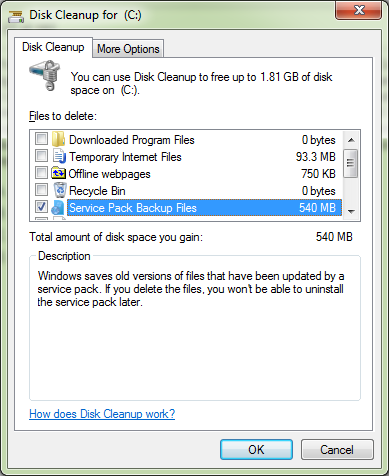
So you've updated your Windows 7 and Windows Server 2008 R2 computers with Service Pack 1 (SP1), and everything is running great.  You've tested your applications and haven't run into any compatibility issues, so now you'd like to delete the Service Pack 1 backup files.  Here's how to do it.
Note: The Service Pack Backup Files allow you to uninstall SP1, rolling the operating system back to RTM.  Once the backup files are deleted, you can no longer roll the system back.  Make sure you have given enough time to ensure that the system is behaving properly with SP1 before deleting the backup files.
The process of deleting the Service Pack backup files is the same in both Windows 7 and Windows Server 2008 R2.  Deleting the SP1 backup files will reclaim about 540MB on the system drive for Windows 7, and about 1.3GB for Windows Server 2008 R2.
  • Click the Start button and type cleanup in the search bar to run the Disk Cleanup utility.
  • Scroll through the list of Files to Delete, and select Service Pack Backup Files, as shown below:

  • Click OK to delete the Service Pack 1 backup files.  This will take a few moments.
As noted in the comment below, you can also remove the Service Pack backup files using the following command from the command line:
DISM /Online /Cleanup-Image /SPSuperseded
I typically run a disk defragmentation cycle after the SP1 backup files have been removed, since this is a fairly large amount of data to remove.
Read more ...

Windows Server 2008 R2 and Windows 7 SP1 Releases to Manufacturing Today

Wednesday, February 9, 2011

The Microsoft Windows Server Team announced today that Service Pack 1 for Windows Server 2008 R2 and Windows 7 was released to manufacturing (RTM) today.  Along with numerous bug fixes and security improvements, SP1 offers two significant new features: Dynamic Memory and RemoteFX.

Dynamic Memory pools all the memory available on a physical host and then dynamically distributes available memory, as it is needed, to virtual machines running on that host.  With Dynamic Memory Balancing, virtual machines will be able to receive new memory allocations, based on changes in workload, without a service interruption.  This is particularly useful in VDI implementations.

Fellow MVP Mark Wilson describes Dynamic Memory very well:

"Microsoft’s dynamic memory is not the same as VMware’s – it’s all about over-subscription vs. over commitment. Whereas VMware will overcommit memory and then de-duplicate to reclaim what it needs, Microsoft takes the approach of only providing each VM with enough memory to start up, monitoring performance and adding memory as required, and taking it back when applications are closed."
RemoteFX lets you virtualize the Graphical Processing Unit (GPU) on the server side and deliver rich media and 3D user experiences for VDI clients.

Service Pack 1 for Windows Server 2008 R2 and Windows 7 will be available to current customers of the Windows Volume Licensing program, as well as MSDN and TechNet subscribers on February 16, 2011.  On February 22, both will be available to all customers through Windows Update and will also come preinstalled on new servers ordered.
Read more ...

Fix for problems installing UcmaRedist.msi on Windows Server 2008 or R2

Friday, September 24, 2010

You may have problems installing UcmaRedist.msi (the Microsoft Office Communications Server 2007 R2, Microsoft Unified Communications Managed API 2.0 Core Redist 64-bit) on Windows Server 2008 or 2008 R2.  I ran across this myself when installing the Microsoft Office Communications 2007 R2 Web Service Provider for Lync Server 2010.

You receive the following error:
Microsoft Office Communications Server 2007 R2, Microsoft Unified Communications Managed API 2.0 Core Redist 64-bit installation requires Microsoft .NET Framework 3.5. Installation can not continue.
This happens if you have the .NET Framework 4.0 installed.  Uninstall the Microsoft .NET Framework 4 Extended and then the Microsoft .NET Framework 4 Client Profile components from Control Panel > Programs and Features.  Then restart the server and install UcmaRedist.msi.
Read more ...

Dynamic Memory and RemoteFX in Windows Server 2008 R2 SP1

Thursday, June 17, 2010
When I was at TechEd in New Orleans I got a chance to talk with Vijay Tewari, Principal Program Manager for the Microsoft Virtualization Team, about Dynamic Memory in the upcoming Service Pack 1 for Windows Server 2008 R2. 

In case you're not familiar with Dynamic Memory, this allows you to specify a minimum and maximum amount of RAM that a Hyper-V guest can use.  The VM will start with the minimum amount of RAM you sepcify and the host server will automatically reallocate additional RAM to the VM as needed, up to the maximum amount you have specified.  Dynamic Memory will also automatically reduce the RAM allocated when it is no longer needed.  Pretty sweet!  This provides higher density of VMs on a Hyper-V host since memory can be oversubscribed.  Keep in mind that if the VM's are using more memory than can be provided to them even after movng the memory amongst them, the OS inside the VM will start to page. This will obviously have an adverse performance impact in that VM.  Still, oversubscribing memory has big advantages especially for VDI deployments.  The good news is that now there are other ways to pool and allocate memory and Hyper-V Dynamic Memory is a good solution for desktop and server operating systems.

The other "big thing" in Windows Server 2008 R2 SP1 is RemoteFX.  This technology came into being when Microsoft purchased Calista Technologies in 2008.  RemoteFX allows the VMs on a Hyper-V host to access the host's Graphics Processor Unit (GPU) for superior video output in the guest. This allows remote workers to enjoy the same rich user experience over a network as with a locally executing desktop.  Remote clients only need to support the color depth required to view the output, so you can provide advanced GPU capabilities to all your remote clients using a GPU on the Hyper-V host.  RemoteFX can also use multiple GPUs in the host server to provide scale out.

RemoteFX is a feature that you enable on the Hyper-V host, not the VMs.  Once the RemoteFX feature has been installed a new option to enable the 3D graphics adapter is available within the settings of the guest VM.  This means that even though you've enabled RemoteFX on the host, resources are only allocated for the guests you choose. 

RemoteFX will require new Integration Components in the VM and will also require a new RDP client that supports the new capabilities, which should be available in the same release timeframe.  RemoteFX will also work with Remote Desktop Gateway deployments.  Microsoft recommends 200MB of graphics RAM per VM that uses RemoteFX.

The public beta for Windows Server 2008 R2 SP1 is expected to be released by the end of July 2010.  The same service pack is used for both Windows Server 2008 R2 and Windows 7, simplifying deployment.
Read more ...

Comprehensive List of Hyper-V Hotfixes

Tuesday, June 1, 2010
Microsoft maintains a website on TechNet that contains a comprehensive list of all the hotfixes that pertain to Windows Server 2008 Hyper-V R2 and Windows Server 2008 Hyper-V.

Hyper-V Update List for Windows Server 2008 R2

Hyper-V Update List for Windows Server 2008

Each update includes a description and a link to download the hotfix or patch.

These sites also highlight one of the great features of TechNet - the Community Content area at the bottom of the page where users can annotate TechNet articles.  You will see that users have listed other updates that they feel are missing from Microsoft's lists.
Read more ...

Dynamic Memory is Coming to Hyper-V R2

Wednesday, May 5, 2010

As reported by the Microsoft Virtualization Team, dynamic memory will be coming to Hyper-V in Windows Server 2008 R2 in Service Pack 1.

Dynamic memory allows greater density on Hyper-V host servers by specifying a lower and upper limit to RAM allocated to the VM.  Hyper-V will automatically hot-add or remove RAM as the workload changes and it can do this with minimal performance impact.  This is not the same as VMware's memory overcommitment, which allows you to over-subscribe RAM to your VMs (giving more RAM to your VMs than actually exists in the host server).

When using dynamic memory you need to be mindful of your applications. Exchange and SQL will use as much RAM as is available to the system, so these systems may always run closer to the maximum RAM setting you define.  This can be specified in Hyper-V or sometimes inside the virtualized application itself.

Newer servers are available with MUCH larger memory configurations (48GB, 64GB, 128GB or more).  One of the limiting factors affecting VM density has been the memory configuration of those guests.  Dynamic memory allows you to utilize all the assets of the host server while providing a consistent level of performance.

Speaking of performance, you really should read the Windows Server 2008 / Windows Server 2008 R2 / Windows 7 Virtual Hard Disk Performance whitepaper.  This paper gives some great performance data for Hyper-V with different application workloads, like Exchange, SQL and web servers.
Read more ...

Download the Image Resizer Powertoy Clone for Windows 7 / Server 2008 R2

Saturday, February 27, 2010
One thing lacking in Windows 7 and Windows Server 2008 R2 is a native picture resizing tool.  I find this surprising since Windows 7 is chock full of image and video eye-candy.

Thankfully, there's an easy to install image resizer for all versions of Windows available on Codeplex.com.  The tool is available in both 32-bit and 64-bit versions.  Image Resizer 2.1 allows you to resize any image by simply right-clicking the image(s) and selecting Resize from the context menu, as shown.


Then you can choose the size and options for the pictures, as shown.


You can perform bulk resizing by selecting more than one photo and resize them.  Can't get much easier than that!
Read more ...

How to Create a Boot VHD Step By Step

Friday, January 1, 2010
Windows 7 and Windows Server 2008 R2 allow you to create a bootable VHD (virtual hard disk) with its own operating system (also called Native Boot).  This is really useful when you need to run another operating system or platform on the same hardware.
Note: Native Boot is limited to the following operating systems: Windows 7 Enterprise (x86 or x64), Windows 7 Ultimate (x86 or x64), and Windows Server 2008 R2.
For example, my Dell workstation normally runs Windows 7 Ultimate x64.  I wanted to update the BIOS from Dell's support site, but the BIOS installer won't run in x64 operating systems.  I also wanted to update the firmware on my Parrot Minikit Slim bluetooth car kit, but the USB driver for the P5+ USB Stage1 device is only available for x86 computers.

In previous versions of Windows, the solution would be to make a dual-boot system.  The problem with this is that you and Windows will need to contend with similarly named folders (i.e., \Windows and \Program Files).  A bootable VHD is a discreet virtual disk that contains it's own OS.  The single VHD file can reside on your normal disk drive (for example, C: or D:), or even a USB drive.  The VHD will contain its own file structure, but you can still access the physical drives, folders and devices on the parent computer.

The walkthrough I'm documenting here will create a bootable VHD file that runs Windows 7 Enterprise x86.  Let's get started.

 Creating the VHD Drive
  • First, start up and login to the parent operating system (in my case, Windows 7 Ultimate x64).
  • Open Computer Management in Administrative Tools
  • Expand Storage and click Disk Management. You will see your normal physical drives.
  • Right-click Disk Management and select Create VHD
  • Enter the file path and name, size, and format for the VHD as show below:
  • Here, I'm creating a 20GB dynamically expanding VHD named D:\Win7x86.vhd.  A dynamic disk will start off very small (~42KB) and will grow as data is written to it, up to the maximum size specified (20GB).  Microsoft has made huge improvements in the performance of dynamic VHDs in Windows 7 and Windows Server 2008 R2, so they perform nearly the same as fixed size disks.
  • Click OK to create and mount the VHD volume.  The new disk will be listed in the bottom pane of the Disk Management console as an Unknown Disk.
  • Right-click the Unknown Disk and select Initialize Disk, as shown here:
  • Click OK to initialize the disk with an MBR partition.
  • Now right-click the Unallocated disk and create a New Simple Volume.  The New Simple Volume Wizard will run.  Assign the new volume as drive X:, give it the volume name, Win7x86, and quick format it with the NTFS file system.  The new volume will be displayed in Disk Management and the D:\Win7x86.vhd file will grow to about 77MB.
You now have a new 20GB virtual hard disk, drive X:  Next, we will prepare the disk to install Windows 7 Enterprise x86.

Preparing the VHD for the New Operating System
  • First, you need to download and install the Windows Automated Installation Kit (WAIK) for Windows 7 from Microsoft.  Be aware that this is a 1.7GB ISO and can take some time to download.  Burn the ISO to a DVD or mount it using virtual CD-ROM software like UltraISO, PowerISO, etc., and then install WAIK.
  • Open a CMD prompt as Administrator and change to the %SystemDrive%\Program Files\Windows AIK\Tools\ folder.  In my case, this is C:\Program Files\Windows AIK\Tools\amd64.
  • Mount the Windows 7 Enterprise Edition x86 media.  In my case, this is on the DVD drive E:
  • Run the following command to prepare drive X: for the new operating system:

imagex /apply E:\sources\install.wim 1 X:\
  • Imagex will apply the Windows 7 binaries to the VHD drive X:  The 1 specifies that the operating system is Enterprise Edition.  The application will begin, as shown below:
  • Imagex application normally takes about 7-8 minutes, despite what the progress bar shows.  When it completes, you will see several new folders on drive X:
  • Now you need to detach the VHD disk.  In Disk Management, right-click the VHD disk and select Detach VHD, as shown below:
  • You will notice that the D:\Win7x86.vhd file has grown to about 5.5GB.
We now have a VHD with the Windows 7 Enterprise x86 files installed on it.  We need to configure the computer so that it can boot to the VHD and complete the installation of Windows 7.

Adding the VHD to the Boot Menu
  •  Open an elevated CMD prompt and enter the following command:

bcdedit /copy {current} /d "Windows 7 Enterprise x86"
  • This will return the GUID of the Loader Object that you will use to replace in the following commands:
bcdedit /set device vhd=[driveletter:]\vhdpath\vhdfilename

bcdedit /set osdevice vhd=[driveletter:]\vhdpath\vhdfilename

bcdedit /set detectHAL on

The detectHAL command is used to force Windows to auto-detect the hardware abstraction layer. The commands I used are shown below:


Completing the Installation

Now we are ready to boot from the VHD. When you restart the computer you will see a new entry in the boot menu for Windows 7 Enterprise x86, along with the default Windows 7 or Windows Server 2008 R2 option.

Restart the computer and select the new Windows 7 Enterprise x86 option to complete the installation of Windows 7. The first time the new OS starts, the install process will install needed device drivers and restart the computer. The second time your start the OS, miniprep process will walk you through configuring the user name, password, computer name, and the network settings.

Congratulations! You have completed the boot to VHD process.
Read more ...

NTFS Inheritance Rule Change

Tuesday, November 24, 2009

Up until recently, NTFS permissions have followed these inheritance rules:

  • If a file or folder is copied to some other location, it will inherit the new location's NTFS permissions.
  • If a file or folder is moved to some other location on a different disk drive, it will inherit the new location's NTFS permissions.
  • If a file or folder is moved to some other location on the same disk drive, it will retain the original location's NTFS permissions.

One of the NTFS inheritance rules changed in Windows 2008, R2, Windows Vista, and Windows 7. Now if you move a file or folder, it will inherit the new location's NTFS permissions, even if the new location is on the same disk drive. This is a radical shift that you need to taken into account when you're moving files.

You can find a reference to this change in the Notes section in the Microsoft article "Inherited permissions are not automatically updated when you move folders".

Thanks to Murat Yildirimoglu, an MCSE and MCT in Istanbul, Turkey, for the article.

Read more ...

Exchange 2007 WILL Be Coming to R2

Wednesday, November 11, 2009
Reversing an earlier decision to NOT support Exchange 2007 on top of Windows Server 2008 R2, Microsoft has reversed their reversal and announced they WILL develop support for putting Exchange 2007 running on Windows Server 2008 R2 in an upcoming release…

See Supporting Exchange 2007 on Windows Server 2008 R2.
Read more ...

Exchange Server 2010 RTM Upgrade and Installation - Phase 3

Tuesday, November 10, 2009
This is the third and final phase of my Exchange 2010 / Windows Server 2008 R2 / Hyper-V migration. Phase 1 can be read here and phase 2 can be read here.

At this point, my Hyper-V host server is still running Windows Server 2008 SP2 and also functions as my Exchange Edge Transport server (currently Exchange 2007 SP2). It is hosting three VM guests: a Windows Server 2008 R2 domain controller/global catalog server; an Exchange 2007 SP2 server running the Hub/CAS/Mailbox roles; and a new Exchange 2010 server running the Hub/CAS/Mailbox roles. All mailboxes have been moved to the new E2010 server.

In phase 3, I will uninstalled the Exchange 2007 Edge Transport server role from the host, upgrade the host server to Windows Server 2008 R2, install the Exchange 2010 Edge Transport role, and decommission my last Exchange 2007 Hub/CAS/Mailbox server.

I began by uninstalling Forefront Security for Exchange Server from the Exchange 2007 Hub/CAS/Mailbox server. In order to do this, you must stop all the Exchange services and then uninstall the product using Programs and Features in Control Panel.

Next, I created a new Public Folder database on the Exchange 2010 Mailbox server and enabled replicas on the E2010 mailbox server using the Exchange 2010 Public Folder Management Console in the Exchange Management Console (EMC). I then removed all the Public Folder replicas from the Exchange 2007 Mailbox server role using the Exchange 2007 Public Folder Management Console in the EMC.

You cannot decommission an Exchange mailbox server that contains active mailboxes. They must be moved to another server or disabled. Since I had already moved all my user and resource mailboxes to the new Exchange 2010 server, all that was left was the system CAS mailbox which must be disabled (it cannot be deleted or moved). This is accomplished using the following command from the Exchange Management Shell (EMS):
Get-Mailbox -Database "EX\Mailbox Database" Disable-Mailbox
Now I'm finally ready to uninstall Exchange 2007 from the Hub/CAS/Mailbox server using Programs and Features in Control Panel. However, removal of the Mailbox role fails with the error, "Object is read only because it was created by a future version of Exchange: 0.10 (14.0.100.0). Current supported version is 0.1 (8.0.535.0)." I also discover I get the same error if I try to delete the E2007 Public Folder database.


After some research, I found that the only way to delete the "upgraded" Exchange 2007 Public Folder store is using ADSIEdit. This is detailed here, but the basic steps are to navigate to the Public Folder store in ADSIEdit and delete it, which I've done here.

Once the Public Folder database was removed, I ran the uninstallation again, which then succeeded. After Exchange 2007 was uninstalled, I completed the decommissioning by dis-joining the Exchange 2007 server from the domain and turned it off. I then tested mailflow to ensure that inbound/outbound SMTP email is working properly.
Next, I began the operating system upgrade of the Hyper-V host server by uninstalling Forefront Security for Exchange Server and the Exchange 2007 Edge Transport role. This went very smoothly with no issues.

In preparation for my OS upgrade, I shutdown and exported my two Hyper-V VMs to a new folder, H:\Exports. Exporting an VM exports the VM configuration, which includes the hardware, drives, networks (and most importantly, MAC addresses) to an XML file. This allows you to import the VM into a new Hyper-V host server without further configuration.

My process for upgrading the host server was to perform an in-place installation, not an upgrade. This is performed by booting to the Windows Server 2008 R2 DVD and choosing a new installation. Setup will warn that there is already a copy of Windows installed and prompt to continue. When you continue, setup will copy all the old user folders (Documents and Settings), Program Files, and the Windows folders to a new folder named C:\Windows.old, which can be accessed later from the new operating system. When setup completed, I was left with a base Windows Server 2008 R2 server.
I then installed the Hyper-V role and imported the VMs from H:\Exports. I started them up and verified that everything was running properly. I was very pleased to see that the VMs performed faster, due to R2's improved handling and performance of dynamic VHDs.

Next, I installed the Exchange 2010 Edge Transport server role on the host server, reconfigured my anti-spam settings, and created a new Edgesync subscription. After importing the Edgesync subscription in the Exchange 2010 Hub Transport server, I tested Edgesync and mailflow, which worked as expected.

I hope this series helps some of you out!
Read more ...

Fix for Remote Desktop Gateway authentication error from clients

Friday, November 6, 2009
If you use Remote Desktop Gateway Manager (formerly, Terminal Services Gateway) in Windows Server 2008 R2, you may find that Windows clients are unable to authenticate to the RD Gateway server.

This happens because the default configuration in Windows Server 2008 R2 Remote Desktop Gateway is to request that clients send a statement of health before the connection can be made. If this option is selected and you do not have a Remote Desktop connection authorization policy (RD CAP) for Network Access Protection (NAP) configured, clients will be unable to connect to the RD Gateway. They will repeatedly be prompted for Gateway Server Credentials as shown below:


To fix this issue, ensure that you have a valid statement of health configured in NAP. Alternatively, as in the case of clients that cannot or do not provide a statement of health (I'm looking at you, Windows XP), you can disable requesting statements of healthy entirely. Here's how to do that:
  • Logon to the Remote Desktop Gateway computer and open the RD Gateway Manager (Start > Administrative Tools> Remote Desktop Services > Remote Desktop Gateway Manager)
  • Right-click the RDG server and select Properties
  • Click the RD CAP Store tab and clear the checkbox for "Request clients to send a statement of health", as shown below and click OK.

It may take a moment for the change to go into effect. Occacionally, I've had to restart the Remote Desktop Services service.
Read more ...

Hyper-V-Worker Event 23012 Explained

Friday, October 23, 2009


If you load a Windows Server 2008 R2 virtual machine on a Windows Server 2008 Hyper-V host server, you will get an error on the host server similar to the following:

Log Name: Microsoft-Windows-Hyper-V-Worker-Admin

Source: Microsoft-Windows-Hyper-V-Worker
Date: 10/23/2009 7:56:48 AM
Event ID: 23012
Task Category: None
Level: Error
Keywords:
User: NETWORK SERVICE
Computer: mailgate.theguillets.com

Description:
Device 'VMBus' in 'EX1 ENT x64' cannot load because it is incompatible with virtualization stack. Server version 13 Client version 65537 (Virtual machine 98EEEED7-A97D-48CF-87F5-E1E8F698D169).
This happens because the Windows Server 2008 R2 Hyper-V Integration Components are not compatible with the Hyper-V v1 release components. 

Incompatible does not mean they won't work - because they do.  It's just that the R2 version includes enhancements and changes that are beyond the capabilities of Hyper-V v1.

If you want to run an R2 build in a VM on Hyper-V v1 and you don't want to see this error, use a Legacy NIC for the R2 VM.

The Integration Components are already present in Windows Server 2008 and Windows Server 2008 R2.  You do not need to install them on these VMs.  You can only upgrade the Integration Components, not downgrade them.
Read more ...