Showing posts with label MFA. Show all posts

Notes and details on the eradication of Basic Authentication in Exchange Online

Wednesday, October 6, 2021


Unless you've been living under a rock, or are just blissfully unaware, Microsoft has been making a concerted push to remove Basic authentication from Exchange Online for some time.

There's a very good reason for this. Basic auth is a single factor authentication method (username/password), which is just too easy for the bad guys to guess and exploit. Modern Authentication, on the other hand, supports MFA and is much more secure. Disabling Basic auth in your tenant requires you to use Modern Auth for all authentication requests.

The trouble is that some legacy apps and clients still only use Basic auth. Fortunately, that list is getting shorter. As you may have read in the Microsoft Message Center or the Exchange Team Blog, Microsoft is currently disabling Basic auth in tenants that they've determined are not using it. I applaud this endeavor.

At a recent MVP meeting we discussed how this effort is being undertaken. Here are some notes and details on certain aspects that you might find useful or interesting.

  • Microsoft is examining tenants for actual Basic auth usage. They are not checking to see if the tenant has an Authentication Policy set or is using Conditional Access to block Basic authentication.
  • Basic auth is being disabled in the tenant configuration for all protocols except Autodiscover. Basic auth is required by Autodiscover for legacy (read, old) Outlook clients like Outlook 2013 and earlier. This alone is one of the best reasons to get off these old clients ASAP. See New minimum Outlook for Windows version requirements for Microsoft 365 starting November 1, 2021.
  • Basic auth for SMTP is being disabled for customers that don't use it by using the Set-TransportConfig -SmtpClientAuthenticationDisabled:$true command. Admins can reenable it by setting the value to $false. This setting can also be configured as a per-user setting, which is recommended. The user setting overrides the tenant setting.
  • Authentication Policies are the preferred way to disable Basic auth, rather than Conditional Access policies. CA policies only apply AFTER the user has already signed in.
  • You can use Authentication Policies to disable Basic auth for Autodiscover (and all other protocols). That means that if you may have two areas to check if you need to reenable Basic auth for a protocol -- the Auth Policy and the tenant configuration settings that Microsoft is using.
  • For a limited time, tenant admins can use the Basic Auth troubleshooter to run diagnostics and provide self-service options to reenable Basic auth for Exchange Online protocols such as POP3, IMAP4, Exchange ActiveSync, Exchange Web Services, Offline Address Book, MAPI, RPC and Remote PowerShell. Simply click the Help & Support button on any O365 portal and type Diag: Enable Basic Auth in EXO.

  • So far, they have disabled Basic auth in thousands of tenants since they started. Only 0.06% of tenants have reenabled Basic auth for a specific protocol, and all of them using the self-help troubleshooter.
  • Tenant admins can tell if Basic auth has been disabled in their tenant by connecting to Exchange Online PowerShell and running Get-OrganizationConfig | fl basic*. The BasicAuthBlockedApps property value will be 0 if Basic auth is still enabled or 255 if it's been fully disabled. This value is a bit mask for each of the following protocol values, totaling 255. Thanks to Greg Taylor for the secret decoder ring. 😊

Protocol

Action

Value

ActiveSync

Block Basic for Exchange ActiveSync

1

WebServices

Block Basic for Exchange Web Services

2

POP

Block Basic for POP3 Clients

4

IMAP

Block Basic for IMAP4 Clients

8

PowerShell

Block Basic for PowerShell

16

MAPI

Block Basic for MAPI Protocol

32

OAB

Block Basic for Offline Address Book

64

RPC

Block Basic for RPC Protocol

128

  • Be aware that if you've configured a client to connect using Basic auth (Outlook for Mac, for example), it will likely require you to reconfigure the client profile to use Modern Auth after Basic is disabled.
This information should be helpful in your "Death to Basic Auth" journey.

Read more ...

How to Create and Manage an Office 365 Breakglass Account

Monday, December 24, 2018
Despite the huge investments Microsoft has made to make Office 365 both secure and highly available, there have been three major outages this year that prevented customers from accessing their cloud resources. Administrators discovered that they couldn't connect to the Office 365 administrative portals to make the changes needed to allow their users to sign in.

Just like having a house key hidden somewhere in case you get locked out, it's important to have a breakglass account that you can use to sign in to Office 365 in case DirSync, MFA, or AD FS authentication fails. In this article, I'll provide step-by-step instructions on how to properly create an O365 break glass account and how to manage it.

Before we get started it's important to understand what this account is for and how to secure it. The purpose of the break-glass account is to allow the administrator sign in to Office 365 with the highest level of privileges (i.e., Global Administrator) with the minimal number of security controls, since these security controls are most likely the reason that admins or users cannot sign-in in the first place. That means the only security controls you have for this highly privileged account are a strong password and physical security. We'll talk more about guarding this account later in this article.

Create the breakglass account

First, let's create the breakglass account in Office 365. The breakglass account should always be a tenant account - one that only exists in Azure Active Directory and is not synced from your on-premises AD. Typically, it would look like breakglass@domain.onmicrosoft.com. By using an Azure Active Directory account, you remove the reliance on ADFS, pass-though authentication, or any other third-party authentication mechanism (Okta, Onelogin, etc.) to sign in. The breakglass account also shouldn't require a hard or soft token, such as YubiKey, Duo, or RSA.

Go to the Azure AD portal at https://aad.portal.azure.com and sign-in with a Global Administrator account. Create a new breakglass account in Azure AD, making sure that the account's UPN uses the tenant domain (domain.onmicrosoft.com) to bypass any on-premises authentication. Add the new account to the Global Administrator group.


AAD will automatically create a temporary password for this account, as shown above. Copy this password and create the account. Now sign out of the AAD Portal and sign back in with the new breakglass account using the temporary password. If you've configured multi factor authentication (MFA) or self-service password reset (SSPR) for all users, or you've configured the "Require MFA for admins" conditional access baseline policy, you'll be prompted for additional information to sign-in for the first time.


Click Next and complete the MFA enrollment. It doesn't really matter if you use the Authenticator app, phone call, or text to enroll because we'll turn MFA off for this account shortly.

Next you'll be prompted to enter the temporary password and create a new password. Make the new password a complex password. Passwords for cloud accounts can't contain the user ID, and need to be 8-16 characters long, with at least 3 of the following: uppercase letters, lowercase letters, numbers, and symbols. Record this new password to store in a secure place. 

TIP: Avoid characters that can be confusing when written down (o, O, 0, 1, l, etc.) - you may not be the one who has to read the password for the breakglass account. Use Notepad or Word to print the password using the Courier New font to print it out, since this font makes it easier to discern characters and numbers.


TIP: Record the username and password on a piece of paper and store it in a sealed business envelope. Make sure the password cannot be read through the envelope when held up to the light. Write "OFFICE 365 BREAKGLASS ACCOUNT" across the front of the envelope and sign the envelope across the flap on the back so you'll know if it is ever opened. Then store this envelope in a secure location that you and other trusted individuals can access, such as a safe or locked drawer. Don't make it so difficult to access that it can't be found and accessed when needed.

Now that we've created the cloud-only breakglass account with a complex secure password, we need to remove any security controls from the account that might prevent the breakglass account from signing in.

Remove Multi-Factor Authentication

Office 365 provides MFA for all tenant admin accounts. It's not enabled by default, but you should ensure it's not configured for the breakglass account. The idea behind removing any MFA policies is to prevent any obstruction from logging into this account to manage the domain.

In the AAD Portal go to Azure Active Directory > Users > Multi-Factor Authentication and locate the breakglass account. Ensure that Multi-Factor Auth Status shows as Disabled.


There are also some conditional access policies that can enable MFA. These are managed from Azure Active Directory > Conditional Access > Policies.


The "Baseline policy: Require MFA for admins" conditional access policy, which is currently in preview, automatically enables MFA for accounts that are members of any Office 365 admin groups. Azure AD Premium customers may also have other custom conditional access policies, like "Require MFA from external networks". Azure AD Premium P2 licenses include the "Require MFA for risky actions" conditional access policy. You should exclude the breakglass account from all of these conditional access policies.

Edit each of these policies to exclude the breakglass account, as shown in the example below. Click Exclude users, add the breakglass account, then click Done and Save. Repeat for each conditional access policy.


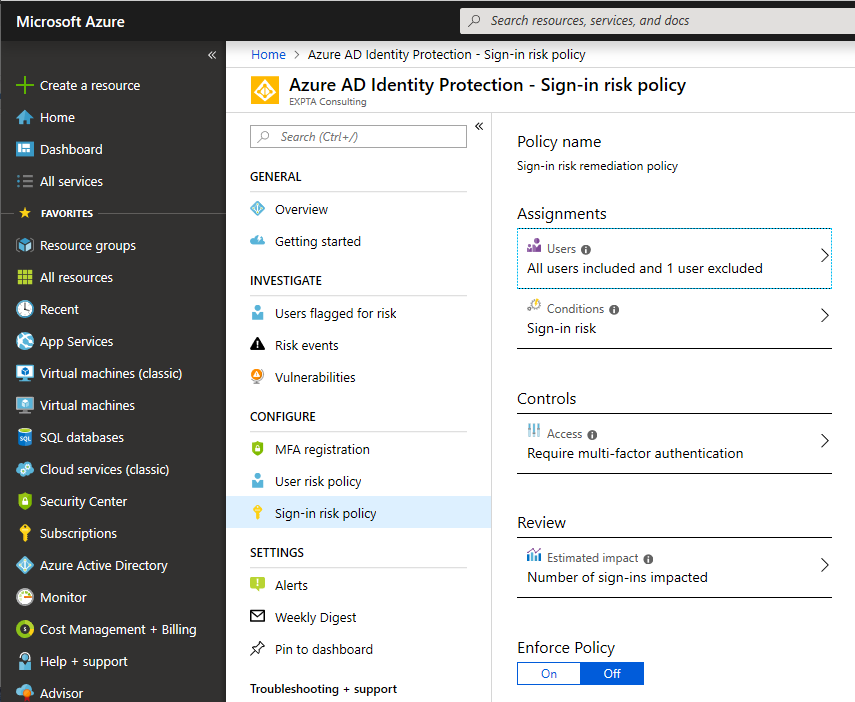
Azure AD Premium P2 users also have Azure AD Identity Protection, which provides other ways to configure MFA. You should exclude the breakglass account here, too. Go to the Azure AD Identity Protection portal at https://portal.azure.com/#blade/Microsoft_AAD_ProtectionCenter/IdentitySecurityDashboardMenuBlade/Mfa. Here, you will see the MFA registration, user risk, and sign-in risk policies.


By default, these policies are not enabled, but you should make sure that the breakglass account is excluded if and when they are enabled. For each policy click Users under Assignments and exclude the breakglass account.


If the Azure AD Identity Protection policies have not been configured yet, you'll need to fully configure them to save the exclusion, even if they're not enforced yet.


Other Tips and Important Considerations

Set the password to never expire for the breakglass account after creating the account. Connect to AAD using the Microsoft Azure Active Directory Module for Windows PowerShell using a Global Administrator account and run the following cmdlet:
Set-MsolUser -UserPrincipalName breakglass@domain.onmicrosoft.com -PasswordNeverExpires $true
If you have Azure AD Premium, do not use Azure AD Privileged Identity Management (PIM) for the breakglass account. You want to be sure that the breakglass account can sign-in using only the complex password which is stored with physical security.

Routinely check the sign-ins and admin audit logs for the breakglass account to confirm it's not being used inappropriately. From the AAD portal go to Users > Breakglass > Sign-ins and Audit logs.

Reset the password on the breakglass account every 6 months or so. Not only does this increase the security of the account, it reinforces your procedures for locating the sign-in information and accessing the account. You don't want to find out that no one remembers the combination to the safe where the breakglass account information is kept when you need it.

If you ever have to use the breakglass account be sure to reset the password when you no longer need to use it and store it away again.

Conclusion

Like other types of insurance, a breakglass account is something you never hope you need to use, but having one can be invaluable when the next outage occurs. And it will.

Read more ...

User-based MFA vs. Conditional Access MFA

Monday, October 1, 2018
Thank you to everyone who attended my two sessions, "How to add MFA to your Exchange Online/on-premises mailboxes in 20 minutes or less" at Microsoft Ignite 2018 in Orlando! The first session was recorded and is available on YouTube. I wanted to post a follow-up article to those presentations.

There are two ways to configure users for multi-factor authentication (MFA) in Azure Active Directory -- user-based MFA and using conditional access. In my demos I used user-based in the interest of time, but most customers will usually use conditional access in production.

When you configure a user for user-based MFA, users are always prompted for MFA whenever they access a cloud resource, such as Exchange Online, SharePoint, Teams, etc. It's either on or off. You can configure a user for user-based MFA from the Azure AD Portal. Click Multi-Factor Authentication at the top of the Users blade.


This will open a new tab for the user-based MFA configuration page.


From here you can enable users for MFA. As mentioned above, this will configure the user for MFA every time they access a cloud resource. It also will break access for any apps or protocols that don't support MFA, such as ActiveSync.

A better option is to use conditional access. Users will be prompted for MFA when the conditional access policy applies to them. Users do not (and should not) be configured for user-based MFA for conditional access (CA) policies to work. If user-based MFA is enabled, it will override the CA policies for that user.

You configure CA rules from from the Conditional Access blade in the AAD portal.


Configure the Assignments for the CA policy (who and which apps get it) and configure the Access Controls to Grant access and Require multi-factor authentication.


MFA will now happen whenever the CA policy is triggered. For further information please see the article, "Quickstart: Require MFA for specific apps with Azure Active Directory conditional access".

Note that there are two places to configure trusted networks and IP addresses, where MFA will not be used - one for user-based MFA and another for conditional access. These two settings are unique for each configuration and do not affect each other. You configure can configure both CA named locations and user-based MFA trusted IPs in the new Conditional access > Named locations blade.


Read more ...

Got 20 minutes to secure Exchange Server?

Friday, September 21, 2018


Going to Ignite? Got 20 minutes to see how easy it is to secure Exchange on-premises? Come see my theater session, "How to add MFA to your Exchange Online/on-premises mailboxes in 20 minutes or less".

Securing Exchange doesn't have to be hard. Learn how to dramatically increase your organization's security posture in just 20 minutes. In this fast-paced session, learn how to use conditional access and MFA to easily secure Exchange Online and Exchange on-premises, including demos of the end-to-end user experience. We cover authentication, how to configure Azure Active Directory and Exchange, licensing, and other requirements.

Add these sessions to your Ignite Schedule Builder!

Monday, September 24, 3:25 PM - 3:45 PM, Expo Theater #11
THR3024 - How to add MFA to your Exchange Online/on-premises mailboxes in 20 minutes or less

Thursday, September 27, 3:25 PM - 3:45 PM, Expo Theater #12
THR3024R - How to add MFA to your Exchange on-premises or Exchange Online mailboxes in 20 minutes or less (REPEAT)

So far over 1,400 people have added THDR3024 to their schedules. That's a lot of folks! Be sure to come to the THR3024R repeat session on Thursday if Monday's is too crowded. I look forward to seeing you there!


Read more ...