Showing posts with label identity. Show all posts

Important updates to AAD Connect

Wednesday, July 21, 2021


AAD Connect is used to synchronize Active Directory with Azure Active directory and is a critical component in a Exchange hybrid configuration. It's very important for admins to keep AAD Connect up-to-date with the latest build for security and feature enhancements.

Microsoft just released AAD Connect version 2.0.3.0, which includes a number of significant changes and new features. At top of the list is that AADC is no longer supported on Windows Server 2012 R2 or earlier. This is because the built-in database, LocalDB, is now using components from SQL Server 2019 which requires Windows Server 2016 or later.

If you're currently running AADC on Windows Server 2012 or Windows Server 2012 R2, auto upgrade will not happen, for obvious reasons.

Customers running AADC on earlier OS's will need to install a new copy of AADC on new Windows Server 2016 computer or later. I wrote a step-by-step walkthrough of that process here.

Other significant changes in this version include:

  • TLS 1.2 is enforced in this build. If TLS 1.2 is disabled in the OS, will you will see an error message when attempting to install AADConnect and the installation will not continue until you have enabled TLS 1.2.
  • Added two new cmdlets to the ADSyncTools module to enable or retrieve TLS 1.2 settings from the Windows Server:
    • Get-ADSyncToolsTls12
    • Set-ADSyncToolsTls12
  • You no longer need to be a Global Admin to install or manage AADC. The "Hybrid Identity Administrator" user role can now be used.
  • AAD now honors the "User must change password at next logon" flag when set in AD.
For a full list of the all the new features and big fixes visit Azure AD Connect: Version release history.

Read more ...

AAD Connect 1.5.29.0 released - With a gotcha

Friday, April 24, 2020
Microsoft released a major update to AAD Connect with build 1.5.18.0 on April 2, 2020. In the last 22 days they've released three newer builds to fix issues in this updated version.

Today they released AAD Connect build 1.5.29.0 which you can download here. But be aware, in my testing Microsoft Defender SmartScreen in the new Chromium Edge browser blocks the download because "this app is not commonly downloaded or is not signed by its publisher".


In order to download it using Edge, click Show More and Keep anyway. This does not happen with the Chrome browser.

I verified that the download is indeed digitally signed with a valid certificate, so I'm not sure why the download is being blocked.


The AAD Connect version release history on this build only lists one unhelpful hint as to what this build fixes:
1.5.29.0

Release status

04/23/2020: Released for download

Fixed issues
This hotfix build fixes an issue introduced in build 1.5.20.0 where a tenant administrator with MFA was not able to enable DSSO.
DSSO is a new acronym to me and I can't find it any any Microsoft documentation, so if you aren't having any trouble with AAD Connect, I suggest skipping this build until the documentation is updated with a better description.
Brian Desmond advised me that DSSO stands for Desktop Single Sign-On - a term I previously only associated with Okta. It's the early name for Seamless Single Sign-On (SSSO).

Read more ...

Congratulations 2019-2020 Microsoft MVP!

Monday, July 1, 2019
Once again I am deeply honored to receive the Microsoft MVP Award in the Office Servers and Apps category for 2019-2020. This is my eleventh consecutive year for this award.

The MVP Award is an important recognition to me and I'm very pleased to receive it. It includes several benefits, but the most important one to me are all the interactions with the great product groups at Microsoft. These relationships allow me to reach out to specific product team members to provide feedback and get clarification on product features and behaviors.

It's a mutually beneficial partnership -- under NDA, Microsoft is able to talk with MVPs about product futures, provide access to technology adoption programs (TAPs) to try out new software, and solicit our feedback. As MVPs, we are able to provide important and honest feedback to the product teams about how new features and behaviors will affect our customers, beta test new software and file bug reports, and be advocates for you, the customer.

This also adds value to my IT consulting business, EXPTA Consulting. It's evidence that Microsoft values my technical leadership and real-world experience, which I bring to each and every engagement, and customers know that I provide the best results as their trusted advisor.

Read more ...

Azure AD Connect version 1.2.70.0 released

Monday, December 31, 2018
This build updates the non-standard connectors (for example, Generic LDAP Connector and Generic SQL Connector) shipped with Azure AD Connect. If you use AAD Connect with directories other than Active Directory, this update is for you.

For more information on applicable connectors, see version 1.1.911.0 in Connector Version Release History.

Download Azure AD Connect here.
Read more ...

How to Create and Manage an Office 365 Breakglass Account

Monday, December 24, 2018
Despite the huge investments Microsoft has made to make Office 365 both secure and highly available, there have been three major outages this year that prevented customers from accessing their cloud resources. Administrators discovered that they couldn't connect to the Office 365 administrative portals to make the changes needed to allow their users to sign in.

Just like having a house key hidden somewhere in case you get locked out, it's important to have a breakglass account that you can use to sign in to Office 365 in case DirSync, MFA, or AD FS authentication fails. In this article, I'll provide step-by-step instructions on how to properly create an O365 break glass account and how to manage it.

Before we get started it's important to understand what this account is for and how to secure it. The purpose of the break-glass account is to allow the administrator sign in to Office 365 with the highest level of privileges (i.e., Global Administrator) with the minimal number of security controls, since these security controls are most likely the reason that admins or users cannot sign-in in the first place. That means the only security controls you have for this highly privileged account are a strong password and physical security. We'll talk more about guarding this account later in this article.

Create the breakglass account

First, let's create the breakglass account in Office 365. The breakglass account should always be a tenant account - one that only exists in Azure Active Directory and is not synced from your on-premises AD. Typically, it would look like breakglass@domain.onmicrosoft.com. By using an Azure Active Directory account, you remove the reliance on ADFS, pass-though authentication, or any other third-party authentication mechanism (Okta, Onelogin, etc.) to sign in. The breakglass account also shouldn't require a hard or soft token, such as YubiKey, Duo, or RSA.

Go to the Azure AD portal at https://aad.portal.azure.com and sign-in with a Global Administrator account. Create a new breakglass account in Azure AD, making sure that the account's UPN uses the tenant domain (domain.onmicrosoft.com) to bypass any on-premises authentication. Add the new account to the Global Administrator group.


AAD will automatically create a temporary password for this account, as shown above. Copy this password and create the account. Now sign out of the AAD Portal and sign back in with the new breakglass account using the temporary password. If you've configured multi factor authentication (MFA) or self-service password reset (SSPR) for all users, or you've configured the "Require MFA for admins" conditional access baseline policy, you'll be prompted for additional information to sign-in for the first time.
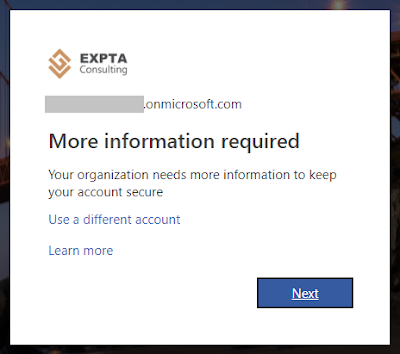


Click Next and complete the MFA enrollment. It doesn't really matter if you use the Authenticator app, phone call, or text to enroll because we'll turn MFA off for this account shortly.

Next you'll be prompted to enter the temporary password and create a new password. Make the new password a complex password. Passwords for cloud accounts can't contain the user ID, and need to be 8-16 characters long, with at least 3 of the following: uppercase letters, lowercase letters, numbers, and symbols. Record this new password to store in a secure place. 

TIP: Avoid characters that can be confusing when written down (o, O, 0, 1, l, etc.) - you may not be the one who has to read the password for the breakglass account. Use Notepad or Word to print the password using the Courier New font to print it out, since this font makes it easier to discern characters and numbers.


TIP: Record the username and password on a piece of paper and store it in a sealed business envelope. Make sure the password cannot be read through the envelope when held up to the light. Write "OFFICE 365 BREAKGLASS ACCOUNT" across the front of the envelope and sign the envelope across the flap on the back so you'll know if it is ever opened. Then store this envelope in a secure location that you and other trusted individuals can access, such as a safe or locked drawer. Don't make it so difficult to access that it can't be found and accessed when needed.

Now that we've created the cloud-only breakglass account with a complex secure password, we need to remove any security controls from the account that might prevent the breakglass account from signing in.

Remove Multi-Factor Authentication

Office 365 provides MFA for all tenant admin accounts. It's not enabled by default, but you should ensure it's not configured for the breakglass account. The idea behind removing any MFA policies is to prevent any obstruction from logging into this account to manage the domain.

In the AAD Portal go to Azure Active Directory > Users > Multi-Factor Authentication and locate the breakglass account. Ensure that Multi-Factor Auth Status shows as Disabled.


There are also some conditional access policies that can enable MFA. These are managed from Azure Active Directory > Conditional Access > Policies.


The "Baseline policy: Require MFA for admins" conditional access policy, which is currently in preview, automatically enables MFA for accounts that are members of any Office 365 admin groups. Azure AD Premium customers may also have other custom conditional access policies, like "Require MFA from external networks". Azure AD Premium P2 licenses include the "Require MFA for risky actions" conditional access policy. You should exclude the breakglass account from all of these conditional access policies.

Edit each of these policies to exclude the breakglass account, as shown in the example below. Click Exclude users, add the breakglass account, then click Done and Save. Repeat for each conditional access policy.


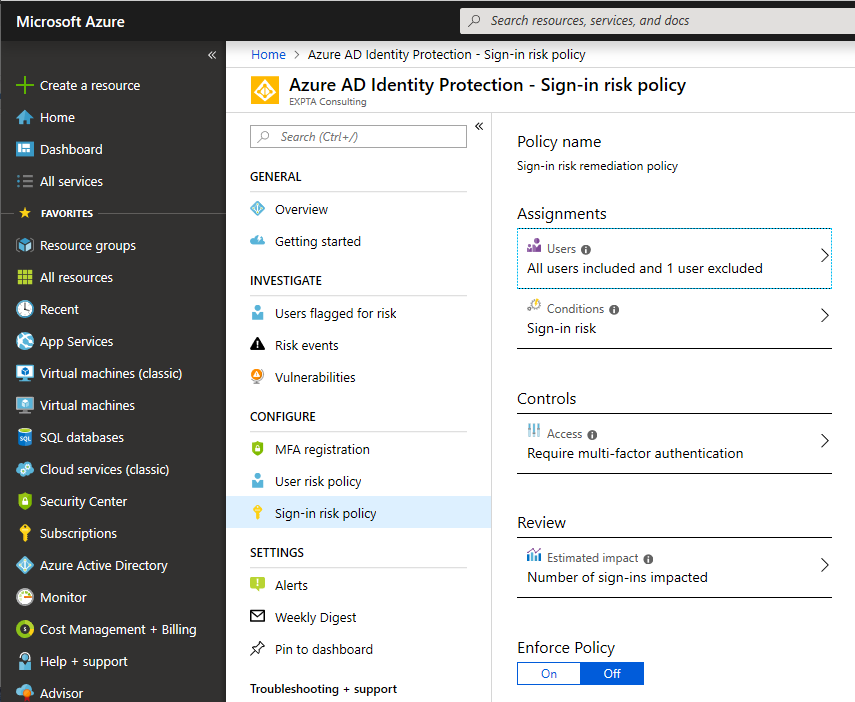
Azure AD Premium P2 users also have Azure AD Identity Protection, which provides other ways to configure MFA. You should exclude the breakglass account here, too. Go to the Azure AD Identity Protection portal at https://portal.azure.com/#blade/Microsoft_AAD_ProtectionCenter/IdentitySecurityDashboardMenuBlade/Mfa. Here, you will see the MFA registration, user risk, and sign-in risk policies.


By default, these policies are not enabled, but you should make sure that the breakglass account is excluded if and when they are enabled. For each policy click Users under Assignments and exclude the breakglass account.


If the Azure AD Identity Protection policies have not been configured yet, you'll need to fully configure them to save the exclusion, even if they're not enforced yet.


Other Tips and Important Considerations

Set the password to never expire for the breakglass account after creating the account. Connect to AAD using the Microsoft Azure Active Directory Module for Windows PowerShell using a Global Administrator account and run the following cmdlet:
Set-MsolUser -UserPrincipalName breakglass@domain.onmicrosoft.com -PasswordNeverExpires $true
If you have Azure AD Premium, do not use Azure AD Privileged Identity Management (PIM) for the breakglass account. You want to be sure that the breakglass account can sign-in using only the complex password which is stored with physical security.

Routinely check the sign-ins and admin audit logs for the breakglass account to confirm it's not being used inappropriately. From the AAD portal go to Users > Breakglass > Sign-ins and Audit logs.

Reset the password on the breakglass account every 6 months or so. Not only does this increase the security of the account, it reinforces your procedures for locating the sign-in information and accessing the account. You don't want to find out that no one remembers the combination to the safe where the breakglass account information is kept when you need it.

If you ever have to use the breakglass account be sure to reset the password when you no longer need to use it and store it away again.

Conclusion

Like other types of insurance, a breakglass account is something you never hope you need to use, but having one can be invaluable when the next outage occurs. And it will.

Read more ...

Congratulations 2018-2019 Microsoft MVP!

Sunday, July 1, 2018
I'm very pleased to announce that I have been given the Office Servers and Services Microsoft MVP Award again for 2018-2019. I have been awarded every year since 2009, so this will be my 10th consecutive year.


The MVP Award is an important recognition to me and I'm honored to receive it. It includes several benefits, but the most important one to me are all the interactions with the great product groups at Microsoft. These relationships allow me to reach out to specific product team members to provide feedback and get clarification on product features and behaviors.

It's a mutually beneficial partnership -- under NDA, Microsoft is able to talk with MVPs about product futures, provide access to technology adoption programs (TAPs) to test new software, and solicit our MVP feedback. As MVPs, we are able to provide important and honest feedback to the product teams about how new features and behaviors will affect our customers, beta test new software and file bug reports, and be advocates for you, the customer.

This has been somewhat of a nerve-racking award cycle. As Microsoft truly morphs into a cloud services company, its priorities are changing faster than ever before. Longtime MVPs have been notified that they were not going to be awarded this year because their community events do not align with Microsoft's vision. Entire groups that focus on on-premises technologies have been cut from the MVP program. I understand why, but I am sorry to see them go.

Another program change is that the re-award cycle changed from quarterly to yearly. I used be awarded on April 1 every year (I always worried that my award email was an April Fool's joke), but now all MVPs are awarded the same date, July 1. That means that the MVP leads have to review hundreds or thousands of MVPs at the same time. That takes a lot of work by them and I appreciate it.

If you think that you or someone you know deserves to be an MVP, you can learn what it takes to be an one and nominate them from the Microsoft MVP Site. Microsoft reviews and awards new MVPs every month, with a renewal cycle on July 1.

The MVP Award adds value to my IT consulting business, EXPTA Consulting. It's evidence that Microsoft values my leadership in the community and real-world experience, which I bring to each and every engagement. Customers know that I provide the best results as their trusted advisor.

I feel great!


Read more ...

AAD Connect 1.1.819.0 now includes new Device Options and PingFederate Integration

Thursday, May 24, 2018
Microsoft released AAD Connect version 1.1.819.0 which includes several notable changes and improvements.
  • This release includes the public preview of the integration of PingFederate in Azure AD Connect. With this release customers can easily and reliably configure their Azure Active Directory environment to leverage PingFederate as their federation provider.
  • Updated the Azure AD Connect Wizard Troubleshooting Utility, where we now analyze more error scenario's, such as Linked Mailboxes and AD Dynamic Groups.
  • Device Writeback configuration is now managed solely within the Azure AD Connect Wizard.
  • A new PowerShell Module called ADSyncTools.psm1 is added that can be used to troubleshoot SQL Connectivity issues and various other troubleshooting utilities.
  • A new additional task "Configure device options" has been added. You can use the task to configure the following two operations:
    • Hybrid Azure AD join: If your environment has an on-premises AD footprint and you also want benefit from the capabilities provided by Azure Active Directory, you can implement hybrid Azure AD joined devices. These are devices that are both joined to your on-premises Active Directory and your Azure Active Directory.
    • Device writeback: Device writeback is used to enable conditional access based on devices to AD FS (2012 R2 or higher) protected devices.

To begin using PingFederate as your IDP, select "Change user sign-in" from the AAD Connect main menu and then select "Federation with PingFederate".


The wizard will walk you through connecting Active Directory and will produce a text document with instructions on how to configure PingFederate server with Office 365. Once done that's done, it converts the O365 tenant to federation-managed. Finally, it will validate the federated sign-in.


To configure the new Device Options for AAD-joined devices, click "Configure device options" on the main menu. After you authentication to Azure AD you'll see this summary:


When configuring Hybrid Azure AD join, AAD Connect will offer to create the service connection point (SCP) in Active Directory which is used by your devices to discover your AAD tenant information. It also offers to create a PowerShell script that will create the SCP, in case the account used to run AAD Connect does not have the rights to create the SCP itself.

Next, you select the operating systems in your environment (Windows 10 and/or supported Windows downlevel domain-joined devices). Supported downlevel devices include Windows 8 and earlier.

Once completed, you will need to perform some post configuration tasks for Hybrid Azure AD join, which includes controlling rollout, GPO entries for device registration, and other tasks outside the AAD Connect configuration.

As usual, this build also includes numerous fixes which can be read in the AAD Connect version release history. Most notably, this release updates the SQL Server Express installation to SQL Server 2012 SP4, which, among others, provides fixes for several security vulnerabilities.

Most customers will receive this upgrade automatically as long as Auto Upgrade is enabled. Others can download the latest version of Azure AD Connect here.

Read more ...

Free Exchange Hybrid webinar is now available on-demand!

Friday, December 15, 2017
For those of you who missed my free live webinar, "Exchange Hybrid for the Long Haul - Critical Information to Know" it's now available on-demand, brought to you by Enow Software.

The webinar answered many questions including:

  • What is Hybrid Mode and what are its advantages?
  • When is it appropriate?
  • Is AAD Connect required?
  • Which authentication method is preferred?
  • How do you optimize your network?

Dozens of additional questions arise when looking at Hybrid environments. If you're currently running a hybrid environment or looking into migrating in the near future, 'Hybrid for the Long Haul' will provide answers, solutions, and countless tips and tricks accumulated over hundreds of deployments. Watch the webinar below:

Read more ...

Congratulations 2017-2018 Microsoft MVP!

Saturday, July 1, 2017
I'm pleased to announce that I have been given the Office Servers and Services Microsoft MVP award again for 2017-2018. I have been awarded every year since 2009, so this will be my ninth consecutive year.


The MVP Award is an important recognition to me and I'm very pleased to receive it. It includes several benefits, but the most important one to me are all the interactions with the great product groups at Microsoft. These relationships allow me to reach out to specific product team members to provide feedback and get clarification on product features and behaviors.

It's a mutually beneficial partnership -- under NDA, Microsoft is able to talk with MVPs about product futures, provide access to technology adoption programs (TAPs) to try out new software, and solicit our feedback. As MVPs, we are able to provide important and honest feedback to the product teams about how new features and behaviors will affect our customers, beta test new software and file bug reports, and be advocates for you, the customer.

This also adds value to my IT consulting business, EXPTA Consulting. It's evidence that Microsoft values my technical leadership and real-world experience, which I bring to each and every engagement, and customers know that I provide the best results as their trusted advisor.

I feel great!


Read more ...

Important update for AAD Connect - Version 1.1.553.0

Wednesday, June 28, 2017


Microsoft released Azure Active Directory Connect version 1.1.553.0 on June 26, 2017. More importantly, they published an important security advisory one day later.


Microsoft Security Advisory 4033453 - Vulnerability in Azure AD Connect Could Allow Elevation of Privilege explains,
The [ADD Connect version 1.1.553.0] update addresses a vulnerability that could allow elevation of privilege if Azure AD Connect Password writeback is misconfigured during enablement. An attacker who successfully exploited this vulnerability could reset passwords and gain unauthorized access to arbitrary on-premises AD privileged user accounts. The issue is addressed in the latest version (1.1.553.0) of Azure AD Connect by not allowing arbitrary password reset to on-premises AD privileged user accounts.
Microsoft highly recommends all customers update to version 1.1.553.0 or later to mitigate this vulnerability, even if you don't use the optional password writeback feature. If you are unable to update immediately, the article above describes mitigation steps you can consider.
  • If the AD DS account is a member of one or more on-premises AD privileged groups, consider removing the AD DS account from the groups.
  • If an on-premises AD administrator has previously created Control Access Rights on the adminSDHolder object for the AD DS account which permits Reset Password operation, consider removing it.
  • It may not always be possible to remove existing permissions granted to the AD DS account (for example, the AD DS account relies on the group membership for permissions required for other features such as Password synchronization or Exchange hybrid writeback). Consider creating a DENY ACE on the adminSDHolder object which disallows the AD DS account with Reset Password permission using Windows DSACLS tool.
DSACLS DNofAdminSDHolderContainer /D CONTOSO\ADDSAccount:CA;"Reset Password"

Besides this important security update, AAD Connect 1.1.553.0 includes several fixes, new features, and improvements both in AAD Connect and AD FS management. Read the Azure AD Connect: Version release history for a complete list.

With Azure AD Connect being such an important part of your cloud connectivity and authentication solution, it's super important to stay on top of any updates.


Read more ...

Explaining Conditional Access and Azure Pass Through Authentication

Tuesday, January 3, 2017
My previous article, Is Azure AD Pass-Through Authentication Right for You? generated some comments and questions about how PTA works with conditional access in Azure AD. There was enough confusion that I wrote a companion article, Explaining Conditional Access and Azure Pass Through Authentication.

Conditional access works great in a cloud-only world, but the real world usually contains legacy clients. Learn when it's appropriate to use conditional access policies and when to use AD FS claims rules with Azure pass-through authentication.


Additional resources:
Read more ...

Is Azure AD Pass-Through Authentication Right for You?

Friday, December 9, 2016
Microsoft just released the new Azure Pass-Through Authentication and seamless Single Sign On option available in the new Azure AD Connect. This new authentication mechanism has a lot of great features and is well thought out, but it's not for every organization.

Check out my article, Microsoft Releases Azure AD Pass-Through Authentication and Seamless Single Sign-on, on the ENow Exchange & Office 365 Solutions Engine Blog. In it, I explain what PTA is, how it works, and how to configure it. You will learn how to deploy additional AAD pass-through connectors for high availability and configure SSO. I also discuss why AD FS may be a better solution for your business.


Additional resources:
Read more ...