Showing posts with label licensing. Show all posts

Yes, Virginia, You Can Buy Exchange 2019!

Monday, April 18, 2022

In the Beginning

When Exchange 2019 was announced at Microsoft Ignite 2019, it was also announced that Exchange Server 2019 and its Cumulative Updates would be available only through the Volume Licensing Service Center (VLSC). It was explained that large enterprise customers were asking for security, reliability, and dependability. They want all the things that mean Exchange runs as a mission critical application.
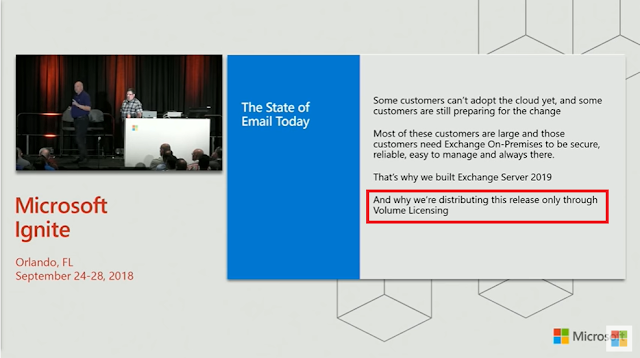
Welcome to Exchange Server 2019! - BRK2176

As Greg Taylor, then Director of Product Marketing for Exchange Server/Online, said at the time, "For those customers who still want to stay on premises, that's the reason we built Exchange 2019. And that's also the reason why we are only going to distribute Exchange 2019 to those customers through Volume Licensing."

As anticipated, Exchange Server 2019 RTM and CUs 1-8 were only available through the VLSC and to developers for testing and application development through MSDN. And for the first time ever, the current version of Exchange Server was no longer available on the Office Servers Evaluation Center.

To access Exchange Server 2019 through the VLSC, customers must have an active agreement in one of the following Microsoft Volume Licensing programs:

  • Microsoft Enterprise Agreement (500+ seats)
  • Microsoft Products and Services Agreement (250+ seats)
  • Microsoft Open Value Agreement (5-499 seats)
See the Compare Microsoft Volume Licensing Programs resource document for full details.

I've found that most small-midsize customers mistakenly think that access to the VLSC requires an Enterprise Agreement or large minimum spend requirement. Plus, most of these customers buy licenses through a third-party license provider, like a Cloud Solution Provider or licensing distribution partners. Few of the customers I speak with have actually entered into a licensing agreement directly with Microsoft.

The VLSC requirement imposed a barrier that prevented these customers from accessing Exchange Server 2019. And if non-VLSC customers cannot get Exchange 2019, it means that Exchange 2016 is the latest version they could use for hybrid management after they have completed their migration to the cloud.

As we know, an Exchange server is still required for Exchange recipient management even after all mailboxes have been moved to Microsoft 365 since Active Directory is still the Source of Authority for hybrid customers.

Then HAFNIUM happened...

In March 2021 a state-sponsored hacking group called HAFNIUM targeted Exchange Servers around the world by exploiting zero-day vulnerabilities. Threat actors gained access to email servers and installed malware to facilitate long-term access to victim environments and to perform data exfiltration.

Microsoft quickly responded to HAFNIUM by releasing Security Updates (SUs) that patched the Exchange Server vulnerabilities and a short time later included these fixes in the March 2021 Quarterly Exchange Updates. In an effort to ensure that all customers could get and stay up-to-date, it was decided to publish Exchange Server 2019 CU9 and future CUs to the Microsoft Download Center in addition to the VLSC.

What This Means to Hybrid Customers

Exchange hybrid customers who have completed their migration to the cloud can now use Exchange Server 2019 as their hybrid management server. All customers can now run the latest version of Exchange server with the most recent CUs and SUs by downloading them from the Download Center, even with a Volume Licensing agreement.

CU's are build-to-build upgrades and contain a full server installation, so the latest CU can be used for a fresh installation. Always check the Exchange Team Blog for details on the latest CU. All customers, including hybrid customers, should keep their Exchange servers up to date using the N-1 support statement (the current and previous CUs and SUs are supported).

Keep in mind that currently there is no free Exchange hybrid license available for Exchange 2019 like there is for Exchange 2013/2016, so customers will need to license their Exchange Server 2019. See Big Exchange Announcements!

Customers with Exchange Server 2010 must keep in mind that Exchange Server 2019 will not install if Exchange 2010 is in the environment. Those customers must transition to Exchange Server 2016 and decommission Exchange 2010 before installing Exchange 2019.


Read more ...

Licensing Details for Litigation Hold in Office 365

Friday, April 10, 2020

When there's a possibility or the likelihood of litigation, admins can place mailboxes on litigation hold or in-place hold. When you place content locations on hold, content is held until you remove the hold from the content location or until you delete the hold. eDiscovery is used to produce immutable copies of data for legal counsel or the courts.

Legal hold can also be used as an alternative to using third-party journaling solutions since all emails are retained and cannot be deleted by the user or admin, except by retention policies.

Litigation hold in O365 originally only existed for Exchange Online mailbox data, but has been extended to include other workflows, like SharePoint Online, Teams, Skype for Business Online, etc.

For more information about litigation or legal hold in Office 365 please read In-Place Hold and Litigation Hold in Exchange Server.

This article will describe the technical licensing requirements for holds in O365, both lit hold and in-place hold. For brevity I will refer to both types of holds as "lit hold" in this article, since the licensing requirements are the same for both.

The user you wish to place on hold must a subscription that includes Exchange Online (Plan 2). This includes the following online licenses:
  • Microsoft 365 E5
  • Microsoft 365 E3
  • Office 365 E5
  • Office 365 E3
Users in subscriptions that include Exchange Online (Plan 1) can also be put on hold if the user has the Exchange Online Archiving add-on license. Holds only apply to mailbox data with this license.

To learn how to place a mailbox on hold, see the following articles:
One of the advantages of lit hold is that the user account can be deleted after they leave the company and the data will still be preserved for eDiscovery. This way you're not burning a license for a user who does not access their mailbox any longer. This is called making a mailbox inactive. A lot of organizations do this, so I want to dive into the legalities of this.

First, it's completely acceptable to do this and Microsoft supports it.

Second, you need to aware of the licensing terms regarding license reassignment. According to the Microsoft Volume Licensing Product Terms,
Customer may reassign a License to another device or user, but not less than 90 days since the last reassignment of that same License, unless the reassignment is due to (i) permanent hardware failure or loss, (ii) termination of the user’s employment or contract or (iii) temporary reallocation of CALs, Client Management Licenses and user or device SLs to cover a user’s absence or the unavailability of a device that is out of service.
Let's use some examples to illustrate this.
  1. John Baker's mailbox is on litigation hold when he leaves the company. The administrator makes John's mailbox inactive by deleting John's user account, which releases John's Microsoft 365 E5 license. The inactive mailbox is still subject to eDiscovery searches until one of the following:
    • All litigation holds are released from John's mailbox (there may be more than one).
    • All the data ages out based on the organization's litigation hold retention policy. Discovery can still be made, but no results will be returned.
    • The organization is no longer a Microsoft Online customer. In this case, it is the responsibility of the organization to remove all data from Office 365 before they leave.
    The released license is reassigned to John's replacement, Gary. This license cannot be reassigned again to a another user for 90 days except for the reasons listed above.
  2. Susan Mitchell's mailbox is on litigation hold when she goes on leave for 30 days. Susan will not access her email while out on leave. The administrator deletes Susan's account from Azure AD, which removes her license, and assigns it to her temporary replacement. When Susan returns to work, the temporary replacement's account is deleted, which again removes the license, and the license is reassigned back to Susan. This is allowed by the licensing terms because it was a temporary reallocation.
  3. Contoso has assigned 100 Office 365 E3 licenses to its workers. Contoso buys 100 new Microsoft 365 E5 licenses, assigns them to the same workers, and removes their Office 365 E3 licenses. The Office 365 E3 licenses can be assigned to other workers but cannot be reassigned again for 90 days except for the reasons listed above.
  4. Northwind Traders has 500 Office 365 F1 licenses assigned to users. These licenses do not include Exchange Online (Plan 2), so litigation hold is not an option for these users, however Northwind wants to retain their emails indefinitely. The administrator assigns a single Microsoft 365 E3 license to a user, enables litigation hold, and then removes the E3 license. He then repeats these steps for each user. This is a licensing violation for several reasons - Active mailboxes under litigation hold must have a valid license that includes Exchange Online (Plan 2) and it violates the licensing reassignment policy.
  5. Fabrikam has 500 Microsoft 365 F1 licenses assigned to users. These licenses do not include Exchange Online (Plan 2), so litigation hold is not an option for these users, however Fabrikam wants to retain their emails indefinitely when they leave the company. Fabrikam also has a single Office 365 E3 license. Five users leave the company. The Administrator can assign the Office 365 E3 license to one of the five users, enable litigation hold for that user, then delete the user account (releasing the F1 and E3 licenses). The mailbox will be retained due to litigation hold. She can repeat this for each of the separated users, one at a time. This is permitted because the 90-day reassignment policy does not apply to terminated users.
Special note 1:
The correct way to remove a license from a lit hold mailbox is to delete the user account from Azure Active Directory, which releases the license. This is documented here. While you are not prevented from removing a license from an existing user account, it will put the Azure user into an error state. This should be avoided.

Special note 2:
There are some conditions where you may have a mailbox that no one logs into that may still require a license. Examples include shared mailboxes under lit hold or where messages stored in a shared mailbox are needed for a Microsoft 365 Advanced eDiscovery case (the shared mailbox is a "custodian"). 

Hopefully, this information is useful and clears up some confusion around litigation hold and licensing. Special thanks to Microsoft and Tony Redmond for reviewing this article for accuracy.

Read more ...

Clearing up confusion about Office 365 Equivalency Use Rights

Friday, February 22, 2019
You may have heard about "Office 365 equivalency rights" or "dual use rights". These rights allow users to access on premises servers, such as Windows Server, Exchange Server, SharePoint Server, and Skype for Business Server using their Office 365 E3 or E5 licenses.

Office 365 equivalency licenses only provide user use rights, not server rights. In other words, O365 licenses are equivalent to Exchange Server Client Access Licenses (both Standard and Enterprise) and Windows Server CALs, but you still need server licenses to run Exchange Server on Windows Server on premises.

One exception to this rule is that your Office 365 subscription let's you use the free hybrid key to run an Exchange hybrid management server. An important caveat here is that the hybrid server cannot be used to host user mailboxes or Public Folders, and you may still need a server license for Windows Server. The free hybrid key is available to all Enterprise Office 365 customers, even if they get their license from the CSP channel which says it's "Not On Premises Capable -- Cloud only rights".


Microsoft used to have an authoritative website called, "Licensing How To: Using Office 365 user licenses to meet CAL requirements" that described how these equivalency rights work, but it became a casualty when Microsoft moved most documentation to docs.microsoft.com. Fortunately, you can still read a cached copy of that website from the web archive (for now, at least -- who knows how long that will last).

A suitable replacement for the now-gone licensing website is the Licensing Office 365 document. I include a copy of that PDF document here on my blog, just in case it falls to the same fate. ;)

Notable extracts from this document include the following about equivalent use rights:
  • “Office 365 E3 provides your users with the latest full Office across most devices, plus a wide range of integrated collaboration services coupled with advanced compliance features and full IT power. Office 365 Enterprise includes Office 365 ProPlus for up to five PCs or Macs, five tablets, and five smartphones. It also includes Exchange Online, SharePoint Online, Lync Online, and Yammer Enterprise—along with access rights to equivalent on-premises server workloads.(Page 3)
  • Note that all Microsoft 365 E3 and E5 USL license a user for access to Windows Server, but does not include a license for the Windows Server product itself.(Page 2)

Note that the title of the section is "On-premises server rights", but it should really be "On-premises user rights" since it only applies to the User Subscription License (USL).

Hopefully, this will help you answer some of your user CAL questions when you have an Office 365 subscription. I've seen some licensing providers say that you still need to buy user CALs, even when you have an Office 365 subscription that includes these equivalency rights.

Read more ...