Showing posts with label migration. Show all posts

Bug when moving Public Folders to Exchange 2019

Thursday, October 27, 2022

There's a bug in Exchange 2019 CU12 and earlier that causes New-MoveRequests for Public Folders to fail. 

The move request will fail with the error: StalledDueToMRS_Quarantined, which means that the Mailbox Replication Service (MRS) on the target Exchange 2019 server has crashed repeatedly due to the bug and has quarantined the move request (not the mailbox).

If you check the move request report with the Get-MoveRequestStatistics <PFMailbox> -IncludeReport | FL Report cmdlet you will see the error:

StatusDetail : StalledDueToMRS_Quarantined
Message : Request was quarantined because of following error: Object of type "Microsoft.Exchange.Data.Storage.PublicFolderSession" cannot be converted to object of type "Microsoft.Exchange.Data.Storage.MailboxSession"

or

InvalidCastExceptionException:
Unable to cast object of type 'Microsoft.Exchange.Data.Storage.PublicFolderSession' to type 'Microsoft.Exchange.Data.Storage.MailboxSession'

Microsoft is aware of the problem, which will be fixed in an upcoming Exchange 2019 Cumulative Update. It's unknown at this time if the fix will be included in Exchange Server 2019 CU13.

Read more ...

How to migrate AAD Connect to a new server

Wednesday, July 21, 2021

As I posted earlier, Microsoft has released Azure Active Directory Connect version 2.0.3, which now requires Windows Server 2016 or later. Customers running AAD Connect on Windows Server 2012 or Windows Server 2012 R2 will need to install a new copy of AADC on new Windows Server 2016 computer or later.

In this walk-through I will show you how to do this and migrate all your current settings to the new Windows 2016 server. These same steps can be used whenever you wish to move AADC to a new server.

The high-level steps are:

  • Export the existing AAD Connect configuration from the current server.
  • Install the latest version of AADC on a new or existing Windows Server 2016 computer.
  • Import the AADC configuration, put it into staging mode, and sync.
  • Uninstall AADC from the old server.
  • Remove the new server from staging mode.


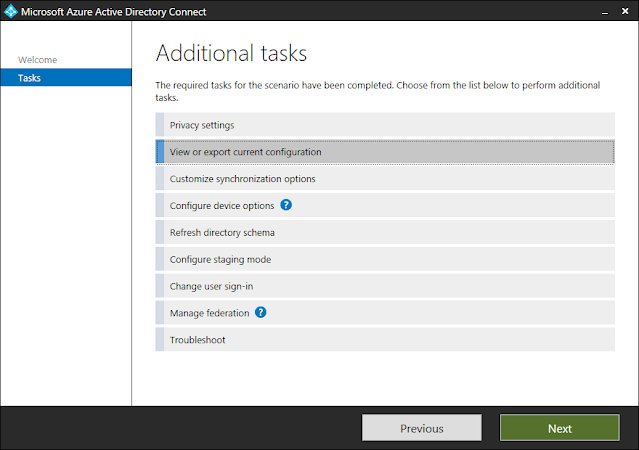
Begin by exporting the AADC configuration on the current server. Open Azure AD Connect and select View or export current configuration.

Select View or export current configuration and click Next

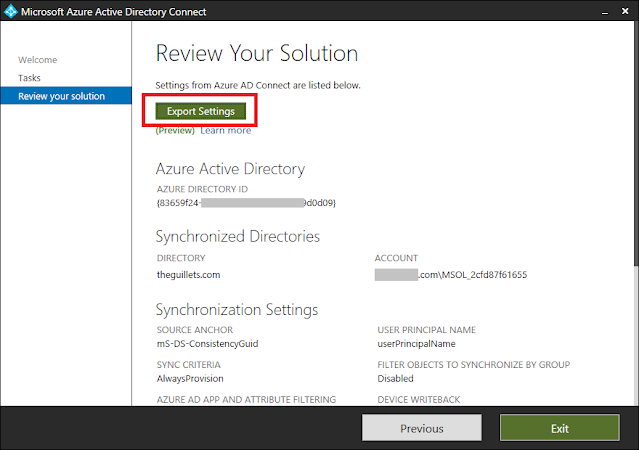
Click the Export Settings button

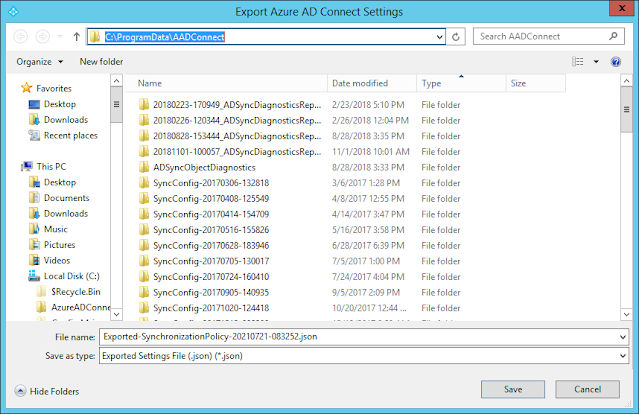
The settings will be exported as a single JSON file in C:\ProgramData\AADConnect by default.
Copy this file to the new AAD Connect server.

Now login to the Windows Server 2016 or later computer where you want to install AADC. This can be either a new or existing domain-joined server.

Download the latest version of AAD Connect from https://www.microsoft.com/en-us/download/details.aspx?id=47594 and install it.

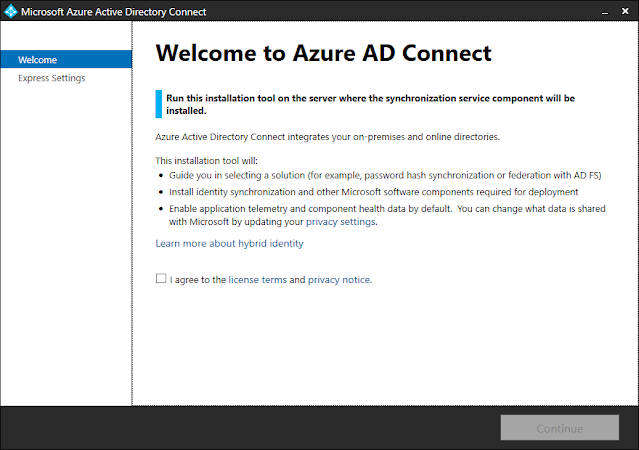
Start the AADC installer.


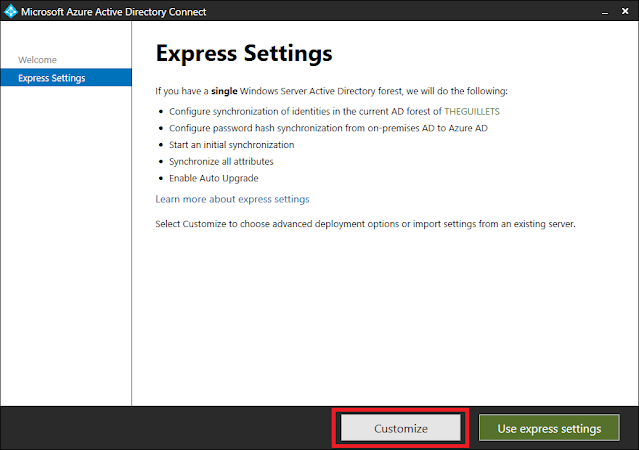
Select Customize since we're going to import the existing config.

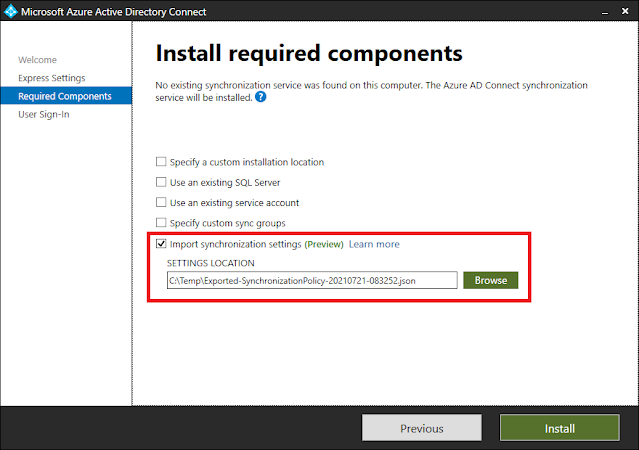
Check Import synchronization settings and browse to the JSON file you copied from the old server.
Click Install to begin the installation.

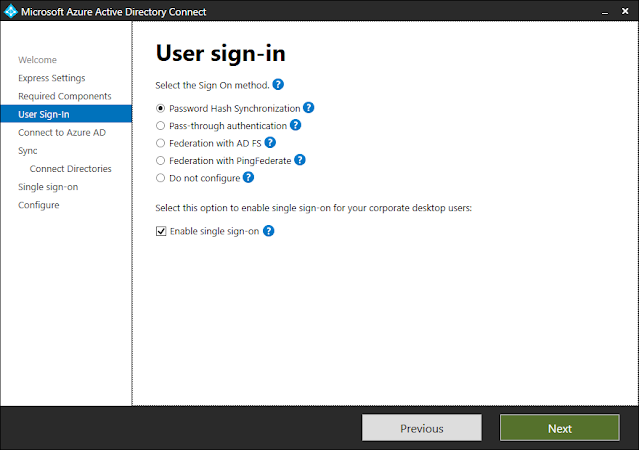
The installer will walk you through setup using the existing config, similar to a manual upgrade.

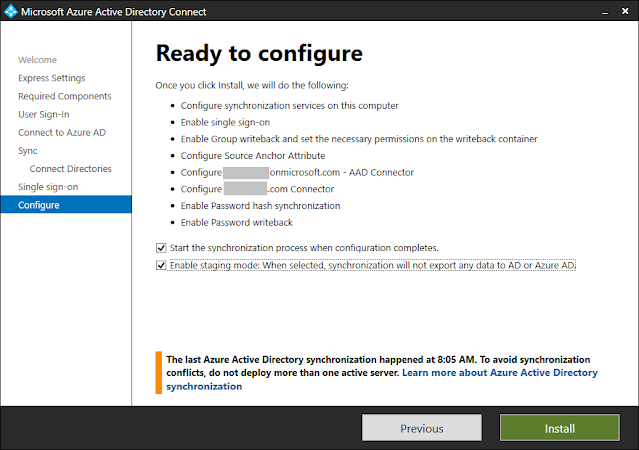
Make sure Enable staging mode is checked, then click Install.

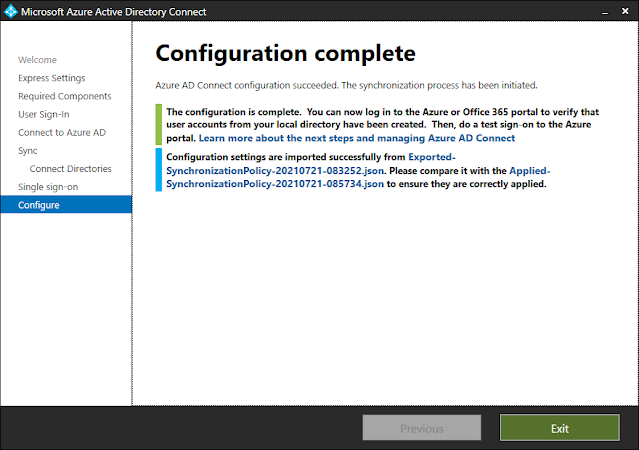
Installation will take a few minutes to complete and should look like this. Click Exit.

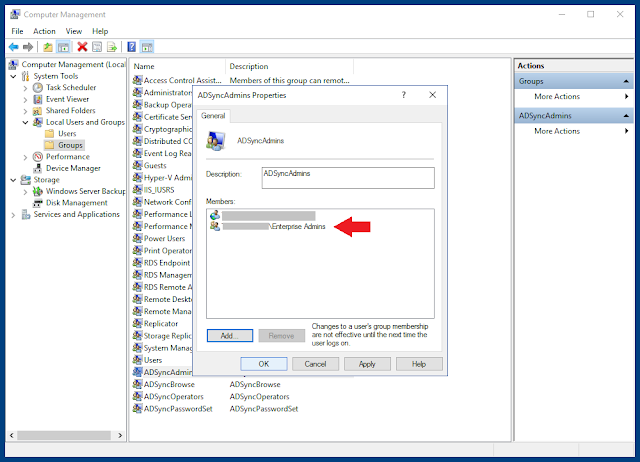
Open Computer Management on the new server and add the domain's Enterprise Admins group to the local ADSyncAdmins group so they can manage AAD Connect. Log off and back on to get the new management permissions.

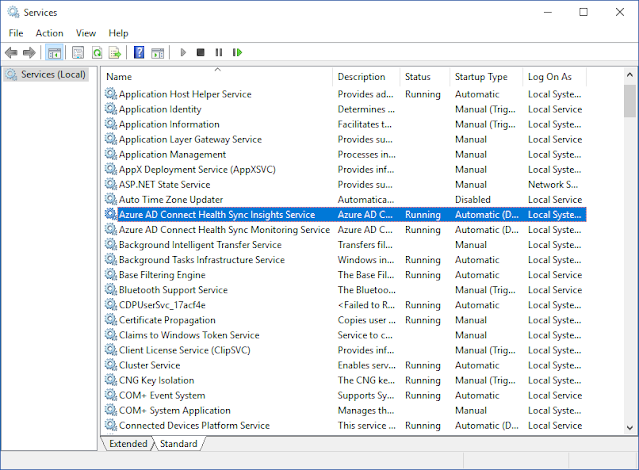
You will notice that the two Azure AD Connect Health Sync services and the Microsoft Azure AD Sync service are now installed and running on the new server.

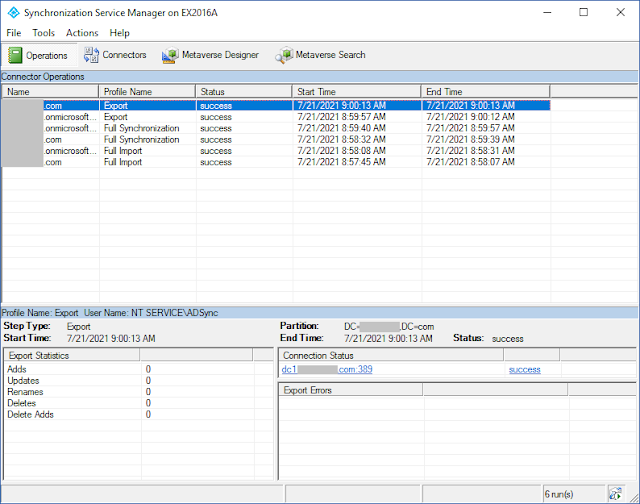
Open the Synchronization Service Manager client located at "C:\Program Files\Microsoft Azure AD Sync\UIShell\miisclient.exe". You will see that the initial full sync occured on the new server.

Now you're ready to complete the AAD Connect migration by uninstalling AADC from the old server and disabling staging mode on the new server.

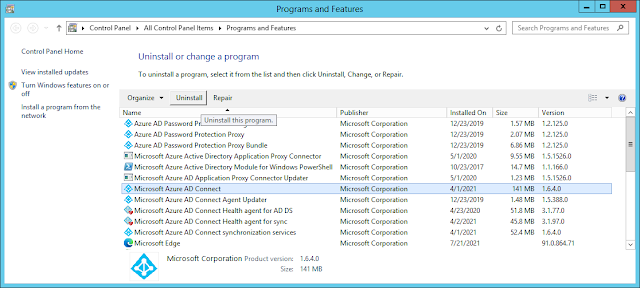
Login to the old AADC server, open Programs and Features, and uninstall Microsoft Azure AD Connect.

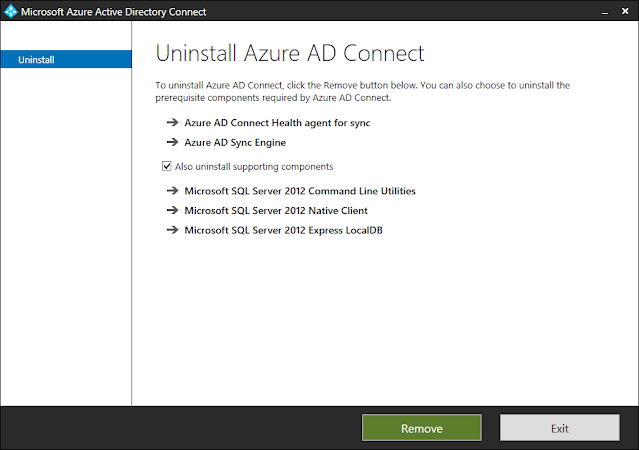
Make sure to check "Also uninstall supporting components" and click Remove.

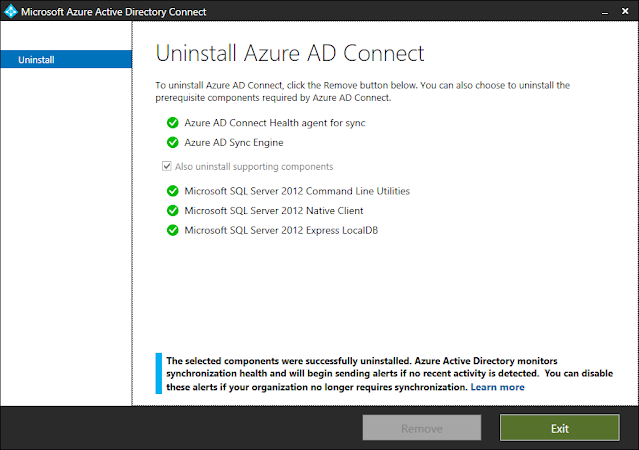
AADC is successfully uninstalled from the old server.

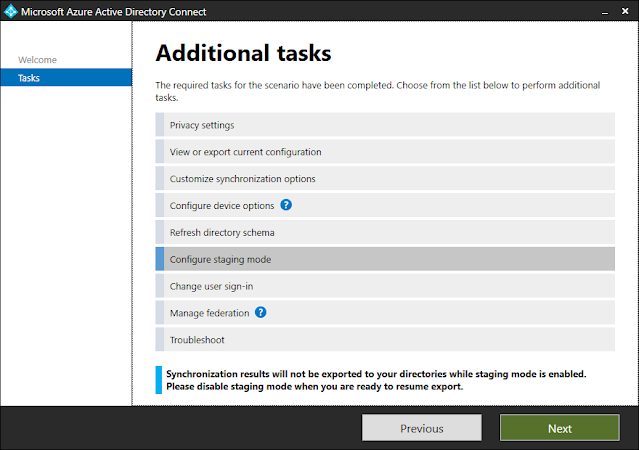
Now login to the new AADC server again and run Azure AD Connect to disable staging mode.

Select Configure Staging Mode and click Next.


Enter the tenant credentials for an admin who has Hybrid Identity Administrator or Global Admin rights.

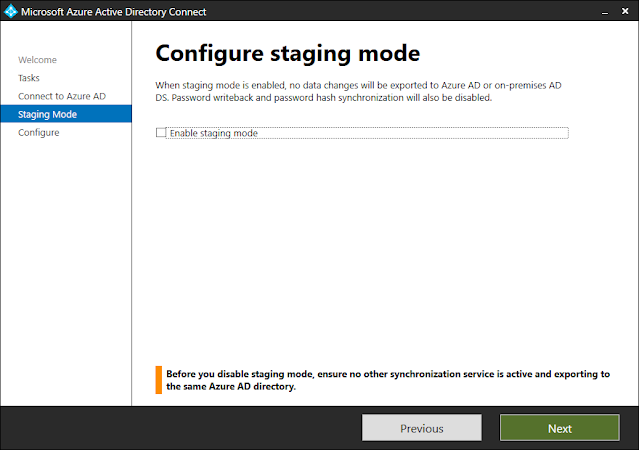
Clear the checkbox to Enable staging mode and click Next.


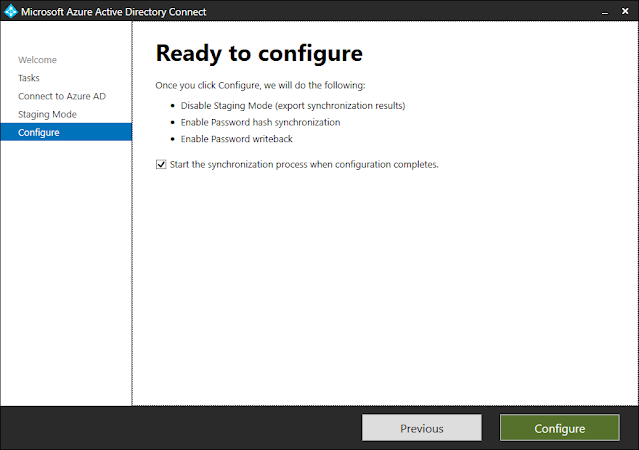
Click Configure to disable staging mode and start the sync process.

Click Exit. The migration to the new AAD Connect server is now complete!


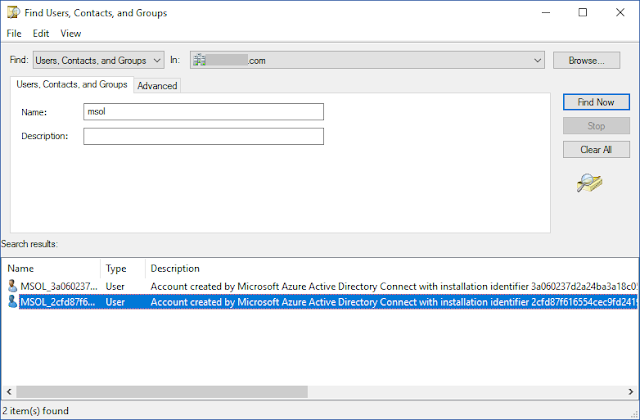
The final step is to delete the old MSOL_<guid> user account from Active Directory. You will find one MSOL_<guid> user account for each AADC installation. Uninstalling AADC does not remove the old account from AD.

Using Active Directory Users and Computers, find the MSOL accounts. They will be normally in the Users container by default. Examine the Description which will tell you which computer created each account.

Delete the MSOL_<guid> account that was created by the old AADC server.


Read more ...

You cannot migrate mailbox off of Office365 while the mailbox has a connected account enabled

Thursday, March 25, 2021

Exchange hybrid is the only Microsoft migration method that allows you to move mailboxes in both directions between Exchange and Office 365.

I'm working with a customer who is offboarding their mailboxes from Exchange Online back to Exchange Server 2016. Several mailboxes cannot be migrated back to on-premises due to the following error:

You cannot migrate mailbox '2f15ec3c-b024-4a25-2fdf-bfda9fd806ba' off of Office365 while the mailbox has a connected account enabled. To successfully remove the connected accounts, run the following command: 'Get-Subscription -Mailbox MailboxID -Aggregati

Note the truncated command, which isn't very useful. 

The Get-Subscription cmdlet let's you view the properties of an existing subscription configured in a user's cloud-based mailbox. This cmdlet is used by Outlook on the web Options to display the list of email subscriptions that the end user has, such as POP, IMAP, Facebook, and LinkedIn.

The exact issue with the mailbox can be determined by running the following in Exchange Online PowerShell:

Get-Subscription -Mailbox user -AggregationType all | select DisplayName, Name, AggregationType, UserId, LastModifiedTime, LastSuccessfulSync, CreationType, Status, StatusDescription, DetailedStatus

We can see that the user has configured a subscription to LinkedIn so that Outlook can do a PeopleConnection lookup. This service was closed down by Microsoft over 3 years ago, but the subscription on the mailbox remains.

Run the following cmdlet in EXOPS to remove the subscription from the mailbox:

Get-Subscription -Mailbox UserId -AggregationType All | Remove-Subscription

Now you can resume the mailbox migration to complete the offboard.


Read more ...

Remove EWS Throttling in Microsoft 365 using Self-Service

Tuesday, June 9, 2020
A number of third party migration solutions use Exchange Web Services (EWS) for migrations to Microsoft 365. This protocol allows these mailbox migration tools to inject migrated items into the target mailboxes in Exchange Online using delegation or impersonation.

Throttling policies help ensure server reliability and uptime by limiting the amount of server resources that a single user or application can consume in Exchange Online. When high load factors are detected that degrade the performance of these resources, EWS connections are dynamically throttled based on the amount that each caller has contributed to this high load condition.

The result is that the third-party migration tool that uses EWS may be impacted by the EWS throttling policy. Migrations may slow or stop altogether.

See EWS throttling in Exchange for a full description of EWS throttling and limits.
Note: It's important to call out that EWS throttling policies do not affect Exchange hybrid migrations. Hybrid migrations use MRS not EWS. Do not use the steps in this article to try resolving slow hybrid migrations.


Read more ...

An Overview of Tenant to Tenant Migrations in Office 365

Wednesday, September 18, 2019

Recently I wrote a chapter for the eBook, "Everything you need to know about Tenant to Tenant Migrations" for Practical 365. You can download the eBook for free here.

You can read a quick teaser for that chapter here on the Practical 365 site.


Read more ...

The Microsoft Hybrid Agent: What you need to know

Thursday, February 7, 2019
Microsoft just announced the new Hybrid Agent Public Preview. This represents an important step toward making it easier for on-prem organizations to implement a hybrid configuration with Exchange Online. Work on the new hybrid agent was announced at Microsoft Ignite 2018 in Orlando, FL to great fanfare.

I wrote an article for the ENow ESE blog where I discuss what it all means and caveats for this implementation. Read it here.

Read more ...

FREE Webinar: Top 10 Tips for Migrating to Exchange 2016

Wednesday, March 14, 2018

Have you recently migrated or are you thinking about migrating your organization to Exchange 2016? Join me for this recorded webinar as we discuss the top 10 tips and tricks.

Among other topics we'll discuss:
  • What features do you need from Exchange 2016?
  • What is the preferred architecture?
  • How important is running Jetstress?
  • Have you planned the Client Access and Hub transport cut-overs?
Dozens of questions arise when it comes to Exchange migrations. This webinar will provide answers, solutions, and the best insights accumulated over numerous migrations.

Head over to ENow Software to view this FREE webinar.

Webinar: Top 10 Tips for Migrating to Exchange 2016

EXPTA Consulting is available to help you with your Exchange 2016 or Office 365 needs. Contact us today to setup a call to discuss how we can help you!


Read more ...

Warning - High number of corrupt items in hybrid migrations

Wednesday, February 14, 2018
UPDATE: This issue has been resolved, but the outcome was less than optimal. If you configured your mailboxes to migrate with a high message corruption limit and the mailbox move succeeded, those mailboxes will have data loss. Microsoft's "remediation plan" is the following:
What action do I need to take? If your migration failed, we recommend that you cancel and re-submit any affected migration requests and proceed with any migrations that were postponed. For migrations that completed with missing items, we have identified a remediation plan that admins can apply that will assist with restoring missing calendar items.

Admins will have a three-step process that they will need to take:
  1. Offboard the mailbox. 
  2. Restore calendar content into the mailbox using a New-MailboxRestoreRequest command. 
  3. Onboard the restored on-premises mailbox back into Exchange Online. 

My original post follows:

I'm publishing this article as a public service announcement since Microsoft is not warning customers in the Office 365 Service Health Dashboard.

Beginning last week, we noticed that hybrid mailbox moves to Exchange Online started failing with a very high number of corrupt items, usually calendar items. The default limit for corrupt items is 10 in a hybrid mailbox migration. It's not unusual for some mailboxes have one or two corrupt mail items, usually calendar items, for mailboxes that have been around for a long time. But suddenly mailbox moves are starting to fail with hundreds of corrupt items.

Migration Batch Status

Migration Report Details 
I've seen this myself in my own tenant, as well as other customer's tenants. It's also being reported by customers in the Microsoft Online: Exchange Online forum. We know it's not a problem with the mailboxes because we can move them between Exchange on-prem databases without any corrupted items being detected.

I and other MVPs have opened support tickets, but they seem to have fallen into black holes. We're getting very little response and the issue still doesn't show in the O365 SHD as of the time of this article. So far, we've found that tenant versions 15.20.485.17, 15.20.506.17, and 15.20.527.17 are affected. To find out which version your tenant is, run the Get-OrganizationConfig | ft AdminDisplayVersion cmdlet in remote PowerShell.

Determine Tenant Version
WARNING: A lot of customers simply increase the corrupt item limit high enough to get the mailbox move to succeed, but that may mean a lot of data loss. I do not recommend that you do this until this issue is fixed.

If you have increased the corrupt item limit to get the migrations to complete, you can retrieve the non-migrated data from the soft deleted mailbox on-premises. See Connect or restore a deleted mailbox for details.


UPDATE:
Microsoft has finally updated the Service Health Dashboard to show there's a problem. And they indicate that this affects all mailbox migrations since January 30, 2018!


It took over two full weeks for this issue to service on the SHD. I don't know about you, but I think this is totally unacceptable.

Read more ...

Exchange 2007 End of Life on April 11th

Monday, February 27, 2017

As announced, Exchange Server 2007 reaches end of life on April 11th, 2017, over ten years after its introduction. That means that Microsoft will no longer provide either free or paid support and, more importantly, will not offer future security or bug fixes for Exchange 2007. This can leave your organization in a vulnerable state.

You're options are to move to Office 365 Exchange Online or upgrade your messaging infrastructure to a newer version of Exchange on-premises. EXPTA Consulting is here to help you. We have years of experience migrating customers to Exchange on-prem or online with minimal disruption to your end-users. Contact us today for a free evaluation!


Read more ...

Exchange 2013 Migration Batch Completes Successfully, But Mailbox is Not Moved

Friday, August 14, 2015
Here's another weird one. I'm testing a mailbox move from Exchange 2013 to Exchange 2016 (beta) for a mailbox with an in-place archive. I can create a new migration batch for the user and it completes in short order, but the mailbox and archive are not moved. The number of Total, Synced, Failed, and Successful mailboxes for the batch is zero. I get a notification email saying the batch completed successfully, but no mailboxes were moved or synced.

"Successful" Migration Batch Notification
When I look at the details of the migration batch in EMS I see that the ValidationWarningCount is 1 and the ValidationWarnings show, "Error:The user already exists, but the migration batch that includes it couldn't be found. Before you try migrating the user within a batch again, please remove the existing user by running the Remove-MigrationUser cmdlet."

Migration Batch Validation Warnings
Whoever wrote that error message deserves a raise. MUCH better than the "Error code 2" I'm used to getting.

A "MigrationUser" object is created for each user who is in the process of being migrated or the migration has not been completed, so it remains in a syncing state. I ran the Get-MigrationUser cmdlet which revealed that the mailbox was indeed "stuck" in a migration since 7/20/2013(!!) with no other issues.

This mailbox has been "migrating" for over two years!
So, I removed the migration user using the Remove-MigrationUser cmdlet. I needed to use the -Force parameter since the move request no longer exists.

Remove-MigrationUser clears the way to re-run the migration
This fixed the problem and I was able to move the mailbox and archive successfully. This condition would prevent a mailbox from moving to any other database or Office 365. It's strange that Exchange doesn't detect this when the batch request is created.


Read more ...

The Last Missing Piece - Exchange 2013 RTM CU1 Released!

Tuesday, April 2, 2013
Exchange 2013 RTM CU1 was released to the web today, finally allowing customers to upgrade from Exchange 2007 and Exchange 2010.  You can download Exchange 2013 RTM CU1 here.  As you probably know, there is no direct upgrade path from Exchange 2003 -- You must upgrade to 2007 or 2010 first.  Read the full release notes here.

The Exchange Team blog has an excellent write-up about the changes in RTM CU1, including much anticipated information about Planning and Deployment.  I'm providing a short summary about CU1 here:

  • Exchange Server 2013 CU1 includes both bug fixes and feature improvements.
  • Setup takes 20 minutes or more per server, depending on your hardware.
  • To upgrade from Exchange 2007 all servers must first be upgraded to Exchange 2007 SP3 Update Rollup 10.
  • To upgrade from Exchange 2010 all servers must first be upgraded to Exchange 2010 SP3.
  • If you are upgrading Exchange 2013 RTM note that CU1 (and all future cumulative updates) are build-to-build updates.  CU1 setup will uninstall Exchange 2013 RTM before it installs CU1.  Any customization you may have done for RTM may be lost.
  • CU1 requires AD schema updates, enterprise AD changes, and AD permissions changes.  Therefore, it requires setup /PrepareSchema, /PrepareAD, and /PrepareDomain topology updates.  The GUI setup of CU1 will do all these steps automatically. Because of these additional steps, setup will take longer on the first installation.
  • If you have not installed Exchange 2013 RTM yet, you can install Exchange 2013 CU1 directly from the CU1 update from the web.  No need to install RTM first.
  • If your environment does not include Exchange 2010 servers, you will not be able to add any 2010 servers after installing 2013. If you plan to have any 2010 servers you should deploy a 2010 multi-role server first.
  • When you deploy the first Exchange 2013 Mailbox server in an existing Exchange organization, a new default Offline Address Book is created. All users perform a full download of this new OAB when Outlook is launched.  To prevent this, assign the current default OAB to each database before installing 2013.  The methods to do this are detailed in the blog post above and the release notes.
  • You can deploy multi-role (CAS and Mailbox) server(s) or separate CAS and Mailbox servers.  Due to the fact that CAS proxies all web requests, you will be unable to manage a Mailbox server until there is at least one 2013 CAS in the environment.
  • It no longer matters which role you update first. If you have dedicated CAS and Mailbox servers you can upgrade either role first.
  • You can no longer uninstall a single server role (i.e., you cannot convert a multi-role server to a single role server).  You can only uninstall all Exchange 2013 roles and redeploy.
  • Mailboxes moved from legacy Exchange versions to 2013 will appear to increase in size an average of 30% due to more accurate space calculations. User quotas may need to be increased to account for this.
  • An Address Book Policy Routing Agent has been introduced in CU1 to provide Address Book policies (different Address Books, depending on group membership).
  • With Exchange 2013 RTM CU1 groups can once again be owners of groups for membership management, as was the case in Exchange 2007.
  • Exchange 2013 CU1 includes rudimentary access to "modern" Public Folders (the Exchange 2013 variety) using OWA.  Users must add a specific Public Folder to their Favorites in OWA.  This is only for 2013 Public Folders and only provides access to existing Public Folders -- users cannot add or delete 2013 Public Folders in OWA 2013.
  • The Exchange Administration Center (EAC) has been enhanced and now includes Unified Messaging management.
  • Exchange 2013 CU1 will support the Exchange Server 2013 Management Pack for System Center Operations Manager (SCOM), due at a later date.
I'll be posting an article about OWA 2013 and EAC enhancements shortly.

Read more ...