The Future of Exchange Server

Tuesday, September 10, 2024

Microsoft published an important new article today detailing some of the requirements and recommendations for upgrading Exchange Server to the latest version, Exchange Server SE (Subscription Edition). Upgrading your organization from current versions to Exchange Server SE - Microsoft Community Hub

This article applies to all customers running Exchange Server on-premises, including hybrid customers using Exchange Server for hybrid management.

The blog post is dense with a lot of information, but the key important points are:

  • Exchange Server SE is the next version of Exchange Server and will be released the second half of 2025.
  • Exchange 2019 CU15 will be released Q4 this year. This will be the last cumulative update for Exchange 2019. There will be no future updates for Exchange 2016.
  • Exchange 2019 CU15 will allow for an in-place upgrade to Exchange Server SE. This is a first for Microsoft. Previous upgrades required new servers.
  • Exchange Server SE will only allow coexistence with Exchange 2016 CU23 and Exchange 2019 CU14/15.
  • Exchange 2013 will become totally unsupported with the release of Exchange 2019 CU15. You must upgrade or remove Exchange 2013 from your organization ASAP.
  • Customers should upgrade their Exchange 2016 servers to Exchange 2019 CU14/15 ASAP to prepare for Exchange Server SE.
  • After Exchange Server SE is released in 2025, Exchange 2016 and 2019 will be subject to throttling by Microsoft. See Throttling and Blocking Email from Persistently Vulnerable Exchange Servers to Exchange Online - Microsoft Community Hub
  • The following table from the blog post illustrates the milestones and actions to take:


  • Licensing for Exchange Server SE will be similar to Exchange 2019 – You either must have an existing Microsoft 365 license for all users or you can buy server licenses and CALs with Software Assurance (SA).

Please reach out to EXPTA Consulting if you need help implementing these requirements. We also can meet with you to discuss options for removing the last Exchange Server from hybrid environments.

Read more ...

Deploy Extended Protection for Exchange server NOW

Thursday, January 18, 2024


Exchange 2019 CU14 is expected to enable Windows Extended Protection in Exchange Server by default. This feature enhances the existing authentication in Windows Server and mitigates authentication relay or man-in-the-middle (MitM) attacks..

Extended Protection requires several very important prerequisites, which the link above describes.

Prerequisites for enabling Extended Protection on Exchange Server:

  • SSL offloading must be disabled on all Exchange servers (it's enabled by default).
  • Clients should use NTLMv2 instead of NTLMv1, which is the default setting in Windows. I recommend configuring this via Group Policy. If NTLMv1 is used by clients when Extended Protection is enabled, the configuration leads to password prompts on the client side without a way to authenticate successfully against the Exchange server.
  • TLS configurations must be consistent across all Exchange servers within the organization. Any variation in TLS version use across servers can cause client connections to fail. I recommend that all Exchange servers be configured to use only TLS 1.2 for client and server operations, as well as .NET.
  • Third-Party software running on your Exchange server must be compatible with Extended Protection. Ensure to test all third-party products that are running in your Exchange Server environment to ensure that they work properly when Extended Protection is enabled.
  • Extended Protection doesn't work with hybrid servers using a Modern Hybrid configuration.
  • Extended Protection can't be enabled on Exchange Server 2013 servers with Public Folders in a coexistence environment.
  • Extended Protection can't be enabled on Exchange Server 2016 CU22 or Exchange Server 2019 CU11 or older that hosts a Public Folder hierarchy.

It's unlikely that the Exchange 2019 CU14 installer will perform "deep" inspection for these prerequisites, so this may cause problems in your environment if the prerequisites are not met and CU14 enables Extended Protection. The most likely issue will be that clients will be unable to connect or authenticate to Exchange server after Extended Protection is enabled.

I strongly recommend that all customers with Exchange server (including hybrid) check that they meet the requirements above and run the Exchange Extended Protection Management script before they install Exchange 2019 CU14. This script will check that the major requirements are met before enabling Extended Protection across all Exchange servers (not just Exchange 2019) in the organization.

The best course of action is to check and mitigate the Extended Protection prerequisites first. Always read the CU installation notes, especially if you use Windows Update to deploy this security update.

Please reach out to EXPTA Consulting if you would like assistance.

Read more ...

Do yourself a favor. Deploy PowerShell serialization for Exchange server NOW

Friday, November 10, 2023

Exchange 2019 CU12/13 Security Update 13 is expected to enable PowerShell serialization by default. This feature configures certificate-based signing of PowerShell serialization payloads to reduce the possibility of man-in-the-middle attacks in PowerShell scripts that connect to Exchange server.

PowerShell serialization requires prerequisites, which the link above describes:

Prerequisites to enable this feature: 

  • Make sure that all Exchange-based servers in your environment have the January 2023 SU or a later SU installed. If you enable this feature before you update all servers, deserialization failures might occur and trigger other issues. 

  • Make sure that a valid Exchange Server auth certificate is configured and available on all Exchange-based servers (except Edge Transport servers) before and after you enable certificate signing.

You can run the MonitorExchangeAuthCertificate.ps1 script to check for a valid auth certificate on Exchange-bases servers in your environment. The script also checks whether the auth certificate will expire in less than 60 days, and it can help you to rotate the certificate. For more information about MonitorExchangeAuthCertificate.ps1, see Monitor Exchange AuthCertificate

To manually check auth certificate availability and validity, see Auth Certificate Availability and Validity. 

We strongly recommend that you use the MonitorExchangeAuthCertificate.ps1 script (or create a new one, if it's necessary). This is because the script can also renew an expired auth certificate. The script includes a manual execution mode (verify the auth certificate availability or verify and take action, if it's necessary). The script also includes an automation mode that works by using Windows Task Scheduler.

It's unlikely that the SU installer will check for these prerequisites, so this may cause problems with Exchange scripts in your environment if the prerequisites are not met but the SU enables PowerShell serialization.

The best course of action is to check the prerequisites first, especially if you don't read the SU installation notes first or you use Windows Update to deploy this security update.


Read more ...

Lessons Learned and Best Practices for Autodiscover in a Hybrid Environment

Tuesday, June 20, 2023

Outlook uses the Autodiscover service to get real-time connection information for your mailbox and any other mailbox you connect to. Without Autodiscover you may be able to get Outlook to connect, but it won't connect correctly. For example, Exchange Web Services (EWS) connectivity in Outlook can only be made using Autodiscover.

Outlook normally performs Autodiscover requests when you setup a mail profile for the first time and from then on, periodically in the background. This is how automapped shared mailboxes get automatically added to Outlook. Outlook also runs an Autodiscover request when your mailbox moves between servers or databases, as when a failover event occurs. Autodiscover is also used whenever you check free/busy availability of another user's calendar.

Domain-joined computers in an Exchange Server or hybrid environment normally use a Service Connection Point (SCP) published in Active Directory to get the URI Outlook should use for Autodiscover requests. This is set using the Set-ClientAccessService -AutoDiscoverServiceInternalUri <value> cmdlet in the Exchange Management Shell (EMS).

There's a lot of documentation in the web that says you should set the AutoDiscoverServiceInternalUri value to $null after a hybrid migration is complete. But is that the right thing to do?

It's a long answer, so strap in. 😉  Tl;dr at the end.

First, know that Autodiscover behavior changes depending on the Outlook client and build version, as well as possible non-standard registry settings.

Microsoft 365 Apps for Enterprise always tries https://outlook.office365.com/autodiscover/autodiscover.xml first (Autodiscover-V2) regardless of your DNS settings. Microsoft's assumption is that if you’re running that version, your account is probably in the cloud. If your mailbox is indeed in EXO, that process looks like this and only takes 1-2 seconds:


Autodiscover-V2 will fail if your account is missing in EXO or not migrated yet and Outlook will then start the regular Autodiscover-V1 process. Note that the Autodiscover-V2 process can also be skipped with the following reg key. I see this often in older enterprise environments.

HKEY_CURRENT_USER\Software\Microsoft\Office\16.0\Outlook\AutoDiscover]
"ExcludeExplicitO365Endpoint"=dword:00000001

Office 2016/2019 clients normally only do the regular Autodiscover-V1 process, which is well known:

  1. Check for Local Data preference (configured via GPO to use an autodiscover.xml file stored locally on the computer)
  2. Check for Last Known Good (LKG) cached data
  3. Some later builds use heuristics to determine if the user account comes from Azure AD and will check against https://autodiscover-s.outlook.com/autodiscover/autodiscover.xml 
  4. SCP (see *notes below)
  5. DNS
    • Root domain (https://contoso.com/autodiscover/autodiscover.xml, which nearly always fails)
    • Autodiscover URI (https://autodiscover.contoso.com/autodiscover/autodiscover.xml)
  6. HTTP redirect
    • http://autodiscover.contoso.com/autodiscover/autodiscover.xml
  7. SRV
    • Value from _autodiscover._tcp.contoso.com 443 0 0 in DNS

*Note that the SCP process won't work in several scenarios:

  • The computer is not domain-joined
  • SCP is $null
  • SCP is not available via LDAP because the domain-joined machine is disconnected from the DC
  • Registry keys can, and most often will, override the default Autodiscover behavior

Here’s what the process looks like for an M365 mailbox user in a hybrid environment from a domain-joined computer on the LAN. The SCP is set to https://autodiscover.contoso.com/autodiscover.autodiscover.xml (the on-prem Exchange Server). This process took 52 seconds to complete. Remember, this is the same process that Outlook goes through when creating a new mail profile, too.


When the SCP is set to $null it skips the first five lines, but execution time is nearly the same. It gets there, but it's not efficient and takes a really long time.

If we set the SCP to https://autodiscover-s.outlook.com/autodiscover/autodiscover.xml, the process only takes about 1 second.


As you can see, setting the SCP to https://autodiscover-s.outlook.com/autodiscover/autodiscover.xml is much more efficient than setting it to $null when the migration is complete.

Tl;dr:

The Service Connection Point (SCP) is set using the Set-ClientAccessService -AutoDiscoverServiceInternalUri <value> cmdlet.

  • If you're a hybrid customer and you still have mailboxes on-premises that use Outlook:
    • Set your SCP to https://autodiscover.contoso.com/autodiscover/autodiscover.xml.
    • Create an A record for autodiscover.contoso.com in internal and external DNS resolving to on-prem Exchange for computers that can't reach AD.
  • If you're a hybrid or cloud customer and all mailboxes that use Outlook or in EXO:
    • Use Microsoft 365 Apps for Enterprise, which always checks EXO first. It also provides the best experience, features, and performance for cloud mailboxes.
    • If you're hybrid, set your SCP to https://autodiscover-s.outlook.com/autodiscover/autodiscover.xml.
    • Create a CNAME record for autodiscover.contoso.com in external DNS resolving to autodiscover.outlook.com. This way, older clients that don't use Autodiscover-V2 will use the HTTP redirect method to get to EXO.


Read more ...

Exchange Online will Throttle and Block Email from Persistently Vulnerable Exchange Servers

Thursday, March 23, 2023

Microsoft announced that they will begin Throttling and Blocking Email from Persistently Vulnerable Exchange Servers to Exchange Online.

They will begin slowly by blocking OnPremises (hybrid) connections from Exchange 2007 servers to Exchange Online, but plan to include all persistently vulnerable servers soon. A “persistently vulnerable server” is any Exchange server that has reached end of life (e.g., Exchange 2007, Exchange 2010, and very soon, Exchange 2013), or remains unpatched for known vulnerabilities.

If you have any Exchange 2007, 2010, or 2013 servers in your organization that are used for hybrid or SMTP relay, you must make plans to replace or remove them ASAP. You must also keep any Exchange 2016 and 2019 servers up to date with the latest Cumulative and Security Updates, as they are released.

I support this initiative. Organizations using Exchange Servers with known and unpatched vulnerabilities put themselves and their partners at risk. I look forward to seeing it include additional unsupported Exchange Server versions, and I understand their approach of rolling this out slowly and carefully at first.

There are millions of mailboxes in Exchange Online and they have a duty to protect those mailboxes. They know there are 16-year old Exchange 2007 servers currently connecting to their service that haven’t been patched in years and have dozens of known vulnerabilities. 

Microsoft is not forcing anyone to move to Exchange Online. They’re just not going to allow Exchange servers with known vulnerabilities to send hybrid (trusted) emails into their service.

It’s only 2007 for now, but eventually it will be any Exchange Server that is not running the latest or second to latest updates. It’s too risky for everyone.

The table below details the stages of progressive enforcement over time of a persistently vulnerable server:

thumbnail image 2 of blog post titled 


							Throttling and Blocking Email from Persistently Vulnerable Exchange Servers to Exchange Online

Read more ...

Do Not Install the February 2023 Exchange Server Security Updates via Windows Update

Wednesday, February 15, 2023


Microsoft released the February 2023 Exchange Server Security Updates yesterday, February 14, via Windows Update and on their website. The website links to the correct files for the February 2023 Security Updates, but Windows Update currently is deploying the January 2023 Security Update CAB file for Exchange Server 2013, 2016, and 2019. 

For this reason, install the February updates from the hyperlinks listed in the EHLO Blog post, not Windows Update. If you did already install the Exchange Security Updates via Windows Update, download the files directly and reinstall them on all your servers. Then check the version with the HealthChecker.ps1 script.

UPDATE: Microsoft just said, "We've fixed the issue, so it's safe to install the SU from MU/WU again. Apologies for the inconvenience." According to Microsoft, customers who already installed the February SU via Windows Update can either install it again via Windows Update or download the update from the web and install it.

For further details, keep reading.


Several of my customers installed the Security Update For Exchange Server CU23 SU6 (KB5023038) on multiple servers via Windows Update. These servers include Exchange Server 2013, 2016, and 2019.

Windows Update history shows the February 2023 KB5023038 update has been installed, but HealthChecker.ps1 reports the servers are still on the January 2023 KB5022143 SU. 


Checking the registry,

HKEY_LOCAL_MACHINE\SOFTWARE\Microsoft\Windows\CurrentVersion\Uninstall\Microsoft Exchange v15\DisplayVersion says the Exchange build is 15.1.2507.18 (not listed here, but should be 15.1.2507.21). 

HKEY_LOCAL_MACHINE\SOFTWARE\Microsoft\Windows\CurrentVersion\Uninstall\Patch\DisplayName says “Security Update for Exchange Server 2016 Cumulative Update 23 (KB5022143)” 

When you run Windows Update again, it says no updates are pending.

When I view the C:\Windows\SoftwareDistribution\Download folder I see a folder named f664b5c67010fa70659624355017ed43 with the date and time when Windows Updates were applied.


Inside that folder is the Exchange2016-KB5022143-x64-en.cab which is the January 2023 Exchange Security Update, proving that Windows Update is pushing the wrong SU.


Installing the February 2023 Exchange Security Updates from the published download pages installs the correct SU. Verify with the HealthChecker script.


Read more ...
How to Remove Internet Explorer from Windows Computers and Servers

Thursday, January 19, 2023

Support for Internet Explorer 11 ended on June 15, 2022 and IE 11 will no longer be accessible after February 14, 2023.

Even so, Internet Explorer 11 is still installed as the default web browser with every version of Windows and Windows Server. To make matters worse, Windows 10 also shipped with non-Chromium Edge (now called Legacy Edge). You'll need to download and install a "modern" web browser, such as Microsoft Edge, Google Chrome, FireFox, etc. Keep in mind that you can reload Internet Explorer sites with IE mode in Microsoft Edge.

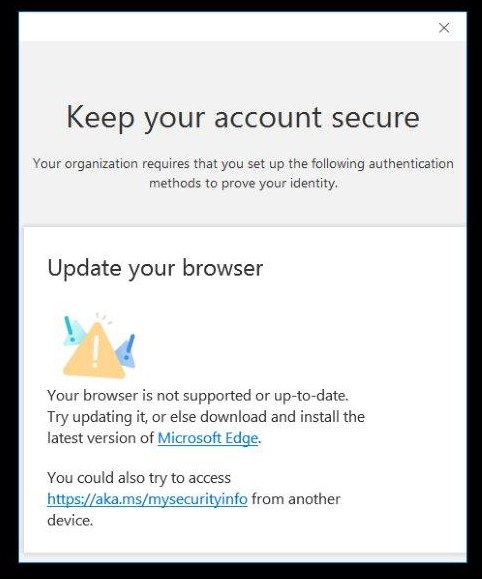
Even with ChrEdge (my name for Chromium Edge) installed as the default web browser, I've heard from a few customers that IE is still being used for some web work flows. For example, a customer recently showed me this MFA security confirmation prompt that is opening in IE for some reason.


All this leads me to the task at hand. How do you uninstall Internet Explorer 11 from Windows?

This is not straight forward since IE 11 is part of the Windows installation. It cannot be removed as a Windows application or feature. The answer is to use DISM (Deployment Imaging Servicing Management) installed with all versions of Windows and Windows Server.

Run the following command from an elevated CMD or PowerShell prompt:

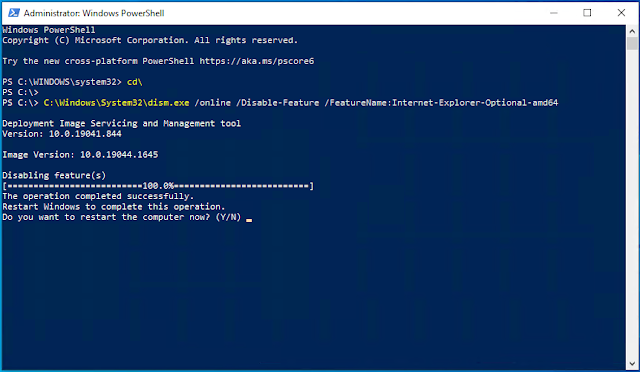
C:\Windows\System32\dism.exe /online /Disable-Feature /FeatureName:Internet-Explorer-Optional-amd64

Removal only takes a few seconds and the output looks like this:


DISM will prompt you to restart the computer to complete the operation. Until you do, Internet Explorer will still show as an available web browser. Optionally, you can add the /Quiet switch which will not show DISM uninstall progress and will automatically restart the computer when it's done.

Read more ...
ProTip: Scheduled Task to Start Stopped Services in Exchange Server

Friday, January 13, 2023

As a best practice, I've always created a scheduled task on my Exchange Servers that starts all stopped services 1 minute after server startup. This is useful for virtualized environments where servers restart much faster than physical environments. Often the VM comes back up before the network has fully initialized. When this happens, some of the Exchange services do not start properly.

This scheduled task is becoming important with the release of the January 2023 Exchange Server Security Updates. There is a known issue that Microsoft Exchange AD Topology service may not start properly on Exchange 2016 servers running on Windows Server 2012 R2. Microsoft is investigating.

I've seen this happen on several of my customers' environments. Since almost all Exchange services rely on the AD Topology service, none of the Exchange services will start. You are required to start all the services manually after every reboot. Instead, you can install the scheduled task that does this for you.


Run the following from an elevated PowerShell or EMS prompt:

$TaskProgram =  "$env:SystemRoot\System32\WindowsPowerShell\v1.0\powershell.exe"

$TaskArguments = '-NoProfile -command "gwmi win32_service | where {$_.StartMode -eq ''Auto'' -and $_.State -eq ''Stopped''} | Start-Service"'

$TaskAction = New-ScheduledTaskAction -Execute $TaskProgram -Argument $TaskArguments

$TaskTrigger = New-ScheduledTaskTrigger -AtStartup -RandomDelay 00:01:00

Register-ScheduledTask -TaskName "Start Stopped Services" -Action $TaskAction -Trigger $TaskTrigger -RunLevel Highest -User "system" -Description "Starts all stopped services 1 minute after startup due to slow network initialization."

It's safe to install this on any Exchange server.


Read more ...

Turning off Basic Authentication for Autodiscover in Exchange Online

Thursday, November 17, 2022

Much has been said and written about disabling Basic Authentication in Exchange Online, and for good reason. Basic Auth is insecure and makes it easy for bad guys to hack your accounts and access your organization's data.

Microsoft disabled Basic Auth for most Exchange Online protocols in October of this year. Those protocols include Outlook, EWS, RPS, POP, IMAP, and EAS. SMTP Auth was also be disabled in your tenant if it is not being used. Modern Authentication is the secure way to authenticate for these protocols. Congratulations to Microsoft for pulling off such a monumental achievement to help keep customers' data safe!

Read Deprecation of Basic authentication in Exchange Online | Microsoft Learn for more information.

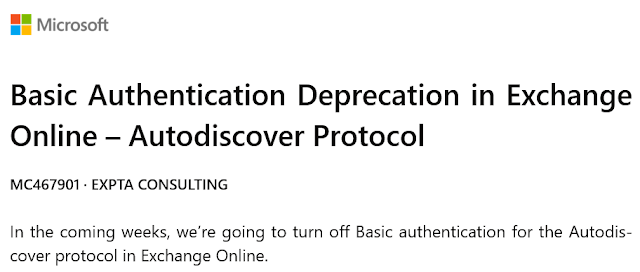
Next up, Microsoft is going to disable Basic Auth for the Autodiscover protocol. I would argue this is one of the most significant changes to deprecating Basic Auth, since it is continuously used by Outlook and whenever you configure a mail profile on a mobile device that uses ActiveSync. Because of this, it's easy to ignore this traffic when monitoring for Basic Auth usage. It's also a fairly easy protocol for the bad guys to use for password guessing or dictionary attacks.

As with all the other impacted protocols, Microsoft is not turning off the protocol itself, only the ability to authenticate to the protocol using nothing more than a username and password.


Read more ...

Azure AD Connect version 2.1.20.0 released with a new ability you probably can't use yet

Friday, November 4, 2022

UPDATE: Hot on the heels of the last update, Microsoft released Azure AD Connect version 2.1.20 (6 days later) which apparently fixes a bug in the new sync feature described below. If you implemented the custom sync rule described earlier, you'll need to undo it and do it again. <facepalm>

Microsoft updated Azure AD Connect to version 2.1.19.0 today. 

According to the release notes, "We added a new attribute 'employeeLeaveDateTime' for syncing to Azure AD. To learn more about how to use this attribute to manage your users' life cycles, please refer to this article".

Let's break this down.

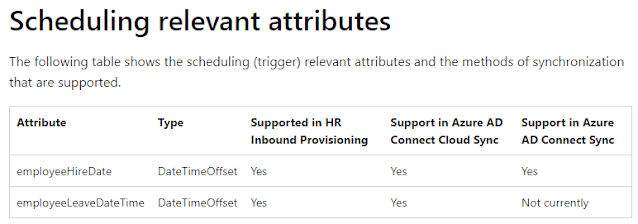
First, the support article the release notes refer to is for Azure AD Connect cloud sync, not Azure AD Connect. At this time, syncing the employeeLeaveDateTime is still not supported in Azure AD Connect.


Since AAD cloud sync doesn't support Exchange hybrid at this time, AAD cloud sync is of no value for hybrid customers. However, the AD Connect team is working on adding Exchange hybrid support in the future. 

The support table shows that syncing the employeeHireDate attribute is already supported in Azure AD Connect, so I expect that suspect the configuration is the same. I could not find a similar support article for Azure AD Connect.

Second, the employeeHireDate and EmployeeLeaveDateTime attributes only exist in Azure AD. The on-premises Active Directory schema is not extended to add these two attributes, so the recommendation is to use one of the existing extensionAttribute* attributes an AD to hold these values.

At this time, Microsoft recommends using the extensionAttribute1 attribute for employeeHireDate, but the documentation makes no mention of how to handle the EmployeeLeaveDateTime attribute. See How to synchronize attributes for Lifecycle workflows - Microsoft Entra | Microsoft Learn. I hope this documentation will be updated soon with the missing info and how to handle it if this attribute is already in use in your organization.

Last, if you want to update the employeeLeaveDateTime attribute directly in Azure AD using the Graph API, please see Set employeeLeaveDateTime - Microsoft Graph | Microsoft Learn.


Read more ...
Fix for "Online - Data retrieval failures occurred" on Exchange DAG members

Thursday, November 3, 2022

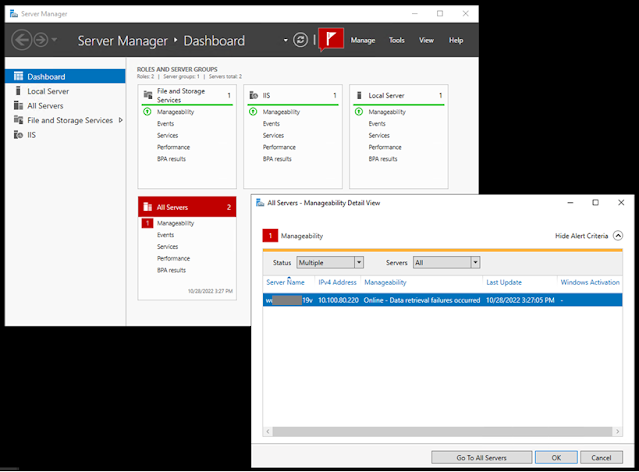
You may find that when you add an Exchange server to a DAG that Server Manager shows multiple errors.

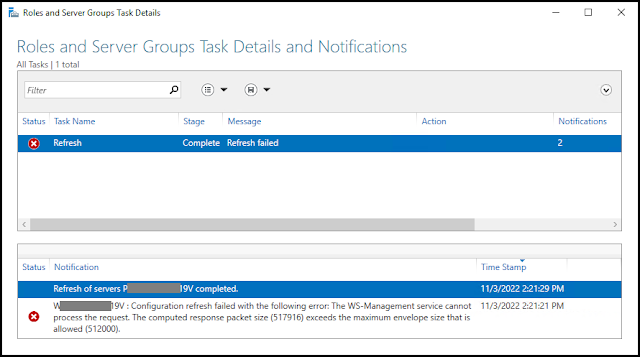
The Notification flag at the top indicates "Refresh failed" and Manageability for All Servers shows an error for the remote DAG member saying, "Online - Data retrieval failures occurred".


You may also see errors that say, "Configuration refresh failed with the following error: The WS-Management service cannot process the request. The computed response packet size (517916) exceeds the maximum envelope size that is allowed (512000)."


These errors occur when the Failover Clustering feature is installed on the DAG member. I've usually only seen this for Exchange 2019 installed in Windows Server 2019 or Windows Server 2022. This is a Windows Server issue, not an Exchange issue, so this fix should also apply to any Windows cluster experiencing this problem.

The fix is to increase the WSMAN maxEnvelopeSize in the registry on all DAG members.

  1. On the DAG member, launch regedit.exe and navigate to HKEY_LOCAL_MACHINE\SOFTWARE\Microsoft\Windows\CurrentVersion\WSMAN\Client.
  2. Create a new DWORD (32-bit) value named maxEnvelopeSize, or modify it if it already exists.
  3. Set the value data to 2000 hexadecimal (8192 decimal).

Finally, restart the Windows Remote Management (WS-Management), aka WinRM, service on the server.

When you refresh Server Manager, the error should go away.

Read more ...
Bug when moving Public Folders to Exchange 2019

Thursday, October 27, 2022

There's a bug in Exchange 2019 CU12 and earlier that causes New-MoveRequests for Public Folders to fail. 

The move request will fail with the error: StalledDueToMRS_Quarantined, which means that the Mailbox Replication Service (MRS) on the target Exchange 2019 server has crashed repeatedly due to the bug and has quarantined the move request (not the mailbox).

If you check the move request report with the Get-MoveRequestStatistics <PFMailbox> -IncludeReport | FL Report cmdlet you will see the error:

StatusDetail : StalledDueToMRS_Quarantined
Message : Request was quarantined because of following error: Object of type "Microsoft.Exchange.Data.Storage.PublicFolderSession" cannot be converted to object of type "Microsoft.Exchange.Data.Storage.MailboxSession"

or

InvalidCastExceptionException:
Unable to cast object of type 'Microsoft.Exchange.Data.Storage.PublicFolderSession' to type 'Microsoft.Exchange.Data.Storage.MailboxSession'

Microsoft is aware of the problem, which will be fixed in an upcoming Exchange 2019 Cumulative Update. It's unknown at this time if the fix will be included in Exchange Server 2019 CU13.

Read more ...
Support for Windows Active Directory 2022 Environments

Monday, October 17, 2022

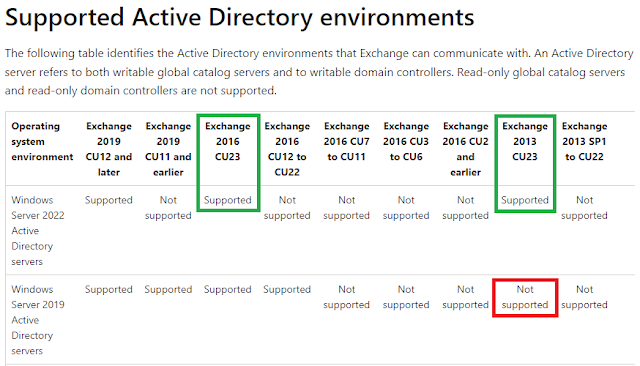
As Scott Schnoll mentioned at MEC 2022, Microsoft now supports Active Directory environments running on Windows Server 2022 beginning with Exchange Server 2013 CU23 and Exchange Server 2016 CU23.


It's interesting to note that Exchange 2013 CU23 does not support Windows Server 2019 Active Directory, so if you're running Windows Server 2016 AD or earlier you should plan accordingly. There are no issues upgrading AD directly from a previous version to 2022, bypassing 2019 AD.

The highest Active Directory forest functional level supported by all supported versions of Exchange Server is still Windows Server 2016.

View the Exchange Server supportability matrix | Microsoft Learn here.


Read more ...

How to Setup Exchange Management Tools in Environments without Exchange Server

Friday, October 14, 2022

Some Exchange Online customers have an Active Directory on-premises, but never had Exchange Server on-prem. For example, customers who migrated their email from an Exchange hosted environment or from a different email system, such as Notes.

In some environments, these customers are having to manage user accounts and groups in both AD and Azure AD. This leads to confusion since accounts and passwords are not synced, so usernames and passwords can be different. Those customers may be looking for a way to master accounts, groups, and mailboxes from AD on-prem so they have a single source of authority, similar to the way that hybrid customers do.

In other environments, customers are using Azure AD Connect to sync users from AD on-premises to the cloud. Here, user accounts and groups are managed on-premises, but mailboxes are managed in Exchange Online. These customers may be looking for a way to manage mailboxes and groups from AD, so they also have a single source of authority.

The following steps will let you install the Exchange 2019 Exchange Management Tools (EMT) in an AD environment without having to install Exchange Server. 

Keep in mind that this solution is not supported by Microsoft, since manual configurations must be made in AD using ADSI Edit. The Microsoft supported way to do this is to install an Exchange Server in the org. The solution below does not require this.

Prerequisites

  • Active Directory is installed and the Forest Functional Level is Windows Server 2012 R2 or higher.
  • The Exchange Management Tools (EMT) must be installed on a domain-joined computer. Azure AD-joined by itself is not enough, since we need to be able to update Active Directory.
  • EMT can be installed on Windows 10, Windows 11, or any Windows Server 2016+ server.
  • You will need the Exchange Server 2019 CU12 or later media.
  • The AD schema will be updated during EMT installation. These procedures assume the installation is being performed by a Domain Admin.

Steps for Installing the Exchange Management Tools

  • Logon to the domain-joined computer or server where you want to install the EMT as a Domain Admin. For ease of installation, it is recommended that this computer be in the same AD site as the AD Schema Master.
  • Install the .NET Framework 4.8.
  • Install the Visual C++ 2012 Runtime.
  • Install Windows Remote Server Administration Tools (RSAT) for Windows 10 or Windows 11. On Windows Server add the AD DS Tools from Server Manager.
  • Install the IIS 6 Metabase Compatibility component using the following command:
    • dism /online /Enable-Feature /FeatureName:IIS-IIS6ManagementCompatibility /all
  • Restart the management computer twice to ensure all files and installations are up-to-date.
  • Run Setup from the Exchange 2019 CU12+ media
    • Select only Management Tools in the Server Role Selection
    • You will be prompted to add the Exchange Organization Name (i.e., Contoso)
    • Restart the computer after EMT installation
  • Run the C:\Program Files\Microsoft\Exchange Server\V15\Scripts\Add-PermissionForEMT.ps1 script from an elevated PowerShell prompt to create the Recipient Management EMT security group in the Users container.
  • Add admin accounts to the new Recipient Management EMT group. Domain Admins already have rights to run the EMT and do not need to be added.
  • Create a shortcut on the Desktop to the EMT:
    • C:\Windows\System32\WindowsPowerShell\v1.0\powershell.exe -noexit -command "Add-PSSnapin *RecipientManagement"
    • Configure the shortcut to run as Administrator
Note:
All mailbox management will be done using the EMT PowerShell cmdlets. The Exchange Management Shell (EMS) will also be installed, but you will never use it because you have no Exchange Server to connect to.

There is no built-in GUI for EMT recipient management, but fellow Office Apps & Services MVP Steve Goodman wrote one on GitHub. You may want to check it out. 

Also, be aware that the EMT does not support roles based access controls (RBAC) and there is no auditing available. For complete Microsoft EMT documentation see Install the Exchange management tools | Microsoft Learn.

Microsoft Exchange System Objects (MESO) Configuration

In order for admins to create remote mailboxes, you need to add a remote domain to the Exchange configuration partition in Active Directory. This is done using ADSI Edit. The usual disclaimer applies - Don't use this tool unless you know what you're doing. I accept no responsibility. Yada yada yada.
  • Begin by getting your Microsoft 365 tenant's remote routing domain.
    • Open Exchange Admin Center
    • Navigate to Mail Flow > Accepted Domains
    • Record the accepted domain of the domain that looks like domain.mail.onmicrosoft.com
  • Open ADSIEdit.msc from the management computer. This was installed when you installed the Windows Remote Server Administration Tools (RSAT).
  • Connect to the Configuration Naming Context.
  • Navigate to CN=Configuration > CN=Services > CN=Microsoft Exchange > CN=domain > CN=Global Settings > CN=Internet Message Formats
  • Right-click CN=Internet Message Formats and select New > Object...
  • Select the class msExchDomainContentConfig and click Next
  • Enter Hybrid Domain - domain.mail.onmicrosoft.com for the value, using the value recorded above. Click Next and Finish.
  • Edit the Hybrid Domain you just created and set the following values:
    • contentType: 0
    • domainName: domain.mail.onmicrosoft.com, using the value recorded above
    • msExchContentByteEncoderTypeFor7BitCharsets: 15
    • msExchContentPreferredInternetCodePageForShiftJis: 0
    • msExchDomainContentConfigFlags: 1
    • msExchMinAdminVersion: -2147453113
    • msExchResolveP2: 2147483647
    • msExchRoutingAcceptMessageType: 351
    • msExchRoutingDisplaySenderEnabled: True
    • msExchVersion: 4535486012416
    • sendTNEF: True
  • Close ADSI Edit.

Add the remote routing domain as an accepted domain.
  • Run the following from an elevated EMT prompt, using the value you recorded above:
    • New-AcceptedDomain domain.mail.onmicrosoft.com -DomainName domain.mail.onmicrosoft.com

Update the email address policy that was created when the EMT was installed.
  • Run the following from an elevated EMT prompt:
    • Get-EmailAddressPolicy | Set-EmailAddressPolicy -EnabledEmailAddressTemplates "SMTP:@domain.com","smtp:@domain.mail.onmicrosoft.com"
    • Replace the domains with the correct values.
      • SMTP:@domain.com (SMTP in all caps) is the primary SMTP address for your organization.
      • smtp:@domain.mail.onmicrosoft.com is the remote routing domain that you recorded above.

Now you can run all the EMT cmdlets to update your on-prem user accounts, mailboxes, and groups.

Configure AD Synchronization with Azure AD

Now that you have a way to update Exchange attributes in AD, the final step is to configure Azure AD Connect to sync the AD objects with Azure AD. 

If your environment already has AAD Connect installed and configured, you only need to update the AAD Connect configuration to use Exchange Hybrid Deployment in Optional Features.


If your environment doesn't already have Azure AD Connect installed and configured, you will need to do so and perform a soft match of the AD accounts to Azure AD. That's beyond the scope of this article. 

If you need help please reach out to me at EXPTA Consulting.

Read more ...

New Version of AAD Connect Fixes Vulnerability

Thursday, July 7, 2022

Microsoft released Azure AD Connect version 2.1.15.0 today. This version fixes a vulnerability that was discovered in the Azure AD Connect Admin Agent. If you have installed the Admin Agent previously it is important that you update your Azure AD Connect server(s) to this version to mitigate the vulnerability.

The Azure AD Connect Admin Agent collects specific data from your Active Directory environment that helps a Microsoft support engineer to troubleshoot issues when you open a support case. See What is the Azure AD Connect Admin Agent - Azure AD Connect - Microsoft Entra | Microsoft Docs for more information.

Be aware that installing this version will cause AAD Connect to perform an Initial (Full) sync.

This update will roll out soon automatically if your configuration is enabled for auto-upgrade.

In addition to fixing the vulnerability, there are some functional changes and bug fixes. See Azure AD Connect: Version release history - Microsoft Entra | Microsoft Docs for full details.

Functional changes

  • We have removed the public preview functionality for the Admin Agent from Azure AD Connect. We will not provide this functionality going forward.
  • We added support for two new attributes: employeeOrgDataCostCenter and employeeOrgDataDivision.
  • We added CerificateUserIds attribute to AAD Connector static schema.
  • The AAD Connect wizard will now abort if write event logs permission is missing.
  • We updated the AADConnect health endpoints to support the US government clouds.
  • We added new cmdlets “Get-ADSyncToolsDuplicateUsersSourceAnchor and Set-ADSyncToolsDuplicateUsersSourceAnchor“ to fix bulk "source anchor has changed" errors. When a new forest is added to AADConnect with duplicate user objects, the objects are running into bulk "source anchor has changed" errors. This is happening due to the mismatch between msDsConsistencyGuid & ImmutableId. More information about this module and the new cmdlets can be found in this article.

Bug fixes

  • We fixed a bug that prevented localDB upgrades in some Locales.
  • We fixed a bug to prevent database corruption when using localDB.
  • We added timeout and size limit errors to the connection log.
  • We fixed a bug where, if child domain has a user with same name as parent domain user that happens to be an enterprise admin, the group membership failed.
  • We updated the expressions used in the "In from AAD - Group SOAInAAD" rule to limit the description attribute to 448 characters.
  • We made a change to set extended rights for "Unexpire Password" for Password Reset.
  • We modified the AD connector upgrade to refresh the schema – we no longer show constructed and non-replicated attributes in the Wizard during upgrade.
  • We fixed a bug in ADSyncConfig functions ConvertFQDNtoDN and ConvertDNtoFQDN - If a user decides to set variables called '$dn' or '$fqdn', these variables will no longer be used inside the script scope.
  • Multiple accessibility fixes (see article for details).
Read more ...

Big Exchange News!

Wednesday, April 20, 2022

Lots of exciting announcements are being made today about Exchange Server on the EHLO Blog.

  • A new Exchange Management Tools update is being announced. This will allow customers who have completed their migration to Microsoft 365 Exchange Online an option to turn off (not remove!) their last Exchange Server. There are several large caveats to this -- The solution is PowerShell only, it does not support RBAC, and there is no auditing available. I'm working on a blog article that does a walkthrough and explains all the details.
  • The Hybrid Configuration Wizard is making several improvements, including MFA support.
  • Microsoft is changing the updates delivery model for Exchange Server to bi-annually, rather than (roughly) every quarter. This will allow customers more time for testing and deployment between releases.
  • Exchange Server 2019 is adding Windows Server 2022 support. Exchange 2019 CU12 and above can be installed on Windows Server 2019 or Windows Server 2022.
  • With the latest CUs, Exchange Server 2013/2016/2019 now supports Windows Server 2022 Active Directory environments. Exchange customers no longer need to put off upgrading their Domain Controllers.
  • New Microsoft Bounty Program for Exchange Server. A security vulnerability bounty program for Microsoft Exchange Server is being launched to help keep Exchange Server secure for all customers.
Read all about these exciting changes here: Released: 2022 H1 Cumulative Updates for Exchange Server

Read more ...

Yes, Virginia, You Can Buy Exchange 2019!

Monday, April 18, 2022

In the Beginning

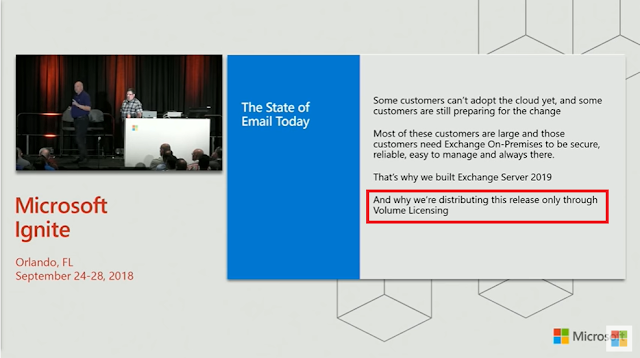
When Exchange 2019 was announced at Microsoft Ignite 2019, it was also announced that Exchange Server 2019 and its Cumulative Updates would be available only through the Volume Licensing Service Center (VLSC). It was explained that large enterprise customers were asking for security, reliability, and dependability. They want all the things that mean Exchange runs as a mission critical application.

Welcome to Exchange Server 2019! - BRK2176

As Greg Taylor, then Director of Product Marketing for Exchange Server/Online, said at the time, "For those customers who still want to stay on premises, that's the reason we built Exchange 2019. And that's also the reason why we are only going to distribute Exchange 2019 to those customers through Volume Licensing."

As anticipated, Exchange Server 2019 RTM and CUs 1-8 were only available through the VLSC and to developers for testing and application development through MSDN. And for the first time ever, the current version of Exchange Server was no longer available on the Office Servers Evaluation Center.

To access Exchange Server 2019 through the VLSC, customers must have an active agreement in one of the following Microsoft Volume Licensing programs:

  • Microsoft Enterprise Agreement (500+ seats)
  • Microsoft Products and Services Agreement (250+ seats)
  • Microsoft Open Value Agreement (5-499 seats)
See the Compare Microsoft Volume Licensing Programs resource document for full details.

I've found that most small-midsize customers mistakenly think that access to the VLSC requires an Enterprise Agreement or large minimum spend requirement. Plus, most of these customers buy licenses through a third-party license provider, like a Cloud Solution Provider or licensing distribution partners. Few of the customers I speak with have actually entered into a licensing agreement directly with Microsoft.

The VLSC requirement imposed a barrier that prevented these customers from accessing Exchange Server 2019. And if non-VLSC customers cannot get Exchange 2019, it means that Exchange 2016 is the latest version they could use for hybrid management after they have completed their migration to the cloud.

As we know, an Exchange server is still required for Exchange recipient management even after all mailboxes have been moved to Microsoft 365 since Active Directory is still the Source of Authority for hybrid customers.

Then HAFNIUM happened...

In March 2021 a state-sponsored hacking group called HAFNIUM targeted Exchange Servers around the world by exploiting zero-day vulnerabilities. Threat actors gained access to email servers and installed malware to facilitate long-term access to victim environments and to perform data exfiltration.

Microsoft quickly responded to HAFNIUM by releasing Security Updates (SUs) that patched the Exchange Server vulnerabilities and a short time later included these fixes in the March 2021 Quarterly Exchange Updates. In an effort to ensure that all customers could get and stay up-to-date, it was decided to publish Exchange Server 2019 CU9 and future CUs to the Microsoft Download Center in addition to the VLSC.

What This Means to Hybrid Customers

Exchange hybrid customers who have completed their migration to the cloud can now use Exchange Server 2019 as their hybrid management server. All customers can now run the latest version of Exchange server with the most recent CUs and SUs by downloading them from the Download Center, even with a Volume Licensing agreement.

CU's are build-to-build upgrades and contain a full server installation, so the latest CU can be used for a fresh installation. Always check the Exchange Team Blog for details on the latest CU. All customers, including hybrid customers, should keep their Exchange servers up to date using the N-1 support statement (the current and previous CUs and SUs are supported).

Keep in mind that currently there is no free Exchange hybrid license available for Exchange 2019 like there is for Exchange 2013/2016, so customers will need to license their Exchange Server 2019. See Big Exchange Announcements!

Customers with Exchange Server 2010 must keep in mind that Exchange Server 2019 will not install if Exchange 2010 is in the environment. Those customers must transition to Exchange Server 2016 and decommission Exchange 2010 before installing Exchange 2019.


Read more ...

Windows Server Reboot Loop After Installing January 2022 Security Updates

Sunday, January 16, 2022
It seems all my blog posts are about Microsoft update failures lately: (

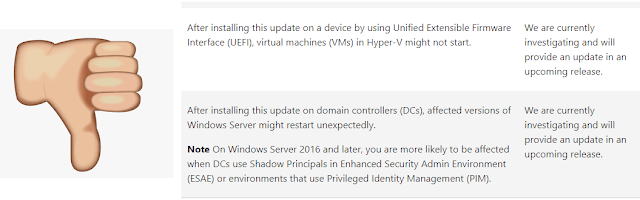
I've seen several reports of Windows Server 2012 R2, 2019, and 2022 getting stuck in a reboot loop after installing the January Windows Updates. Specifically, these updates:
  • KB5009624 for Windows Server 2012 R2
  • KB5009557 for Windows Server 2019
  • KB5009555 for Windows Server 2022
Microsoft is currently aware of the issue.


To fix the issue, restart the computer in Safe Mode which will allow you to login and remove the offending update from Windows Update. You can normally get into Safe Mode by pressing F8 immediately after the server starts.

Domain Controllers are a little more tricky, since there isn't a local user account to login with. For DCs you should restart in Safe Mode with Networking. This will allow you to login with a Domain Admin account.

To remove the update from the command line, run the the appropriate command for your operating system:

Windows Server 2012 R2:
wusa /uninstall /kb:5009624

Windows Server 2019:
wusa /uninstall /kb:5009557

Windows Server 2022:
wusa /uninstall /kb:5009555

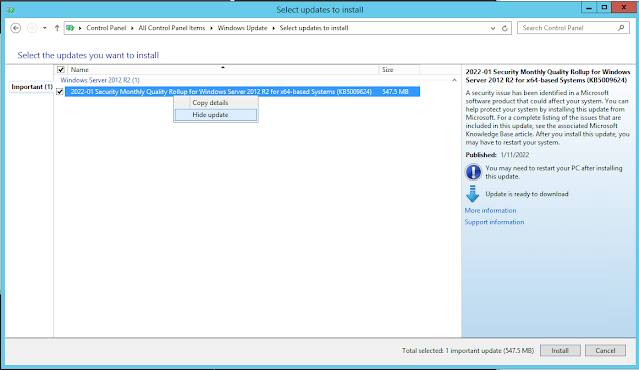
I found that if the server is configured to automatically download and install updates it will reinstall the errant update all over again. Grrrr. To prevent this, you can hide the update from reinstalling.
  • Uninstall the update and then run run Check for Updates from Windows Update in the server.
  • Right-click the update and select Hide Update to prevent it from being reinstalled.

I, for one, am really getting tired of poor quality of updates coming from Microsoft these days. There's simply no excuse for this.

UPDATE - January 17, 2022

Microsoft is releasing Out-of-band (OOB) updates today, January 17, 2022, for some versions of Windows. This update addresses issues related to VPN connectivityWindows Server Domain Controllers restartingVirtual Machines start failures, and ReFS-formatted removable media failing to mount. All updates are available on the Microsoft Update Catalog, and some are also available on Windows Update as an optional update. Check the release notes for your version of Windows for more information.

Updates for the following Windows versions are available on Windows Update as an optional update. For instructions, see the KB for your OS listed below:

·         Windows 11, version 21H1 (original release): KB5010795

·         Windows Server 2022: KB5010796

·         Windows 10, version 21H2: KB5010793

·         Windows 10, version 21H1: KB5010793

·         Windows 10, version 20H2, Windows Server, version 20H2: KB5010793

·         Windows 10, version 20H1, Windows Server, version 20H1: KB5010793

·         Windows 10, version 1909, Windows Server, version 1909: KB5010792

·         Windows 10, version 1607, Windows Server 2016: KB5010790

·         Windows 10, version 1507: KB5010789

·         Windows 7 SP1: KB5010798

·         Windows Server 2008 SP2: KB5010799

Updates for the following Windows versions are available only on Microsoft Update Catalog. For instructions, see the KB for your OS listed below:

·         Windows 8.1, Windows Server 2012 R2: KB5010794

·         Windows Server 2012: KB5010797


Read more ...